EasyManua.ls Logo

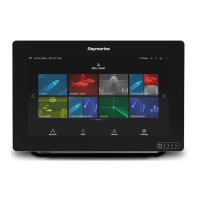
Raymarine A65 - User Manual

Raymarine A65
388 pages
Print Icon
To Next Page IconTo Next Page
Loading...
LightHouse™
OPERATION
INSTRUCTIONS
Release 15
English
© 2015 Raymarine UK Limited
Date: 09-2015
Document number: 81360-2-EN

Table of Contents

Other manuals for Raymarine A65

Questions and Answers

  • E
    erinmcdowellSep 13, 2025
    Why does the Raymarine app run slowly or not at all?
    • M
      Matthew SchaeferSep 13, 2025
      If the Raymarine app runs slowly or not at all, it may be due to device incompatibility. For iOS devices, best performance is achieved on iPhone 4 or later and iPad 2 or later. For Android/Kindle Fire, best performance is achieved with a 1GHz processor and better, running 2.2.2 or later. Also, ensure your MFD contains software application version 3.15 or later.
  • M
    Margaret SmithAug 25, 2025
    Why does my Raymarine Monitor not turn on or keep turning off?
    • S
      Stacy WoodAug 25, 2025
      Your Raymarine Monitor might not be turning on or keeps turning off due to several reasons: a blown fuse or tripped breaker (check and replace if necessary, and inspect for cable damage if fuses repeatedly blow), a poor or damaged power supply cable or connections (ensure the cable is fully inserted and locked, check for damage or corrosion, and flex the cable to check for reboots), incorrect power connection (ensure the installation instructions have been followed), or an insufficient power source (check the power supply voltage under load).
  • D
    dbellAug 25, 2025
    What to do if my Raymarine Monitor displays a “No Fix” GPS status icon?
    • C
      crystalbenitezAug 26, 2025
      If your Raymarine Monitor displays a 'No Fix' GPS status icon, it could be due to your geographic location or prevailing conditions preventing a satellite fix (check periodically in better conditions or another location), a GPS connection fault (ensure external GPS connections and cabling are correct), or an external GPS antenna in a poor position (ensure the GPS antenna has a clear view of the sky).
  • J
    jaime02Aug 26, 2025
    What to do if my Raymarine Monitor will not boot up (re-boot loop)?
    • M
      Margaret TapiaAug 26, 2025
      If your Raymarine Monitor will not boot up, it could be due to the power supply and connection issues. Also, in the unlikely event that the product's software has become corrupted, please try re-flashing the latest software from the Raymarine website. On display products, as a last resort, you can try to perform a ‘Power on Reset’; however, this will delete all settings/presets and user data and revert the unit back to factory defaults.
  • S
    Sheila ClarkSep 14, 2025
    Why is the Wi-Fi signal weak on my Raymarine Marine GPS System?
    • W
      Wesley DelgadoSep 14, 2025
      If you are experiencing a weak or intermittent Wi-Fi signal on your Raymarine Marine GPS System, temporarily disable each wireless device in turn until you have identified the device causing the interference.
  • T
    timothy71Sep 23, 2025
    How do I correct the bearing on my Raymarine Marine GPS System radar?
    • J
      jennifershortSep 23, 2025
      If the bearing of a target on the radar screen of your Raymarine Marine GPS System is incorrect, the radar bearing alignment likely requires correcting. Check and adjust the radar bearing alignment.
  • R
    robertschneiderSep 6, 2025
    Why are the controls on my Raymarine Marine GPS System erratic?
    • H
      howard88Sep 7, 2025
      If the controls on your Raymarine Marine GPS System are erratic or unresponsive, check that the controller and thermal camera are correctly connected to the network. Ensure that no other controllers are in use at the same time. Check the power/network cabling to the controller and PoE injector.
  • M
    Michelle ReyesSep 7, 2025
    Why is my Raymarine Marine GPS System showing an incorrect speed reading?
    • R
      ryan42Sep 7, 2025
      If you're getting an incorrect speed reading on your Raymarine Marine GPS System, check that the paddle wheel is clean. Add a speed offset if none is set. Re-calibrate the equipment if necessary.
  • M
    Michael ThompsonSep 23, 2025
    Why won't my Raymarine Marine GPS System radar initialize?
    • D
      David HaasSep 23, 2025
      If your Raymarine Marine GPS System radar will not initialize and the Voltage control module (VCM) is stuck in “sleep mode”, check the power connection at the VCM. Verify the voltage at the input is 12 / 24 V and the voltage at the output is 40 V.
  • M
    martinannetteAug 31, 2025
    Why is video not displayed on my Raymarine Marine GPS System?
    • M
      Mr. Thomas BrownAug 31, 2025
      If the video is not displayed on your Raymarine Marine GPS System, it could be because the camera is in Standby mode. Use the camera controls (either the thermal camera application or JCU) to wake the camera from standby. Also, check the thermal camera video cables to ensure they are properly connected. Finally, verify the power connections to the camera and JCU / PoE injector (if used).

Summary

LightHouse Operation Instructions

Document and Software Changes

Chapter 1: Important Information

Safe Navigation and Route Generation Warnings

Covers safe navigation practices, route generation limitations, and traffic separation rules.

Equipment Operation Safety Warnings

Safety precautions for radar transmission, sonar operation, and touchscreen display usage.

Care and Handling of Cards and Product

Covers care for chart/memory cards, secure card reader, sun covers, and product cleaning.

Chapter 3: Getting Started

Initial Setup Procedures and Vessel Details

Guides through startup wizard, boat details (depth, beam, height), time/date, data master, and GPS setup.

Chapter 4: Managing Display Data

Saving and Restoring User Data

Instructions for saving, exporting, importing, and erasing waypoints, routes, tracks, and settings.

Chapter 5: Customizing Your Display

Chapter 7: Autopilot Control

Autopilot Control Overview and Enabling Procedures

Introduces autopilot control features and guides on enabling it for different autopilot types.

Engaging, Disengaging, and Adjusting Autopilot

Instructions on engaging, disengaging, and adjusting the autopilot's heading and modes.

Pilot Set-up, Settings, and Commissioning

Covers pilot set-up, vessel settings, drive settings, rudder alignment, and system monitoring.

Chapter 8: Alarm Management

Alarms Overview and Management Functions

Explains alarm types, color coding, acknowledging alarms, and using the Alarm Manager.

Changing Alarm Thresholds and Managing History

Details how to change alarm thresholds, enable/disable alarms, and clear alarm history.

Alarm Options and Specific Settings

Configures safety, general, switch panel, and engine alarms, including thresholds and options.

Chapter 9: Man Overboard (MOB)

Man Overboard (MOB) Functionality and Activation

Explains how to activate, cancel MOB alarms, and the waypoint (MOB) button/icon.

Chapter 10: DSC VHF Radio Integration

Chapter 11: Fuel Manager

Fuel Manager Overview, Setup, and Logging Procedures

Explains fuel manager overview, enabling/disabling, setting capacity, economy units, and fuel logging.

Chapter 12: AIS (Automatic Identification System)

AIS Overview and Prerequisites for Operation

Details AIS overview, target types, status, symbols, and system prerequisites for functionality.

Dangerous Targets and Collision Avoidance Features

Details dangerous targets, collision avoidance features, target interception, and course/speed change examples.

Chapter 13: Waypoints, Routes, and Tracks

Waypoints Overview, Placement, and Group Management

Details waypoint display, context menu, placement, groups, searching, and symbols.

Route Creation and Management Procedures

Covers route features, building routes, automatic route generation, review, editing, and troubleshooting.

Chapter 14: Chart Application

Chart Application Overview and Core Features

Details chart application features for navigation, route planning, and electronic charts.

Collision Avoidance Features Overview

Details AIS, MARPA, Target Interception, Guard Zone Alarm, and Dangerous Targets for collision avoidance.

Chapter 15: Fishfinder Application

Fishfinder Features and Sonar Module Support

Details fishfinder features, sonar modules, selecting channels/transducers, and troubleshooting crosstalk.

Fishfinder Display Modes and Sensitivity Settings

Covers display modes (Zoom, A-Scope, Bottom Lock), sensitivity settings, gain, contrast, noise filter, alarms, and frequency tuning.

Chapter 16: Radar Application

Radar Application Overview, Features, and Scanner Status

Details radar features, scanner types, sensitivity controls, gain modes, and status symbols.

Radar Range, Image Quality, and Interference Factors

Covers radar range, image quality factors (side lobes, echoes, clutter, interference), and maximum range.

Collision Avoidance and MARPA Operations

Details collision avoidance features (AIS, MARPA) and MARPA operation and risk assessment.

Chapter 17: Data Application

Engine Identification and Boat Details Setup

Covers engine data display, identification wizard, and setting boat details like engines and fuel tanks.

Chapter 18: Camera Application

Camera Application Overview and Feed Management

Details camera application overview, changing feeds, switching streams, Quad View, and camera cycling.

Recording, Playback, Photo Capture, and LED Control

Explains recording IP camera feeds, playback, taking photos, viewing images, and camera LED control.

Chapter 19: Thermal Camera Application - Pan and Tilt Cameras

Thermal Camera Overview and Image Display Features

Details thermal camera overview, image display, status icons, setup, and image adjustments.

Chapter 20: Thermal Camera Application - Fixed Mount Cameras

Fixed Mount Thermal Camera Overview and Image Display

Details fixed mount thermal camera overview, image display, status icons, setup, and image adjustments.

Chapter 21: Wi-Fi and Mobile Applications

MFD Wi-Fi and Access Point Connection

Covers enabling MFD Wi-Fi, connecting to access points/hotspots, and removing saved networks.

Chapter 22: Media Player Application

Chapter 25: Weather Application (North America only)

Chapter 26: Troubleshooting

General Troubleshooting and Power Issues

Provides general troubleshooting steps and solutions for power-up problems.

Radar and GPS Troubleshooting Guidance

Covers troubleshooting for radar issues (no data, incorrect bearing) and GPS issues (no fix).

Route Generation and Sonar Troubleshooting

Addresses issues with automatic route generation and sonar problems (scrolling, depth, interference).

Video, Wi-Fi, Bluetooth, Touchscreen, and Miscellaneous Issues

Covers troubleshooting for video, Wi-Fi, Bluetooth, touchscreen, and general erratic behavior.

Raymarine A65 Specifications

General IconGeneral
GPSYes
ChartplotterYes
Radar CompatibleYes
SonarYes
Display TypeColor LCD
Chart CompatibilityNavionics

Related product manuals