Checkingsoftwareversions
Y
oucancheckthesoftwareversionofyourradioandconnectedcomponents.
FromtheHomescreen:
1.Select
Menu>Set-up>Maintenance>Aboutthisunit.
2.Scrolldown.
Softwareversionsofconnectedcomponentsaredisplayed.
P
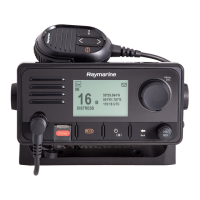
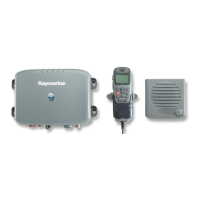
erformingsoftwareupdates—Raymichandset
IfyourwiredhandsetisrunningsoftwareversionV1.32orabovethenthehandsetwillbeupdated
automaticallyatthesametimeastheBasestation.Ifyouhandsetisrunningasoftwareversionbelow
V1.32thenyourBasestationandhandsetmustbeupdatedseparately.
•TheradiomustbeconnectedtoacompatibleMFDoverSea Talkng®.
•TheDatamasterMFDmustbeusedtoperformsoftwareupdate.
•OnceyouhaveupdatedyourBasestationsoftwarefollowthestepsbelowtoupdateyourhandset.
1.Ensureamemorycardthatcontainsthenecessarysoftwarefilesisinsertedintothecardreader
ofyourMFD.
2.WiththeRadio’sBasestationpoweredon,turnofftheRaymicHandsetbypressingthe Power
buttonlocatedonthetopoftheHandset.
3.Pressandholdthe DistressandPTTbuttonsontheHandset.
4.PresstheHandset
Powerbuttonfor1second,untilthebacklightturnson,andthenreleaseall
threebuttons.
TheHandsetisnowinupdatemode.
5.NowcheckforsoftwareupdatesusingyourMFD:
•LightHouse™2—FromtheHomescreenselect: Set-up>Maintenance>CheckCardfor
Updates.
•LightHouse™3—FromtheHomescreenselect:
Settings>Updatedsoftware>CheckSDcard.
6.SelectyourRadioandselect Update.
(TheLCDbacklightwillflashwhentheupdateisinprogress.)
7 .Whentheupdateiscomplete,checkyourradiossoftwareversion.
8.Removedthememorycardfromthecardreader.
Documentandproductinformation
15



 To Next Page
 Loading...