50
11. CONNECT TO WI-FI WITH
RAYMOTE
Before initiating the provisioning process, make sure
a reliable Wi-Fi access point is located near the unit or
control room and a Wi-Fi network password is available.
Date: _______________________________________
Wi-Fi Network Name
(SSID): ______________________________________
Wi-Fi Password: _______________________________
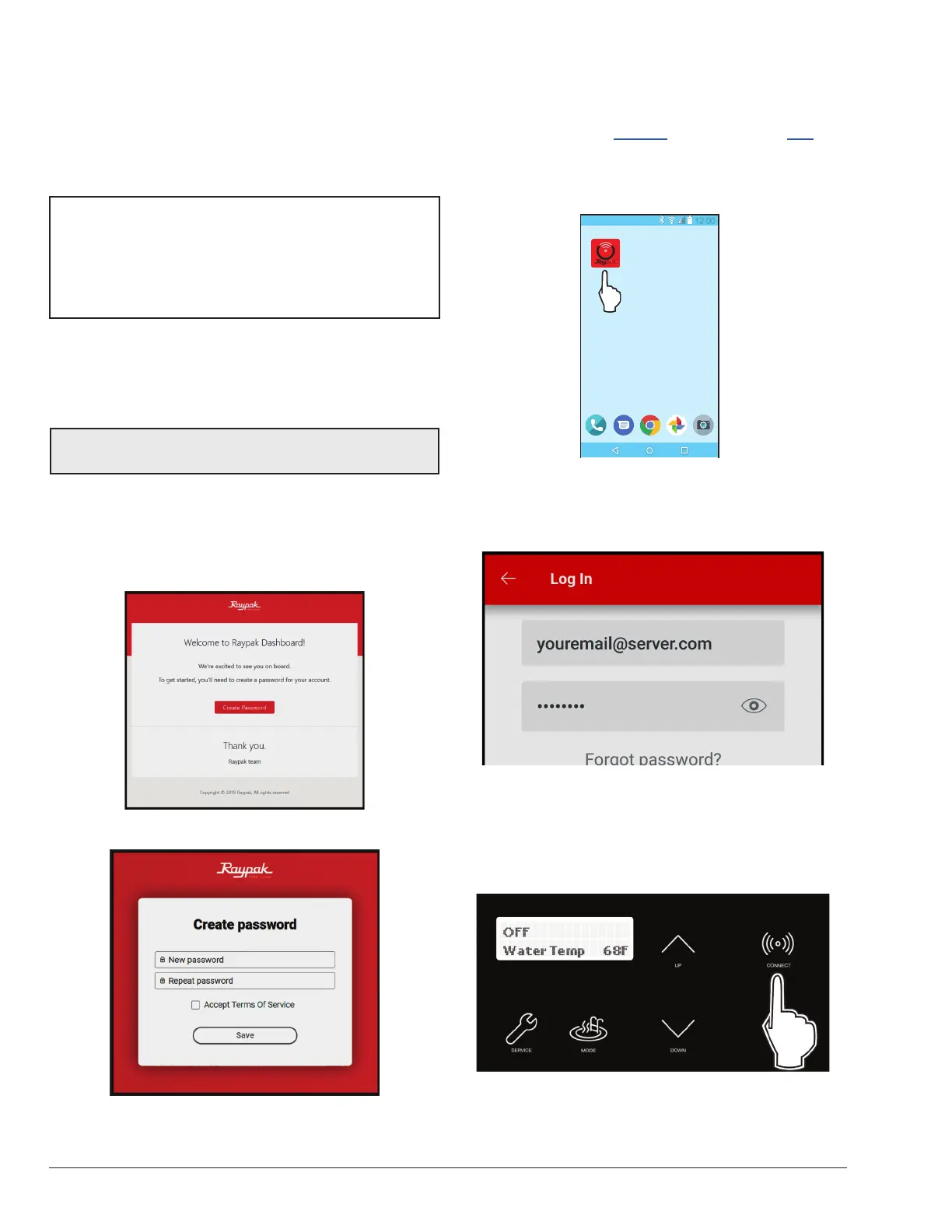
Raymote User Registration
Sign up from your mobile device with the Raymote App.
Use your email to create a new account. You'll receive an
email conrmation. See Figure 75.
NOTE: Check your email spam if you do not receive an
email within 5-minutes in your inbox.
Use your email address as the Raymote user, then create
a secure password. See Figure 76.
Once the user registration is complete, you can begin
to add your AVIA heaters via the Raymote mobile app.
See Figure 81.
Figure 75. Welcome Raypak Dashboard
Figure 76. Create Password
Downloading the Raymote Mobile App
1. Download and install the Raymote mobile app from
the Google Play (Android): or App Store (iOS): on
your mobile device.
2. Find the Raymote mobile app icon on your device.
See Figure 77.
12:00
Figure 77. Find your Raymote Mobile App Icon
3. Open the Raymote mobile app and log in with your
user name and password. See Figure 78.
Figure 78. Log in the Raymote Mobile App
Preparing the Unit for Connection
1. Stand near the display of the AVIA unit. Press the
CONNECT key. See Figure 79.
Figure 79. CONNECT Key


 To Next Page