53
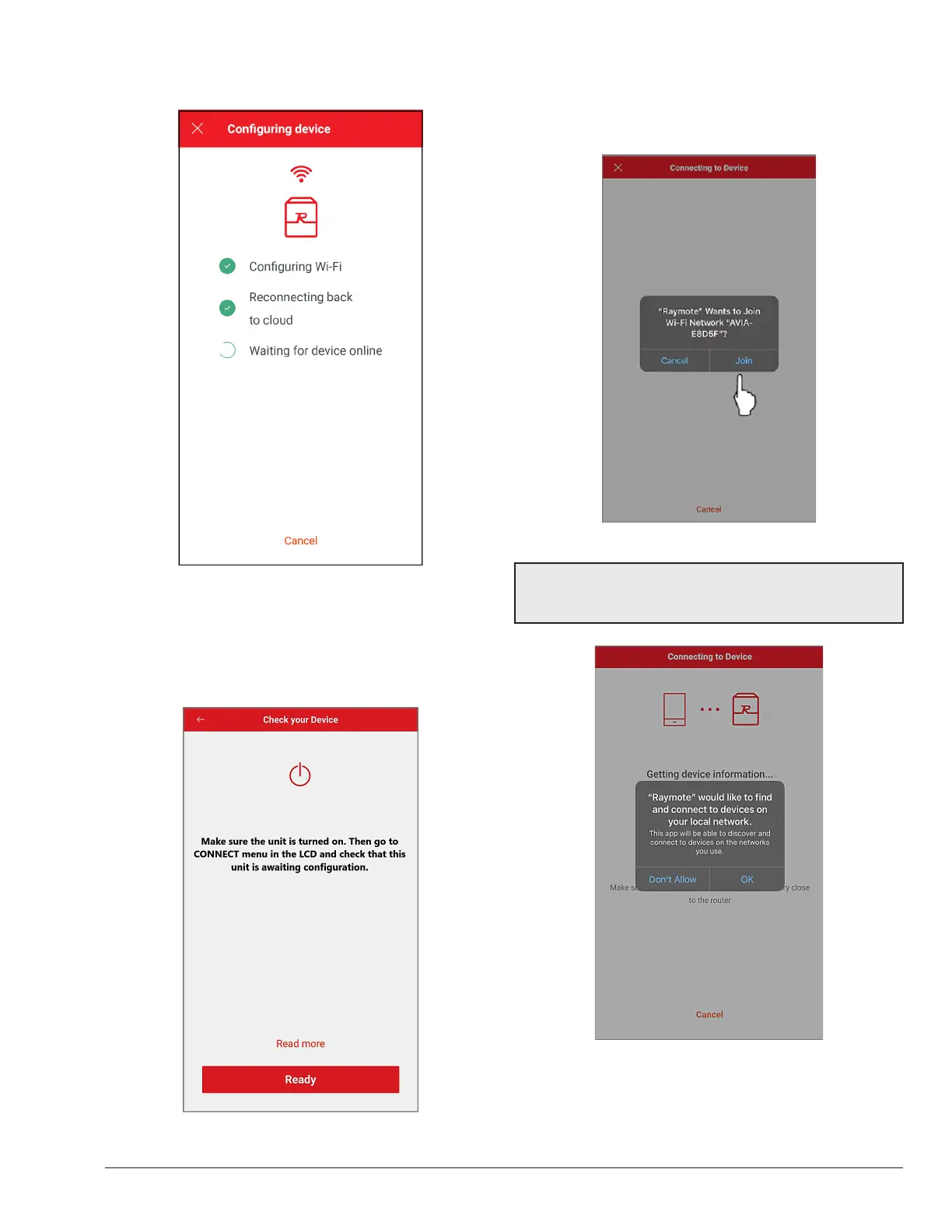
6. The Raymote mobile app will provide the Wi-Fi
network credentials to your unit. See Figure 88.
Figure 88. Conguring Device
Add a New Device on your IPhone
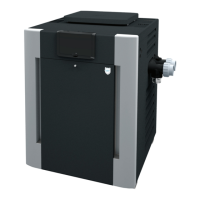
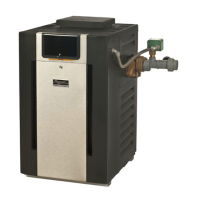
1. "Check your Device" screen will appear. Ensure to
have AVIA heater powered and Wi-Fi signal available
in the area, then press the "Ready" button.
Figure 89. Check your Device
2. Raymote app will start to scan nearby Heaters.
Available heaters will be displayed.
3. Press "Join" to select the displayed heater or press
"Cancel" to continue searching for another heater.
Figure 90. Connect to Device
NOTE: The rst time you use a new phone, the Raymote
mobile app will require you grant permission to access
data. See Figure 91.
Figure 91. Grant Permission
4. The "Wi-Fi setup" screen will appear. Select or enter
the Wi-Fi network you want your unit to be connected
to and enter the network password. See Figure 92.
5. Press the "Continue" button.


 To Next Page