EasyManua.ls Logo

Realistic PRO-2024 - Moving Frequency from Monitor Memory; Using the Reset Button; Setting Volume and Squelch; Scanning the Channels

Realistic PRO-2024
14 pages
Print Icon
To Next Page IconTo Next Page
To Previous Page IconTo Previous Page
Loading...
MOVING
A
FREQUENCY
FROM
A
MONITOR
MEMORY
TO
A
CHANNEL
In
the
monitor
mode,
the
monitor
memory
number
shows
the
current
monitor
memory.
To
listen
to
monitor
memories,
press
[MANUAL],
and
then
press
[MONITOR]
to
put
the
scanner
in
the
monitor
mode.
To
listen
to
a
monitor
memory,
simply,
press
[MONITOR]
until
your
desired
monitor
memory
appears.
To
move
a
frequency
from
a
monitor
memory
to
a
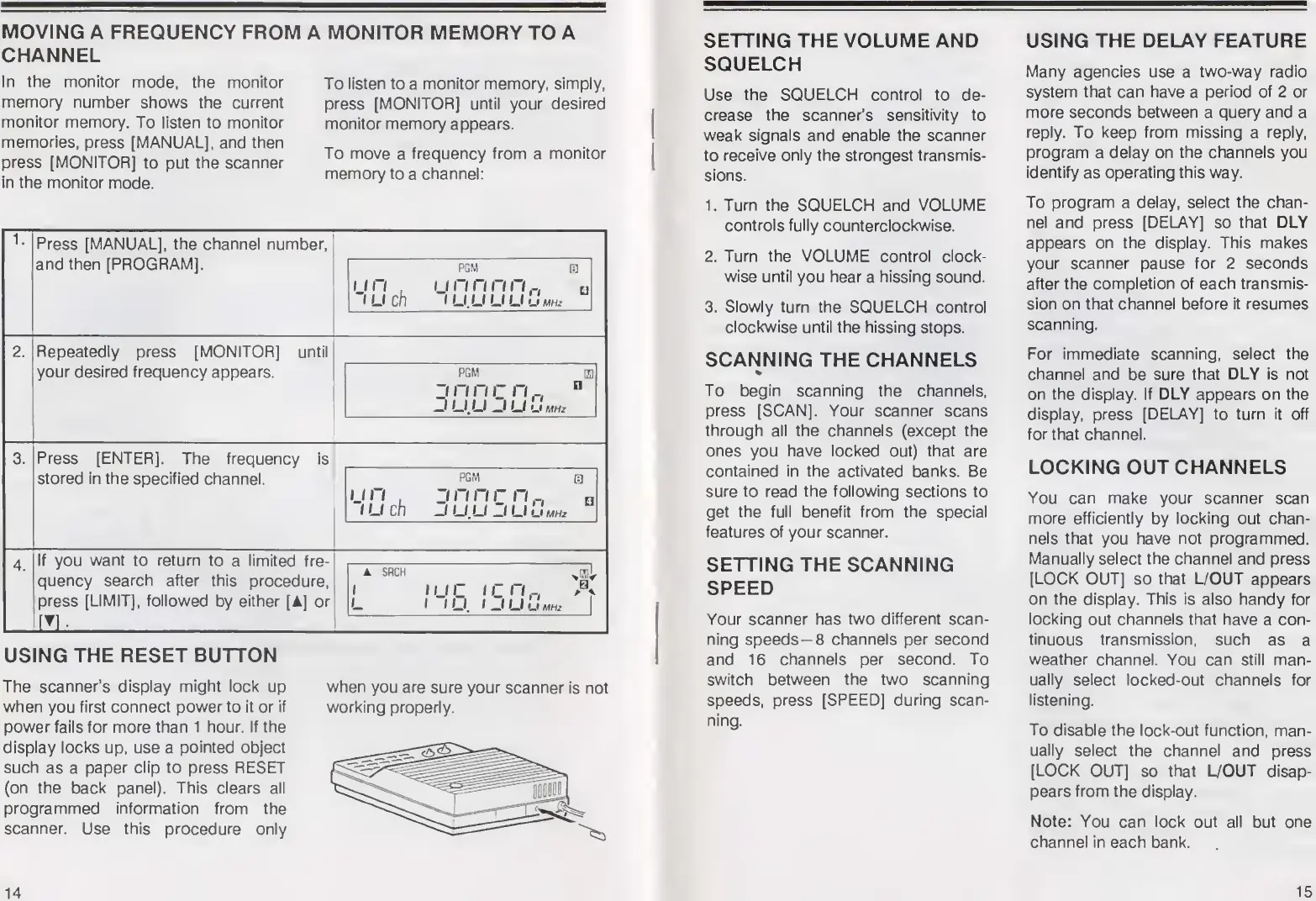
channel:
1
.
Press
[MANUAL],
the
channel
number,
and
then
[PROGRAM],
PGM
0
ijn
.
ij
n
n
n
n
a
iuch
IU.UUU
UM
2
.
Repeatedly
press
[MONITOR]
until
your
desired
frequency
appears.
PGM
El
i
n
n
r
n
0
J
uu
l
u
u
V
3.
Press
[ENTER],
The
frequency
is
stored
in
the
specified
channel.
pgm
a
U
n
,
j
n
n
r
n
a
i
u
ch
j
uu
Duit
m
hz
4.
If
you
want
to
return
to
a
limited
fre¬
quency
search
after
this
procedure,
press
[LIMIT],
followed
by
either
[
]
or
ilL_
A
SRCH
>
E)^
i
ii
ir
ir
n
A
L
1
IU.
IJUumhz
USING
THE
RESET
BUTTON
The
scanner’s
display
might
lock
up
when
you
first
connect
power
to
it
or
if
power
fails
for
more
than
1
hour.
If
the
display
locks
up,
use
a
pointed
object
such
as
a
paper
clip
to
press
RESET
(on
the
back
panel).
This
clears
all
programmed
information
from
the
scanner.
Use
this
procedure
only
when
you
are
sure
your
scanner
is
not
working
properly.
14
SETTING
THE
VOLUME
AND
SQUELCH
Use
the
SQUELCH
control
to
de¬
crease
the
scanner’s
sensitivity
to
weak
signals
and
enable
the
scanner
to
receive
only
the
strongest
transmis¬
sions.
1.
Turn
the
SQUELCH
and
VOLUME
controls
fully
counterclockwise.
2
.
Turn
the
VOLUME
control
clock¬
wise
until
you
hear
a
hissing
sound.
3.
Slowly
turn
the
SQUELCH
control
clockwise
until
the
hissing
stops.
SCANNING
THE
CHANNELS
*
To
begin
scanning
the
channels,
press
[SCAN],
Your
scanner
scans
through
all
the
channels
(except
the
ones
you
have
locked
out)
that
are
contained
in
the
activated
banks.
Be
sure
to
read
the
following
sections
to
get
the
full
benefit
from
the
special
features
of
your
scanner.
SETTING
THE
SCANNING
SPEED
Your
scanner
has
two
different
scan¬
ning
speeds-8
channels
per
second
and
16
channels
per
second.
To
switch
between
the
two
scanning
speeds,
press
[SPEED]
during
scan¬
ning.
USING
THE
DELAY
FEATURE
Many
agencies
use
a
two-way
radio
system
that
can
have
a
period
of
2
or
more
seconds
between
a
query
and
a
reply.
To
keep
from
missing
a
reply,
program
a
delay
on
the
channels
you
identify
as
operating
this
way.
To
program
a
delay,
select
the
chan¬
nel
and
press
[DELAY]
so
that
DLY
appears
on
the
display.
This
makes
your
scanner
pause
for
2
seconds
after
the
completion
of
each
transmis¬
sion
on
that
channel
before
it
resumes
scanning.
For
immediate
scanning,
select
the
channel
and
be
sure
that
DLY
is
not
on
the
display.
If
DLY
appears
on
the
display,
press
[DELAY]
to
turn
it
off
for
that
channel.
LOCKING
OUT
CHANNELS
You
can
make
your
scanner
scan
more
efficiently
by
locking
out
chan¬
nels
that
you
have
not
programmed.
Manually
select
the
channel
and
press
[LOCK
OUT]
so
that
L/OUT
appears
on
the
display.
This
is
also
handy
for
locking
out
channels
that
have
a
con¬
tinuous
transmission,
such
as
a
weather
channel.
You
can
still
man¬
ually
select
locked-out
channels
for
listening.
To
disable
the
lock-out
function,
man¬
ually
select
the
channel
and
press
[LOCK
OUT]
so
that
L/OUT
disap¬
pears
from
the
display.
Note:
You
can
lock
out
all
but
one
channel
in
each
bank.
15

Related product manuals