reedinstrume nts
w ww
c om
8
Pantone 534 Blue
Pantone 123 Yellow
Pantone 485 Red
Pantone 123 Yellow
Pantone 534 Blue
Black
Rich Black -
20/20/20/100
Blue - 100/80/30/5
Yellow - 0/27/100/0
Red - 10/100/100/5
Yellow - 0/27/100/0
Blue - 100/80/30/5
Only if you REALLY need them:
Pantone 534 Blue - 100/80/30/5
Pantone 485 Red - 10/100/100/5
Pantone 123 Yellow - 0/27/100/
INSTRUMENTS
Recording
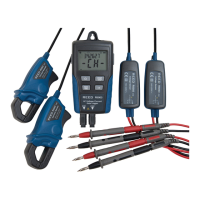
After Record Mode is set up by the software (see “Datalogging
Software” section for more information), press the START/STOP button
for more than 4 seconds to begin recording. The REC icon will display
and indicates the meter is recording data. Press the same button again
for more than 4 seconds to stop recording. Recording will stop when the
memory is full. When continuous recording is selected (in the software),
newer data will overwrite the oldest data when the memory is full.
Datalogging Software
Note: The datalogger is still running off its internal batteries when plugged
into the computer. Be sure there is sufcient battery power before
plugging the datalogger into a computer or data may be lost or corrupt.
1. Place the CD in the CD drive and follow the on-screen installation
instructions.
2. After the software is installed, keep the CD in the drive and
connect the datalogger to the PC by the USB cable.
3. A USB driver installation window will pop-up. Follow the directions
to install the driver.
System Requirements:
• Windows 2000 or Windows XP or Vista
• PC or NoteBook with Pentium 90MHz or higher 32 MB RAM
• At least 7 MB byte hard disk space available to install Datalogger
USB software
• Recommended display resolution 1024X768 with High Colour (16 bit)
Shop for Power Metering products online at:
1.877.766.5412
www.PowerMeterStore.ca


 To Next Page