39
4 Organizing your files
4.1 Import files to reMarkable
Use the reMarkable desktop app or the reMarkable mobile app to transfer
documents and ebooks onto your device. Once imported, your files will be synced
across your connected devices. reMarkable works best with our custom built apps
for iPhone, Android, PC and Mac.
Transfer files using the desktop app:
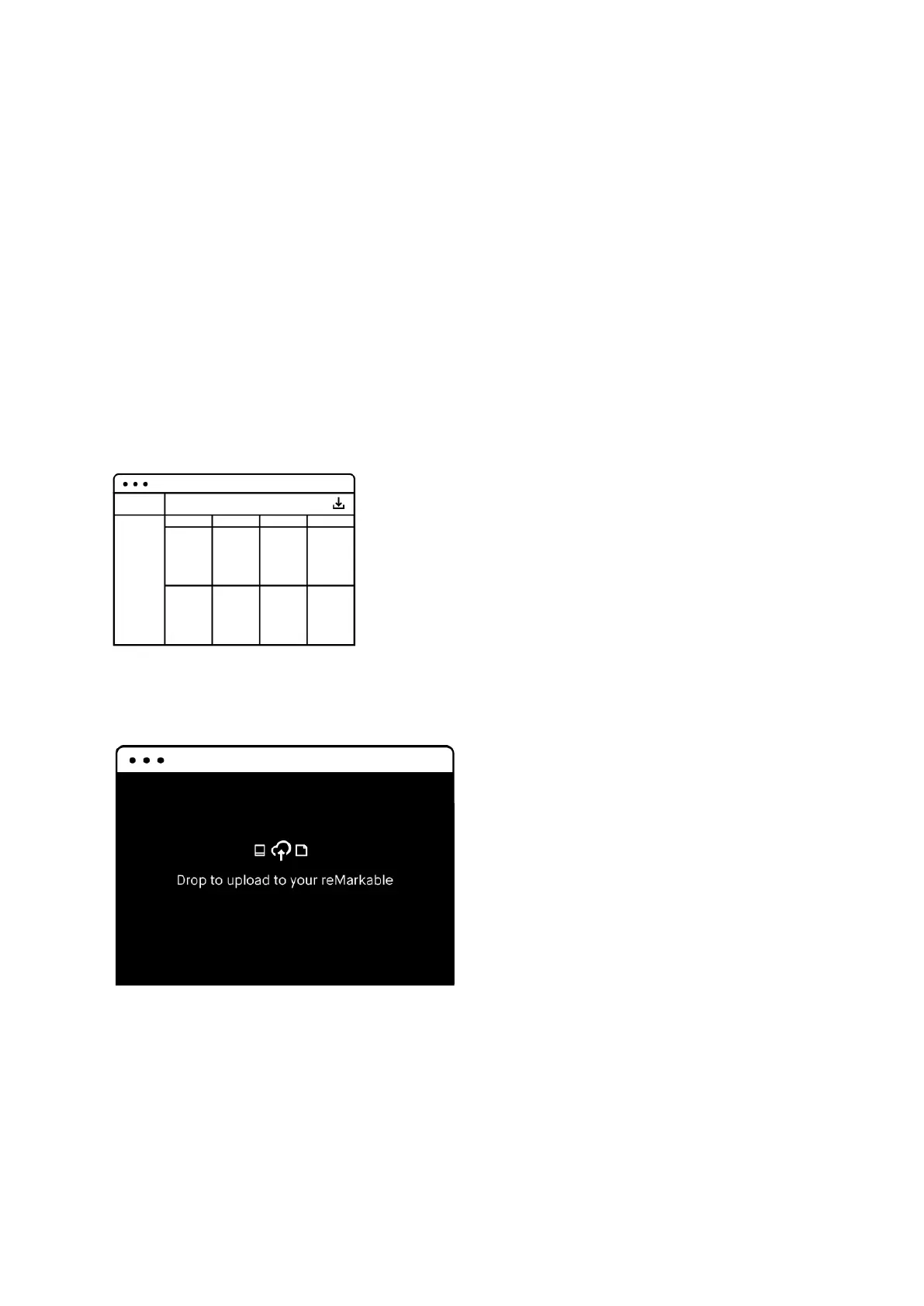
Import- button
1. Open the reMarkable desktop app.
2. Click the import button in the top right corner.
3. Select a file from the browser menu, and click open.
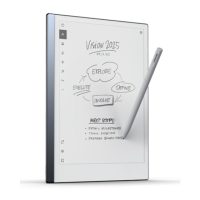
• Simply drag a file into the application window and the file
will by transferred to your connected devices.
The file will sync automatically to your device if you are connected to Wi-Fi. Only files
in the supported file formats (PDF and ePUB) will be transferred onto your device.


 To Next Page