GB.32
GUIDANCE (3/5)
– the special points and sections of the
route (e.g. toll gates, toll roads, mo-
torways, etc.);
– alternative routes (e.g. Short, Fast,
Economical).
Press 5 to display the following options:
– alternative routes;
– route;
– route settings.
Note: for further information, please
see overleaf.
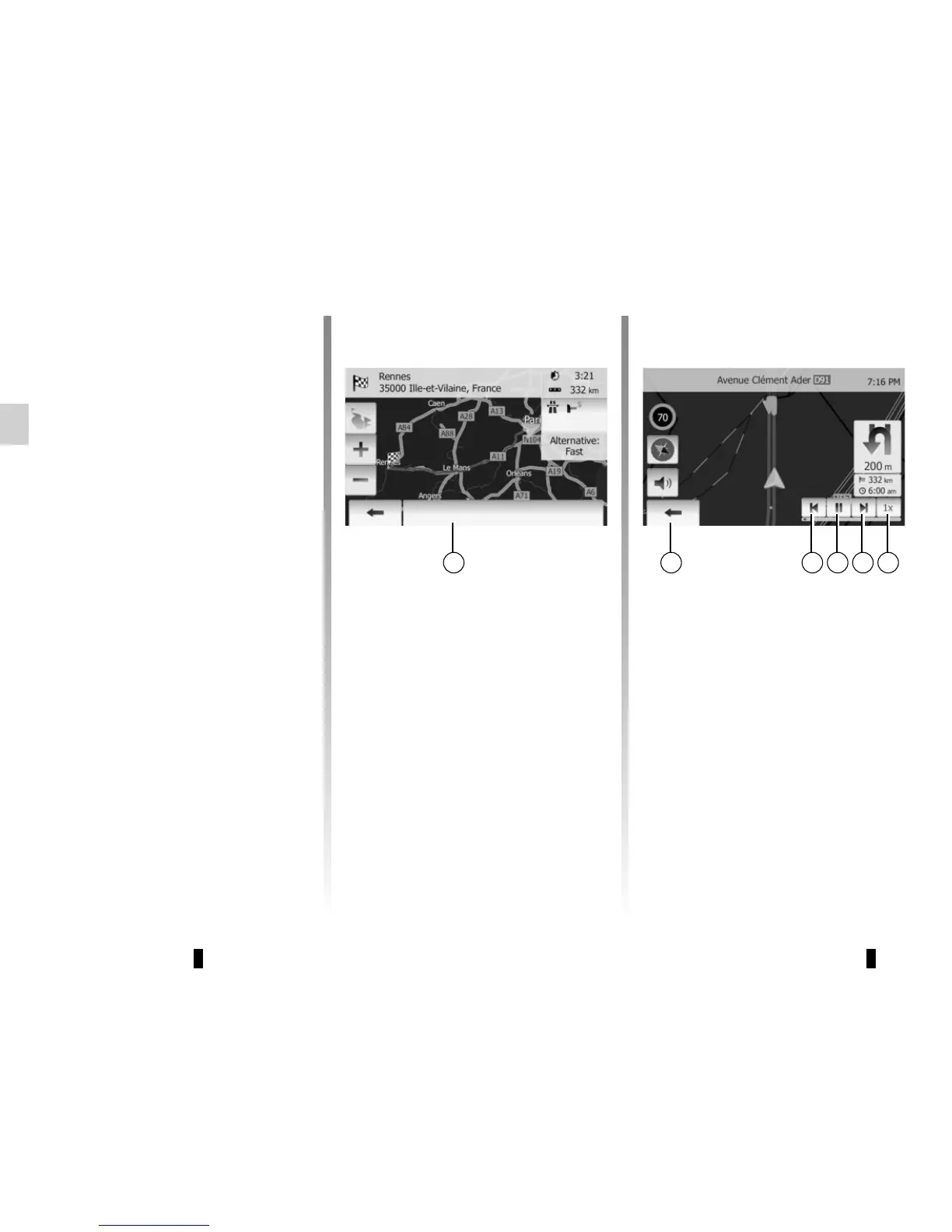
5
– Simulate Navigation
This function allows you to quickly
view the required route.
Start or pause the simulation by
pressing 8.
Tap 10 to increase the speed of the
simulation.
You can leave the route simulation at
any given moment by pressing 6.
You can move to previous/next ma-
noeuvre by pressing 7 or 9.
Route information
This function allows you to view your
route.
Select “Home” > “NAVI” > “Route” after
entering a destination.
Six choices will be given:
– “Edit Route”,
– “Avoidances”,
– “Overview”,
– “Cancel Route”,
– “Route Alternatives”,
– “Route”.
Route overview
Press “Home” > “NAVI” > “Route” >
“Overview” to get a map with an over-
view of the active route.
The following information will be given:
– The name and/or address of the des-
tination;
– The total time of the route;
– The total distance of the route;
76 8 9 10
Options


 To Next Page