32
10. Handling
a) Switching the device on and standby mode
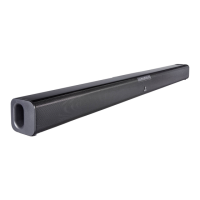
• After connecting the device to the mains, the TV soundbar will activate the standby mode. The standby
indicator lights up red.
• Use the buttons on the device or remote control to operate the TV soundbar. Some functions can only be
controlled with the remote control.
• Press the on/o switch (1, 19), to turn on the device. Press the on/o switch again to switch the
device back to standby mode.
• If the device does not detect any input signal for approx. 15 minutes, it will automatically switch to
standby mode. The standby indicator lights up red.
• Disconnect the power cable from the mains in order to fully turn o the device.
b) Selecting audio sources
Press the SOURCE (2) button repeatedly or press one of the audio source buttons (18) to select the desired
audio source.
The LEDs of the selected mode light up as followed:
AUX 1 green, steadily
AUX 2 green, ashing
BT (Bluetooth) blue, steadily
OPTICAL orange, steadily
c) Volume and mute settings
• Press the VOL + / VOL– buttons (4, 5, 17) to set the volume.
• To mute the sound, press the MUTE button (20). Press the MUTE button again or the VOL + / VOL– buttons
to turn the sound on again.
• The respective LED indicator ashes quickly while setting the volume.
• When the maximum volume setting has been reached and you continue to press the VOL +, the LED
indicator will ash once. When the minimum volume setting has been reached and you continue to press
VOL –, the LED indicator will ash once.
d) Sound settings
Select a pre-set sound using the MUSIC (music), MOVIE (video) or FLAT (neutral) buttons (23).
We recommend selecting the modes as followed:
MUSIC – Listening to music
MOVIE – Watching movies
FLAT – Pre-set deactivated


 To Next Page