08
SETUP WIZARD
USING THE SETUP WIZARD
The fi rst time you use SUPERCD you will be asked whether you would like to run the SETUP WIZARD.
The ‘WIZARD’ will run through a series of questions, and is the simplest way to get your device up
and running.
You can run the SETUP WIZARD again at any time, it can be found in the SYSTEM SETTINGS MENU.
Press the SELECT button, and start the SETUP WIZARD procedure.
1
2
Date/Time
12/24 hour format
12 24
*
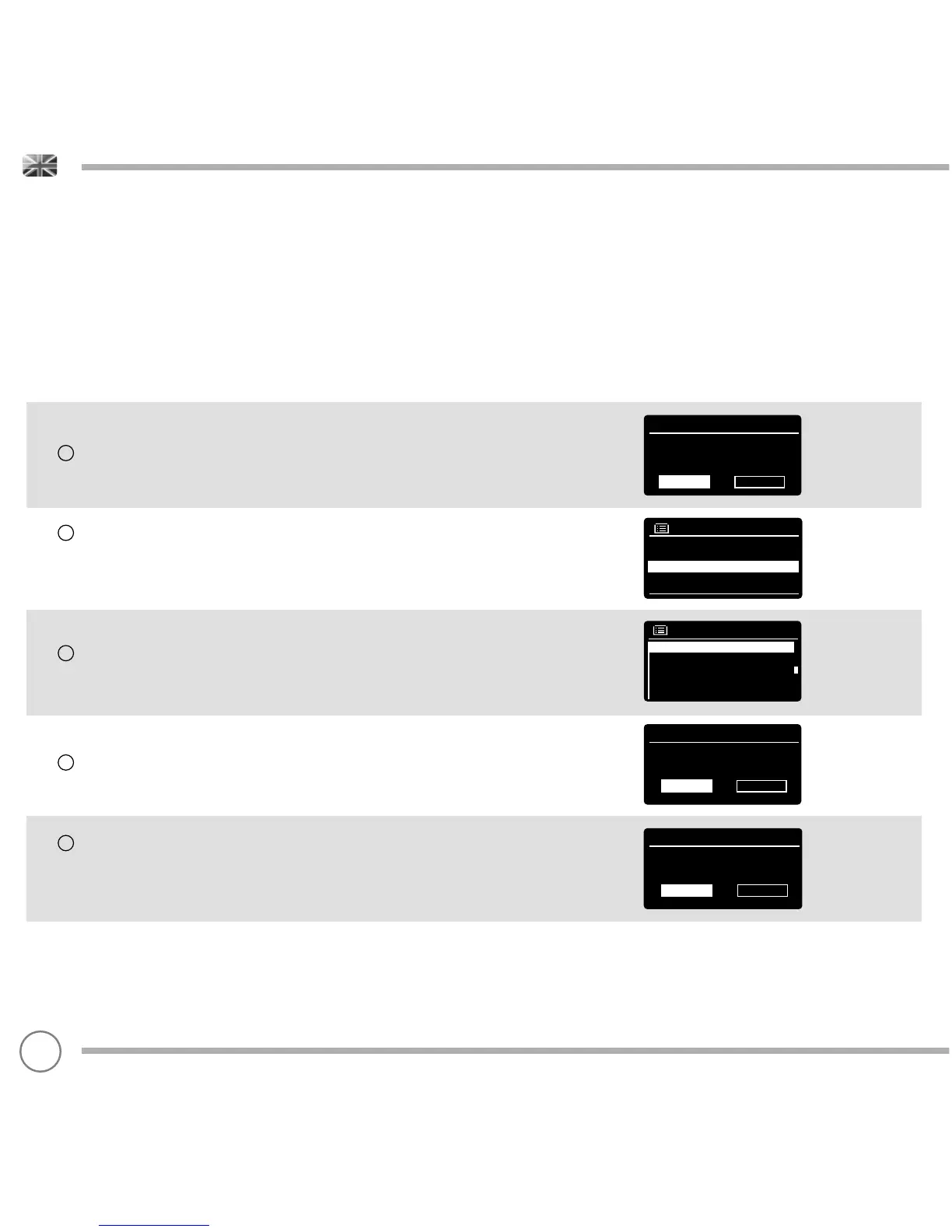
Choose and select your preferred hour format (12 or 24 hour).
Choose and select where you’d like SUPERCD to retrieve its clock
time from. (Note : If you’re using SUPERCD in a country where DAB
is broadcast, this is the simplest method to ensure the date/time
settings are correctly maintained.)
3
4
5
If you’ve chosen ‘Update from Network’ please Scroll and select your
local timezone from the menu.
If you’ve chosen ‘Update from Network’ please select your preferred
daylight savings status.
Set Timezone
UTC + 00 : 00 : Dublin , London#
UTC + 00 : 30 :
UTC + 01 : 00 : Madrid , Ar
UTC + 01 : 30 :
UTC + 02 : 00 : Athens , Ci
ON OFF
Daylight savings
Daylight savings
Auto update
Update from Network *
No update
Update from DAB
Update from FM
By selecting YES to ‘Keep Network Conected’, your SUPERCD will
remain connected to your WiFi network even when in non-internet
modes (DAB/FM) and when in standby. This allows you to access it
from the UNDOK app or SPOTIFY app at all times.
YES NO
Network settings
Keep network connected ?


 To Next Page