36
Using Wi-Fi and phone APP software download
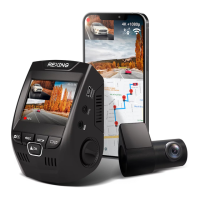
With the dash cam built-in Wi-Fi, you can use your smart device as a
remote camera, viewfinder, and download files to your phone.
*****PLEASE NOTE: WIFI FUNCTION CAN ONLY BE USED
BELOW 2160P RESOLUTION*****
Downloading the Wi-Fi App
• The Wi-Fi app is available to download for free
at the Apple App
Store™ and Google Play Store™.
• Android users: Enter the Google Play Store™, search for
‘TimaCam’or Rexing Connect, download and install, following this
user manual to connect the Wi-Fi and operate.
• iPhone users: Enter the Apple App Store™, search for ‘TimaCam’or
Rexing Connec, download and install, following this user manual to
connect the Wi-Fi and operate.
Pairing the camera to your device
1. Turn on the camera, press and hold the Wi-Fi key to star Wi-Fi
function
2. The LCD will show the Wi-Fi SSIN and password
3. Search for a Wi-Fi hotspot on your smart phone/tablet, select the
network and you will be prompted for a password; enter ‘12345678’
to proceed, once connected, only Wi-Fi function key can be used,
press and hold Wi-Fi key to quit Wi-Fi function
4. Open the “TimaCam” application on your smart phone/tablet


 To Next Page