EasyManua.ls Logo

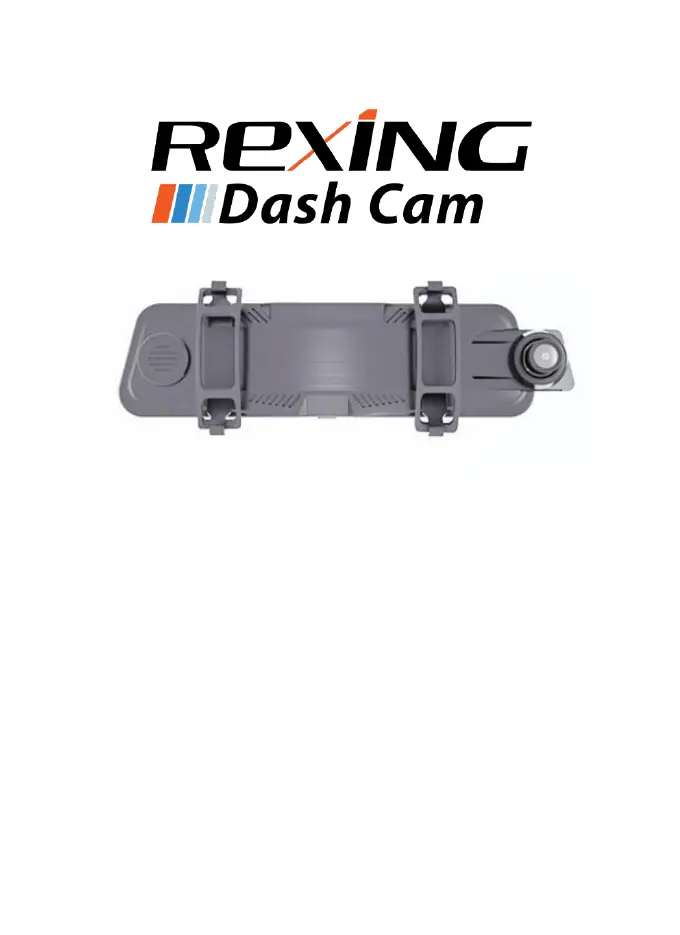
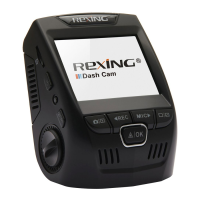
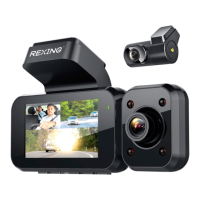
Rexing M1 - User Manual

Rexing M1
34 pages
Print Icon
To Next Page IconTo Next Page
Loading...
1
© 2019
REXING All Rights Reserved
Rexing M1
User Manual
The information in this manual is subject to change without notice.
www.rexingusa.com 03/2019Rev2

Other manuals for Rexing M1

Questions and Answers

  • R
    robertsmarkSep 3, 2025
    What to do if my Rexing M1 Dash Cameras memory card won’t stay in?
    • M
      Monica NorrisSep 3, 2025
      If the memory card won’t stay in your Rexing dash camera, it might not be compatible. Use your nail or a coin to push the memory card in until it clicks. The memory card might also be too thin, so try using a new one.
  • D
    Danielle HarperSep 18, 2025
    Why is the Auto On/Off feature not working on my Rexing M1 Dash Cameras?
    • L
      Lucas LeonSep 18, 2025
      The Auto On/Off feature on your Rexing dash camera will only work if it's being used in a charging port that turns off with the vehicle. If your car charging port has a continuous flow of power, this feature won't function.
  • B
    Brandon RitterSep 16, 2025
    Why can’t I open the Settings Menu on my Rexing Dash Cameras?
    • V
      Valerie RamirezSep 16, 2025
      If you can’t open the Settings Menu on your Rexing dash camera, it’s likely because the camera is currently recording. Tap the Record button to stop recording before attempting to access the Settings Menu.
  • J
    John SolisSep 14, 2025
    Why is my Rexing M1 segment recording not functioning?
    • M
      Michelle SmithSep 14, 2025
      If segment recording isn’t functioning on your Rexing dash camera, the G-sensor sensitivity might be too high. Make sure the G-sensor is on low sensitivity. It could also be that the memory card is full, so try formatting it.
  • G
    garciamelindaSep 12, 2025
    Why is my Rexing Dash Cameras rear camera not recording video?
    • K
      karen13Sep 12, 2025
      If the rear camera on your Rexing dash camera isn’t recording video, the rear camera extension cable may not be maintaining a stable connection. Use a new extension cable (3.5mm cable).
  • R
    rhodesaaronSep 12, 2025
    How to fix hazy images on Rexing Dash Cameras?
    • O
      oburgessSep 12, 2025
      If you're getting hazy images with your Rexing dash camera, the lens is likely dirty. Carefully clean any dust or fingerprints from the lens using a microfiber cloth.
  • M
    Matthew HickmanSep 9, 2025
    Why is my Rexing Dash Cameras powering off unexpectedly?
    • T
      thomasrhodesSep 9, 2025
      If your Rexing dash camera is powering off unexpectedly, it could be due to an incompatible memory card. Try restoring to default settings or using a new memory card. The camera may also not be getting continuous power.
  • M
    Michael ParkerSep 7, 2025
    Why is the display disabled after some time on my Rexing M1?
    • S
      smithmelissaSep 7, 2025
      If the display is disabled after some time on your Rexing dash camera, the Screen Saver feature might be enabled. Disable the Screen Saver feature. You can also try restoring the camera to its default settings.
  • K
    Kevin WalkerSep 5, 2025
    How to fix 'File error' on Rexing M1?
    • P
      Pamela VangSep 5, 2025
      If you encounter a “File error” when trying to play back pictures or video on your Rexing dash camera, the memory card is likely corrupted. Try formatting the memory card, and if the issue persists, replace it.
  • W
    Wesley PerryAug 20, 2025
    Why are my Rexing M1 images not being saved?
    • P
      Patty AcostaAug 20, 2025
      Images might not be saved because the memory card is either full or malfunctioning. Try formatting the memory card. If the issue continues, consider replacing the memory card.

Summary

User Safety Guidelines

General Safety Warnings

Covers warnings about misuse, electrical hazards, damaged chargers, wet hands, and unapproved accessories.

User Safety Guidelines

Device Handling and Environmental Precautions

Advises against dropping, impacting, crushing, fire disposal, heating devices, and exposure to extreme temperatures or pressure.

User Safety Guidelines

Electrical and Radio Interference Safety

Warns against using damaged chargers, handling batteries, using device near other electronics, and potential radio interference.

Driving Safety and View Obstruction

Emphasizes not operating controls while driving and ensuring proper mounting to avoid obstructing view.

User Safety Guidelines

Device Care, Storage, and Accessory Mounting

Details lens care, storage conditions, overheating, skin contact, and security of mounted accessories.

Battery Care and Modification Prohibition

Covers battery life, care, and prohibition of disassembly or modification to avoid voiding warranty.

Product Disposal and Usage Policies

Correct Disposal and Recycling Instructions

Instructions on cleaning, copyrighted material usage, and proper electronic waste disposal.

Legal Disclaimer and Usage Terms

Third-Party Content Usage and Warranty Disclaimers

Outlines terms for third-party content, usage restrictions, and Rexing's warranty disclaimers.

Legal Disclaimer and Usage Terms

Service Interruption and Provider Liability

Clarifies Rexing's non-liability for third-party service interruptions and customer service for content providers.

Manual and Device Information

Manual Overview, Device Variations, and Support

Introduces the manual, notes on appearance/software variations, website for updates, and liability for third-party app issues.

Package Contents and Included Items

Items Included and Accessory Notes

Lists items in the package and mentions variations, compatibility, and warranty for accessories.

Camera Hardware Overview

Device Ports and Connection Interfaces

Describes the Mini-USB Port, AV Port, and Micro SD Card Slot.

Device Buttons and Controls

Button Functions and Operation Guide

Details the functions of various buttons like Power, Record, Photo, Audio, and Lock.

Status Icons and Indicators

Understanding Device Status Icons

Explains the meaning of common icons shown on the device display.

Initial Setup and Installation

Mounting and Initial Setup Steps

Covers attaching the front camera, inserting a memory card, and mounting the rear camera.

Initial Setup and Installation

Power Connection and Memory Card Formatting

Instructions for connecting the car charger and formatting the memory card.

Camera Powering and Battery

Camera Power Management and Battery Usage

Explains powering the camera, using the internal battery, and handling power-related issues like depletion or unstable supply.

Memory Card Handling

Inserting Micro SD Cards and Compatibility

Guide on inserting micro SD cards, their capacity, and compatibility considerations.

Memory Card Handling

Safe Memory Card Removal Procedure

Safe procedure for removing the memory card from the camera.

Memory Card Formatting

Formatting via Camera Interface

Step-by-step instructions for formatting the memory card using the device's settings.

Basic Device Operation

Manual Power On and Off Instructions

Instructions on how to manually turn the device on and off.

Basic Device Operation

Controls, Display, and Video Locking

Covers auto power, display brightness, switching camera views, and locking videos.

Camera Settings Configuration

Video Resolution and Segment Length Settings

Configuration options for video quality and recording segment duration.

Camera Settings Configuration

Exposure, Time Lapse, and G-sensor Settings

Settings for recording exposure, time-lapse mode, and G-sensor sensitivity.

Parking Monitor and Screen Saver Settings

Setup for parking mode and display screen saver.

Camera Settings Configuration

Language, Volume, and Frequency Settings

Settings for menu language, audio volume, and power supply frequency.

Camera Settings Configuration

Date;Time, Format, Defaults, and Version Settings

Options for setting date/time, formatting the card, resetting to defaults, and checking firmware version.

Video Playback and File Access

Camera Playback Mode Operations

Instructions for navigating and using the playback feature on the device.

Video Playback and File Access

Computer Playback and File Access Methods

Guide for viewing recordings on a PC and accessing stored files.

Firmware Update Troubleshooting

Firmware Update Procedure and Steps

Step-by-step guide to update the camera's firmware.

Troubleshooting Common Problems

Memory Card & Camera Recording Problems

Covers issues like images not saving, rear camera not recording, and settings menu access.

Device Stability and Power Connection Issues

Addresses device rebooting and power connection problems.

Troubleshooting Common Problems

Memory Card and Display Functionality Issues

Solutions for memory card recognition, card retention, screen freezing, and display disabling.

Unexpected Power Loss and Device Freezing

Solutions for unexpected power offs and persistent screen freezing.

Troubleshooting Common Problems

Recording Performance and Segment Functionality

Addresses inability to record, random recording stops, and segment recording malfunctions.

Memory Card Capacity and Locked File Issues

Solutions for full memory cards and problems with locked video files.

Troubleshooting Common Problems

Recording Continuity and File Error Solutions

Solutions for interrupted recordings and file errors.

Image Quality and Auto Power Feature Issues

Solutions for hazy images and auto on/off feature failures.

Rexing M1 Specifications

General IconGeneral
Field of View170 degrees
Loop RecordingYes
G-SensorYes
Wi-FiYes
Parking MonitorYes
Night VisionYes
Video Resolution1080p
StorageSupports up to 256GB
BatteryBuilt-in rechargeable battery

Related product manuals