Need help?
Do you have a question about the Rexing R4 and is the answer not in the manual?
Provides contact information for assistance and links to social media.
Details all items included in the dash cam package.
Identifies physical buttons, ports, and indicators on the dash cam.
Explains the meaning of different LED light statuses during operation.
Clarifies the meaning of various icons displayed on the camera's screen.
Instructions for attaching the dash cam using adhesive or suction mounts.
Guidance on properly inserting the Micro SD card into the device.
Steps to power the camera and format the memory card for optimal use.
Instructions for positioning and connecting the rear camera.
Details on routing the power cable and connecting the charger.
How to turn the device on manually or automatically via power source.
How to access and navigate through various settings menus.
Information on automatic recording start and LED indicators during recording.
How to play recorded videos on the dash cam or via an SD card adapter.
Steps to activate and find the dash cam's Wi-Fi network name and password.
How to connect a smartphone or tablet to the dash cam's Wi-Fi.
Guide to using the app to connect to the dash cam and access features.
Instructions on how to turn off the Wi-Fi connection from system settings.
Instructions for downloading the app via QR codes or app stores.
Solutions for common problems when connecting the phone to the dash cam.
How GPS records data, signal status icons, and date-time troubleshooting.
Setup for parking surveillance using vibration detection and gravity sensing.
Important notes on gravity sensing sensitivity and avoiding malfunctions.
How to enable parking surveillance using motion detection with an intelligent hardwire kit.
Details on the dash cam's warranty period and registration for extension.
How to contact support and provide feedback for product improvement.
Information regarding FCC rules and operational conditions for the device.
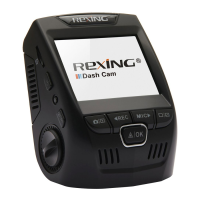
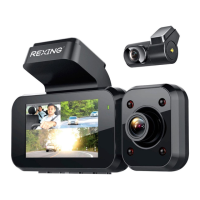
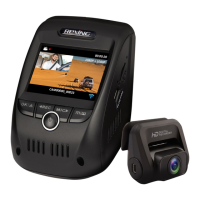
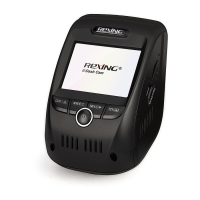
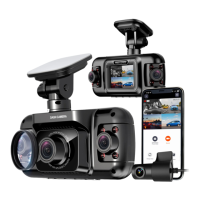
The Rexing R4 is a dash camera designed to record video while driving, offering a range of features for both active recording and parked surveillance. It is a comprehensive system that includes a main dash cam unit and a rear camera, providing a broader view of the vehicle's surroundings.
The primary function of the Rexing R4 is to capture video footage of your journeys. It automatically starts recording when the vehicle is powered on and receives a charge from the 12V accessory socket or cigarette lighter. This ensures that recording begins without manual intervention every time you start your car. The camera records in a loop, meaning that once the memory card is full, the oldest files are overwritten by new ones, ensuring continuous recording.
The device supports a rear camera, which extends the surveillance capabilities to the back of your vehicle. This dual-camera setup provides a more complete record of events on the road, which can be crucial for insurance purposes or in the event of an accident.
An integrated GPS logger is a key feature, recording the speed and location of your vehicle as you drive. This data is embedded with the video recordings and can be accessed using a dedicated GPS Video player on a computer. The GPS signal status is indicated on the screen, transitioning from "searching" to "active" once a signal is acquired. The device also allows for the selection of a preferred speed unit.
For connectivity and remote access, the Rexing R4 includes Wi-Fi functionality. This allows you to connect your mobile device to the dash cam via the Rexing Connect app. Through the app, users can access a live view from the camera, view recorded videos, and download them to their mobile device. The Wi-Fi connection is established by connecting to the dash cam's Wi-Fi network using a provided SSID and password.
The dash cam also offers parking surveillance modes to monitor your vehicle when it's parked. These modes require a Rexing Type-C Smart Hardwire Kit (sold separately) to provide continuous power and prevent the car battery from being discharged. There are two main options for parking surveillance: Vibration Detection and Motion Detection.
Vibration Detection automatically switches the dash cam to parking mode when the vehicle's engine turns off and returns to normal recording when the engine turns on. In this mode, the Gravity Sensing feature detects significant or sudden movements, such as impacts or collisions, triggering an event recording.
Motion Detection, also requiring the hardwire kit, powers up the dash cam and starts recording automatically when motion is detected in its field of view. Recording continues until the motion is cleared. It is important to ensure that Parking Mode is turned off on the dash cam when using Motion Detection to avoid malfunctions.
The Rexing R4 is designed for straightforward operation. It powers on automatically when connected to a 12V power source in the vehicle, and recording begins automatically. Manual power-on is also possible by pressing and holding the Power button.
The device features a clear screen that displays important information such as recording status, recording time, video resolution, current date and time, Wi-Fi status, GPS signal status, whether a video file is locked, audio recording status, memory card presence, and battery charging status. Screen icons clearly indicate whether recording is active or off, Wi-Fi is connected or not, GPS is searching or connected, and audio recording is on or off.
Navigation through the device's settings and playback modes is done using a set of physical buttons: Power/Screen Toggle, Menu/Playback, Up/Mode/Wi-Fi, Down/Mic, and OK (Confirm)/Video Lock/Record. These buttons allow users to stop recording, access video settings, and setup settings.
Video playback can be done directly on the device or by removing the Micro SD card and inserting it into a computer via an SD card adapter. On-device playback allows users to browse recorded videos, play them, and control playback with pause, rewind, and fast-forward functions.
The Wi-Fi connectivity, managed through the Rexing Connect app, enhances usability by providing a convenient way to manage recordings and view live footage from a smartphone. This eliminates the need to remove the memory card frequently for viewing or downloading files.
Proper maintenance of the Rexing R4 primarily involves managing the memory card and ensuring correct installation. The device supports Class 10/UHS-3 or higher Micro SD memory cards up to 256GB. Before using a new memory card, it is crucial to format it within the camera using the format function in the menu settings. This ensures compatibility and optimal performance. Users are reminded to back up any important data before formatting.
The manual provides clear instructions for inserting and removing the memory card, emphasizing that the device should be powered down before performing these actions to prevent data corruption or damage to the card.
For parking surveillance, the manual highlights the importance of correctly setting the Gravity Sensing sensitivity. If the parking mode function is not used, the sensitivity should be set to low to prevent the memory card from filling up with locked videos, which can hinder the loop recording function and cause the recorder to malfunction. It also explicitly states that the Parking Monitor function should not be enabled without connecting a smart hardwire kit to avoid malfunctions.
Troubleshooting resources are provided for common issues, such as Wi-Fi connection problems and incorrect GPS date and time. Users are directed to specific links on the Rexing USA website or QR codes for further assistance and video tutorials on installation and troubleshooting. This proactive approach to support helps users resolve issues efficiently and maintain the device's functionality.
The physical installation process is detailed, including instructions for both adhesive and suction cup mounts. Proper orientation and waiting times for the adhesive mount are specified to ensure secure attachment. The cable management tool included in the box helps in routing the power cable neatly around the windscreen, contributing to a tidy and safe installation.
Overall, the Rexing R4 is designed to be a reliable and user-friendly dash camera system, with features that support continuous recording, location tracking, remote access, and parked vehicle surveillance, all while providing clear guidelines for setup and maintenance.
 General
| Parking Monitor | Yes |
|---|---|
| GPS | Yes |
| Viewing Angle | 170 degrees |
| Loop Recording | Yes |
| G-Sensor | Yes |
| Storage | MicroSD card (up to 256GB) |
| Night Vision | Yes |

 To Next Page