Step 3:
Once you're connected to the dash cam, open the Rexing Connect app on your
mobile device.
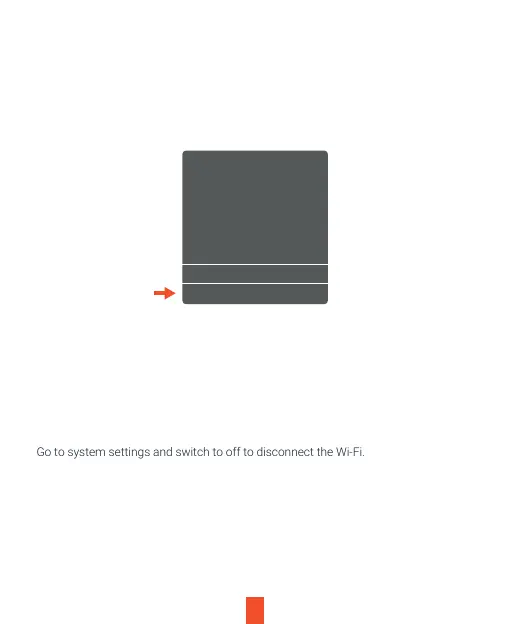
Please select "Keep Trying Wi-Fi" if you see the notification on the right.
Step 4:
In the app, hit the "Connect" button to connect to
your dash cam, allowing you to
access live view and view/download your recordings.
Note:
Go to system settings and switch to off to disconnect the Wi-Fi.
The Wi-Fi network
“V5_WIFI_xxxxxxx” does
not appear to be
connected to the Internet
Do you want to temporarily
use cellular data?
Use Cellular Data
Keep Trying Wi-Fi
14


 To Next Page