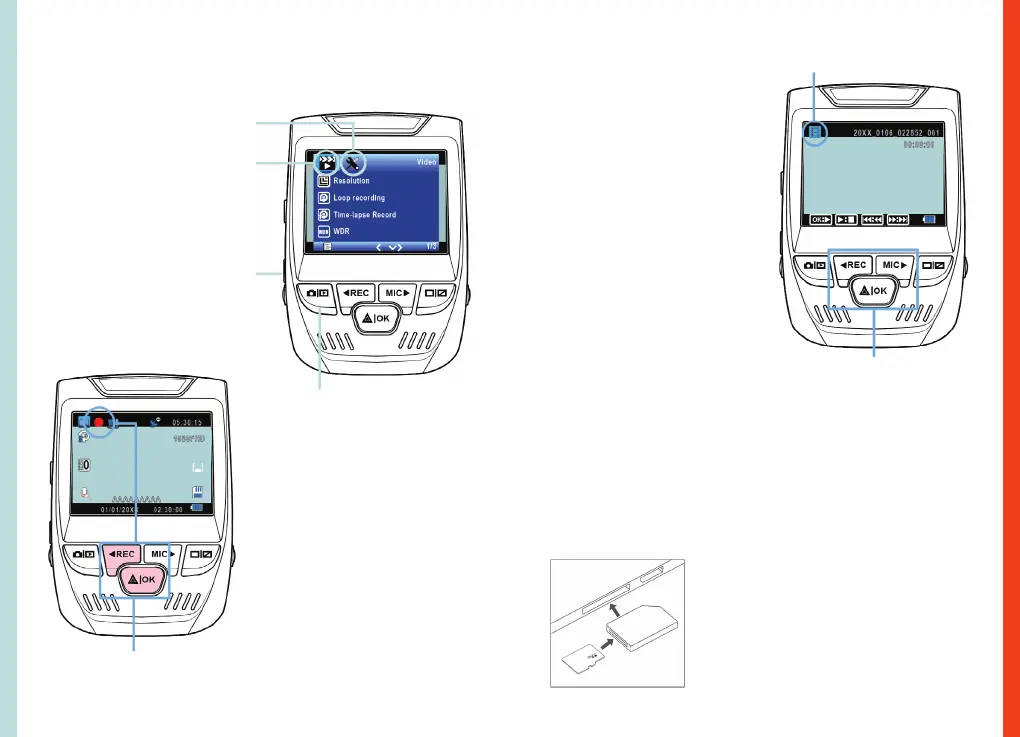
System icon
Playback mode
Control playback with these buttons
Video Mode icon
Press the Menu button to
select the desired setting
Press the Mode button and
toggle to the desired Mode
The camera automatically start
recording when powered on
10
Video Recording
Video Playback
Press the MENU button once to enter the settings menu for a
Mode. Press the MENU button twice to enter the System
Settings.
The camera will automatically
start recording when the
device receives a charge. The
LED lights and red dot will blink
device when the device is
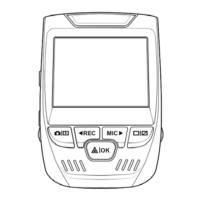
recording. Press the REC
button to stop recording.
During playback use the OK (pause), MIC (fast forward) and
REC (rewind) buttons to control the video playback.
To playback a video on the computer, either use an SD card
adapter or connect he device to the computer directly using
the USB to Mini B 5pin male cable.
11
Playback of videos can be
done on the device or a
computer. Also, if you have
purchased a Rexing GPS
Logger you may play back
the recordings in a specialized
application.
To playback a video on the
device, toggle to the
Playback mode. Use the REC
and MIC buttons to toggle to
the desired video. Press the OK
button to play.
During playback use the OK
(pause), MIC (fast forward)
and REC (rewind) buttons to
control the video playback.
To playback a video using an SD
card adapter, remove the memory
card and insert it into an SD card
adapter. Place the adapter in the
computer.


 To Next Page