14
(Need to purchase seperatly
rexingusa.com/product/gps-logger/)
When connected to the camera, it will
record the speed and location of your
vehicle as you drive.
You can then access this information
while playing back your recordings
using the GPS Video player (For
Windows and Mac, available at
rexingusa.com)
Press the MENU button twice and enter
the System Settings.
Toggle to the GPS Speed Unit setting
and select your preferred speed unit.
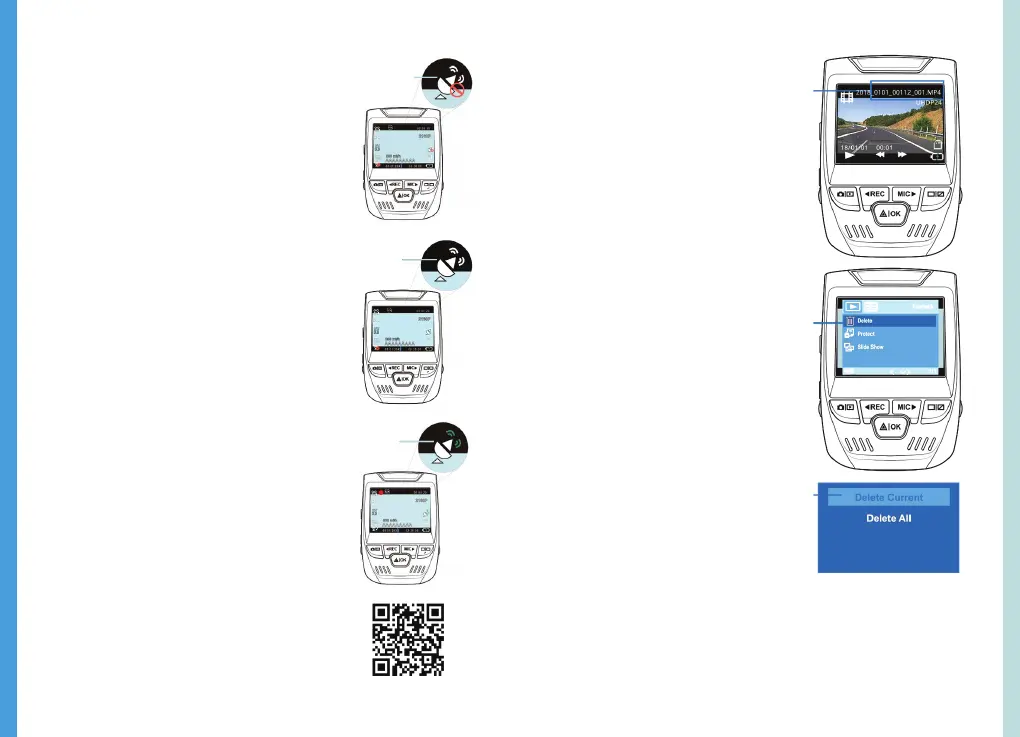
After a GPS signal is found, the screen
icon will turn from blue to green.
Please visit gpsa.rexingusa.com to
watch a video tuturial.
GPS Logger Taking Photos
GPS Signal
(Active)
GPS Signal
(Not conntected)
Toggle to
the
Playback
mode and
select a
photo to
view
Toggle to
the Delete
option
Choose
the
desired
option
GPS Signal
(Searching)
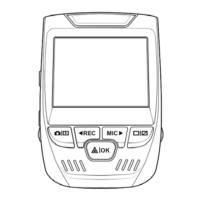
To take a photo, stop video
recording and hold the
button.
Press the OK Button to take
a photo
To view a photo, stop video
recording and toggle to
the Playback Mode.
Press the REC and MIC
Buttons to toggle through
your photos.
To delete a photo, stop
video recording and toggle
to the Playback Mode and
toggle through the videos
and photos to the one you
want to delete.
Press the MENU button
once and toggle to the
Delete option.
Press the OK Button and
select Delete Current or
Delete All.
15
GPS Date-Time Troubleshooting
If your dash cam GPS date and time are incorrect
please go to
https://www.rexingusa.com/gps-date-time/ OR scan
the QR code below.


 To Next Page