98
2. Camera Overview
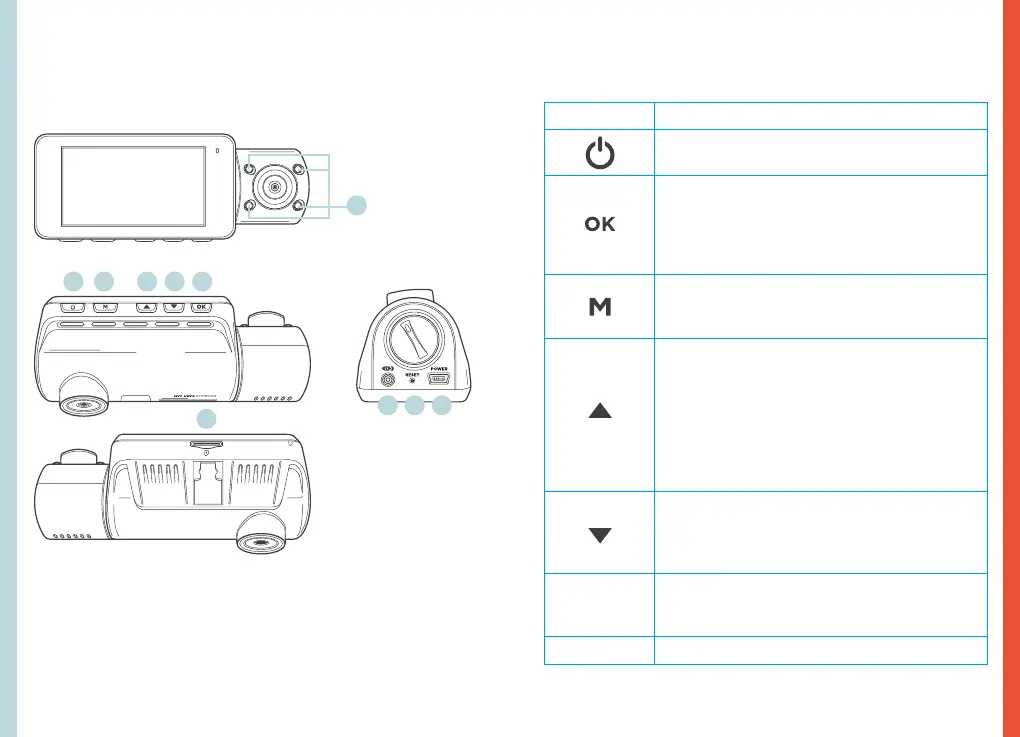
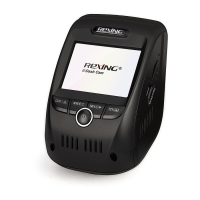
Device Layout
Buttons
Button Function
Press: Toggle display on or o
Hold: Turn the device on or o manually
Menus: Conrm a selection
Video Mode: Manually lock current recording
Photo Mode: Take photo
Playback Mode: Start / stop playback
Video Mode: Start/stop recording:
Press: Enter menu, cycle through menus or
exit current menu
Hold: Change mode
Menus: Move selection up
Hold (Video or Photo Mode): Enable
Wi-Fi feature
Playback Mode: Decrease or reverse
playback speed / Cycle left through
recordings
Press (Video or Photo Mode): Change front /
rear camera views
Menus: Move selection down
Video Mode: Toggle audio recording
Playback Mode: Increase playback speed /
Cycle right through recordings
RESET
Press and hold for 4 seconds to reset the
device in the event that it operates erratically,
hangs up, or freezes
Indicator Flashing Red – Recording
1. 4 IR Lights
2. Power Button / Screen Toggle Button
3. Menu Button / Mode Button
4. Up Navigation Button / Front and Rear Switch Button
5. Down Navigation Button / Mic Button
6. OK (Conrm) Button / Emergency Lock Button / Record Button
7. Micro SD Card Slot
8. Power / USB Charging Port
9. Reset Button
10. Rear Camera Port (currently not support)
Front
Top
1.
7.
2. 4. 5.3. 6.
Bottom
Side
9.10. 8.


 To Next Page