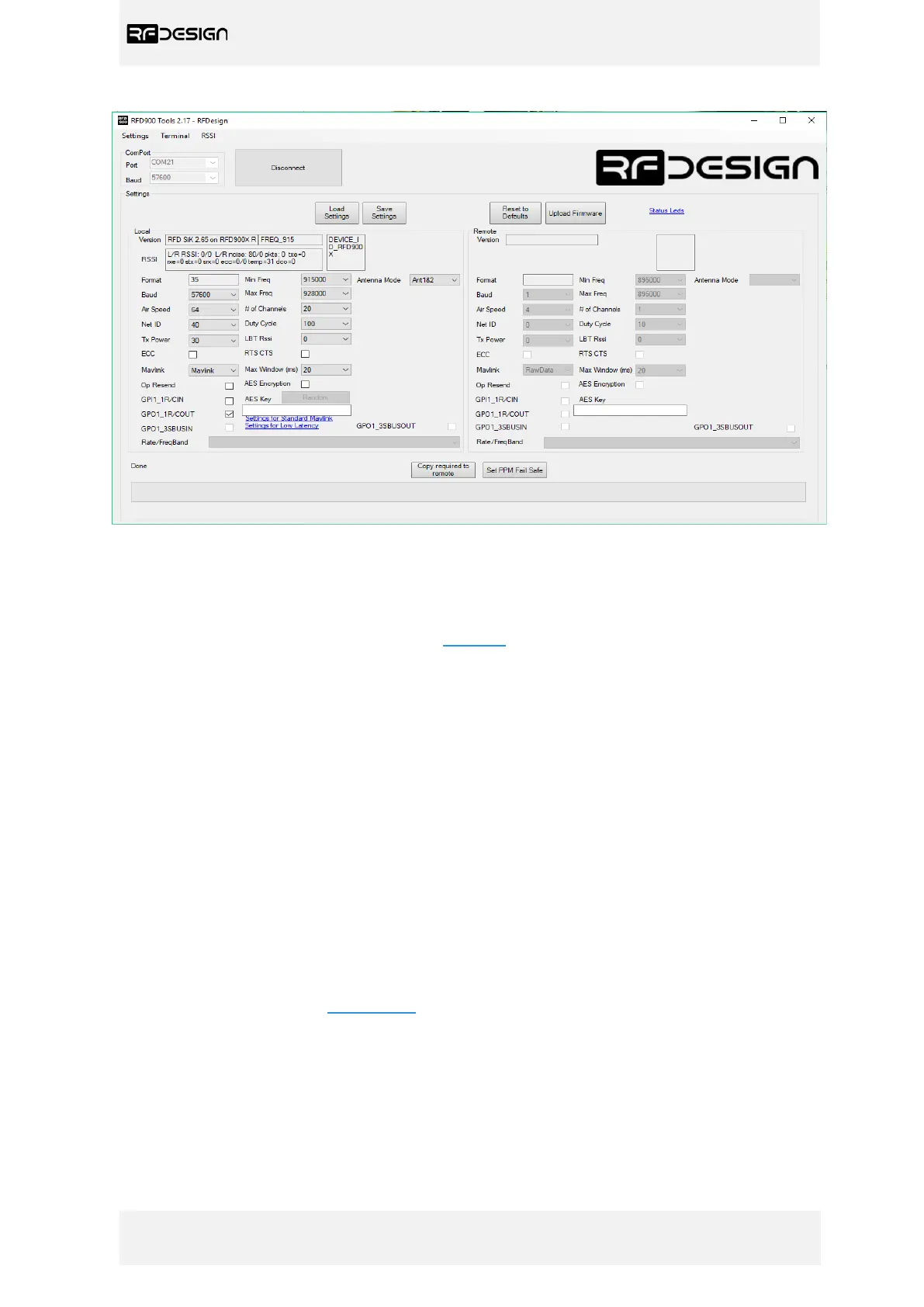
Figure 14 – Vehicle modem configuration on RFD900 tools.
- Ensure the firmware on the vehicle modem is the same as the one on the TXMOD.
- Update firmware if required by clicking on ‘Upload Firmware’ and choose the *.bin file Note:
Firmware can be download through the links in section 7.
- Wait until the process finishes (a message will appear at the bottom of the page)
- Reboot the modem.
- Use the interface to configure the parameters. Note: The AIR_SPEED, NETID, TXPOWER,
MIN_FREQ, MAX_FREQ and NUM_CHANNELS parameters should be the same as the ones in the
TXMOD modem.
- Set modem GPIO1.1 as a PPM output. Note: This allows the modem pin 15 to output the PPM
stream received from the TXMOD modem. This will be configured automatically by the First Run
Wizard.
- Save the settings to the modem.
If the modem has been configured correctly it will be able to link with the TXMOD modem, indicated
by a solid green LED on both devices. From this point onwards the FTDI cable is no longer required to
configure the vehicle modem. Instead this can be done over the air via the TXMOD using the
browser interface described in section 3.2.2 as long as the modem in the vehicle and TXMOD are
linked. Note: Firmware updates to the vehicle modem can only be done by means of the FTDI cable.
Settings on the modem can be defaulted by means of the reset to defaults button.


 To Next Page