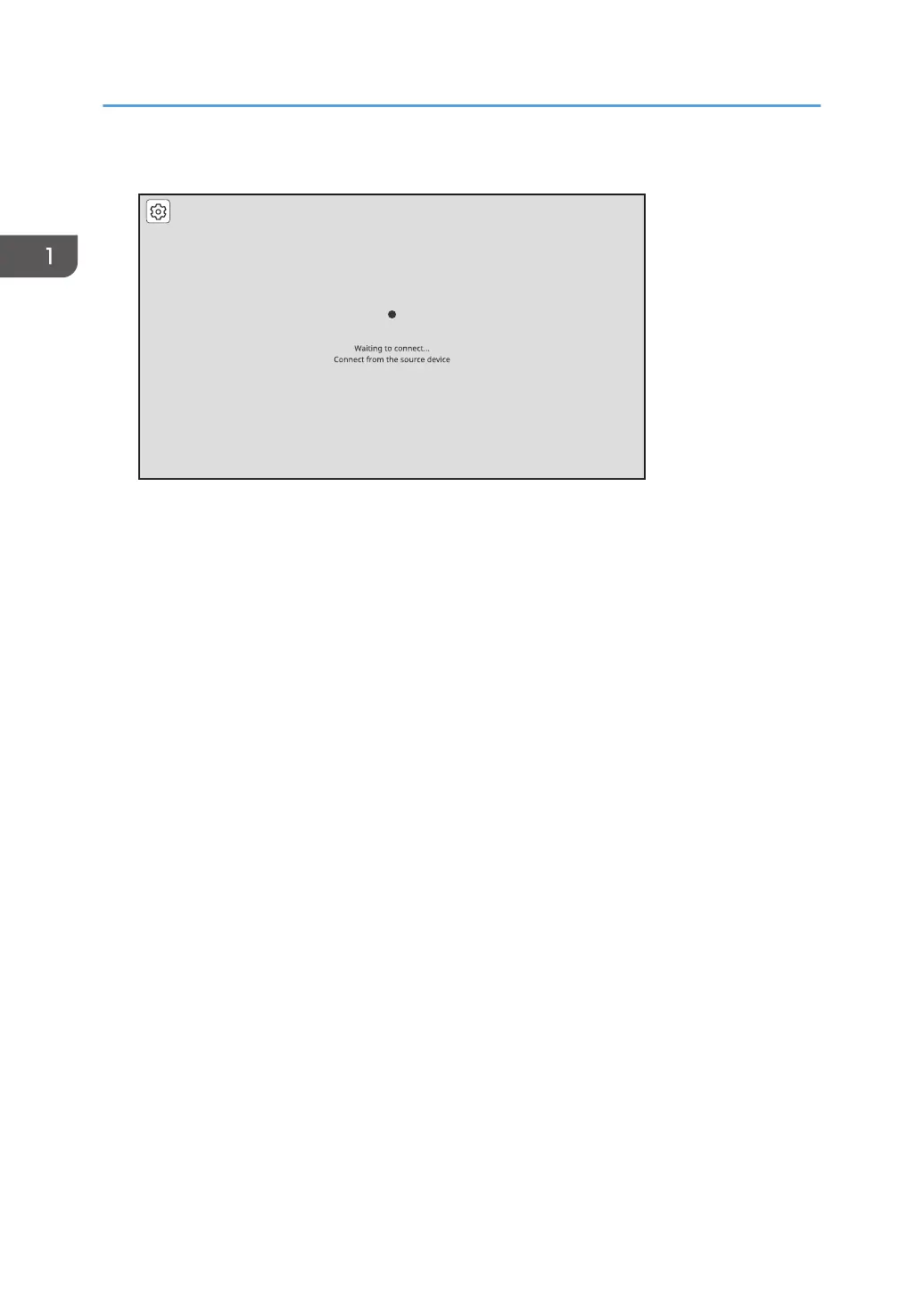
The Waiting to Connect screen is displayed.
When the Waiting to Connect screen is not displayed, press the Switching Input/Back button to
switch the input method to "Wireless Connection". For details, see "Switching Inputs", Operating
Instructions.
2. Display the Connect/Cast screen in Windows.
• When using Windows 10
1. Click the Action Center icon on the right end of the taskbar.
The Action Center appears.
2. Click [Connect].
When using the shortcut keys, press the "Windows logo key" (Start key) and the "K" key on
the keyboard at the same time.
• When using Windows 11
1. Click the Network, Volume, or Battery icon on the taskbar.
Quick Settings appears.
2. Click [Cast].
If [Cast] does not appear, click the Edit Quick Settings icon (pen icon) in Quick Settings,
and then click [Add] and select [Cast].
When using the shortcut keys, press the "Windows logo key" (Start key) and the "K" key on
the keyboard at the same time.
1. Connecting the Device via Wireless Connection
20


 To Next Page