Connecting with RICOH Monitor Mirroring for iOS
Download RICOH Monitor Mirroring for iOS
• Applying the latest security patches to the OS of the device can reduce security risks. Make sure
that the OS of the device on which the application is to be installed has the latest security patches
and update them, as necessary.
Search for "RICOH Monitor Mirroring" in the App Store, and then download the application.
Connecting
When this machine is turned ON, it enters the standby state for connection, and the connecting
operation is performed from the device side. Once the connection is accepted by this machine, a
wireless connection will be established. Even if Switching Input is set to USB ports, wireless connection
can be established when the connecting operation is performed from the device side.
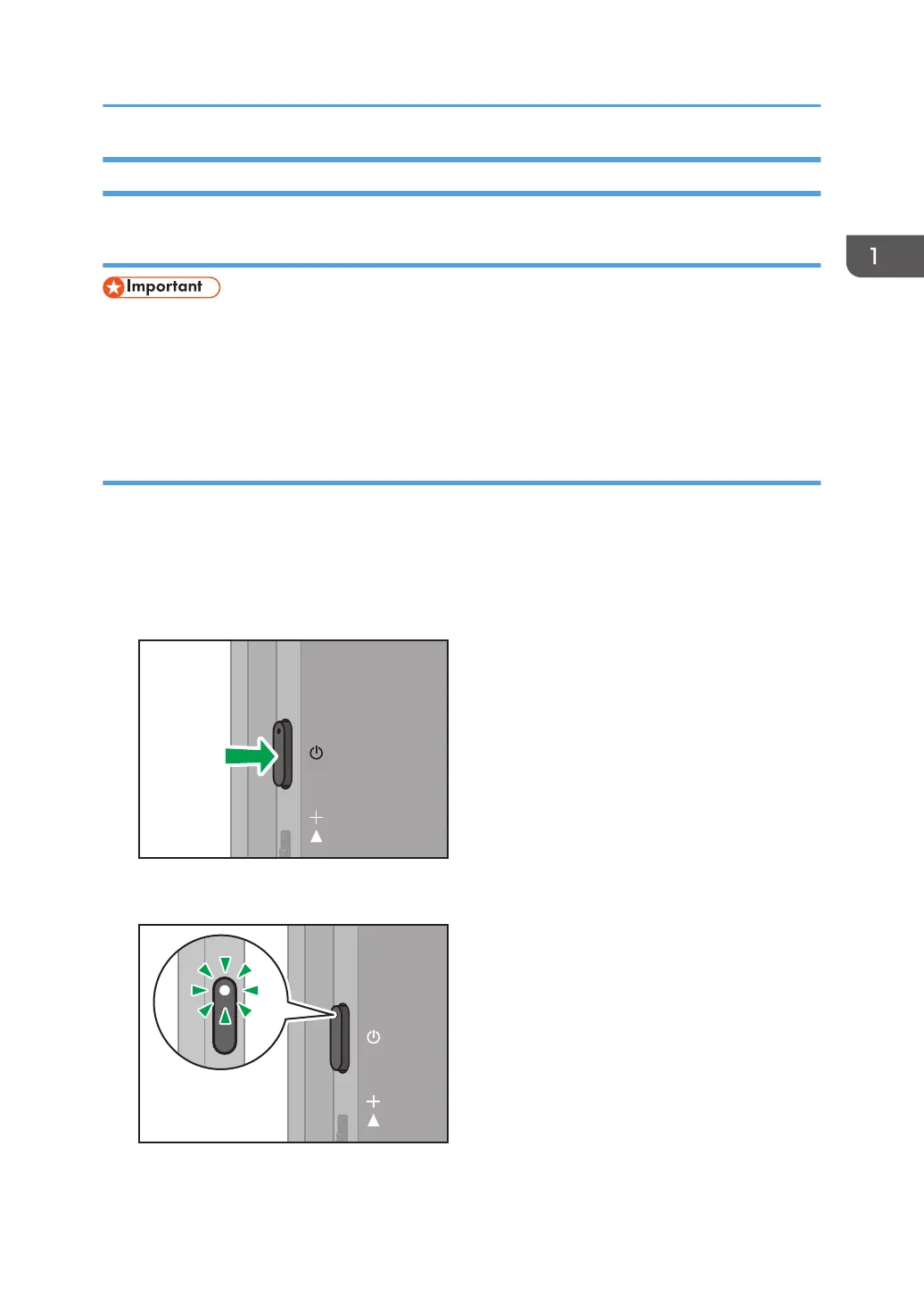
1. Press the Power button.
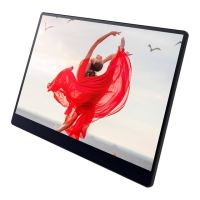
The power LED turns ON white, and the machine starts up.
The Waiting to Connect screen is displayed.
Using the Application to Connect to Devices in the Same Network (macOS/iOS)
31


 To Next Page