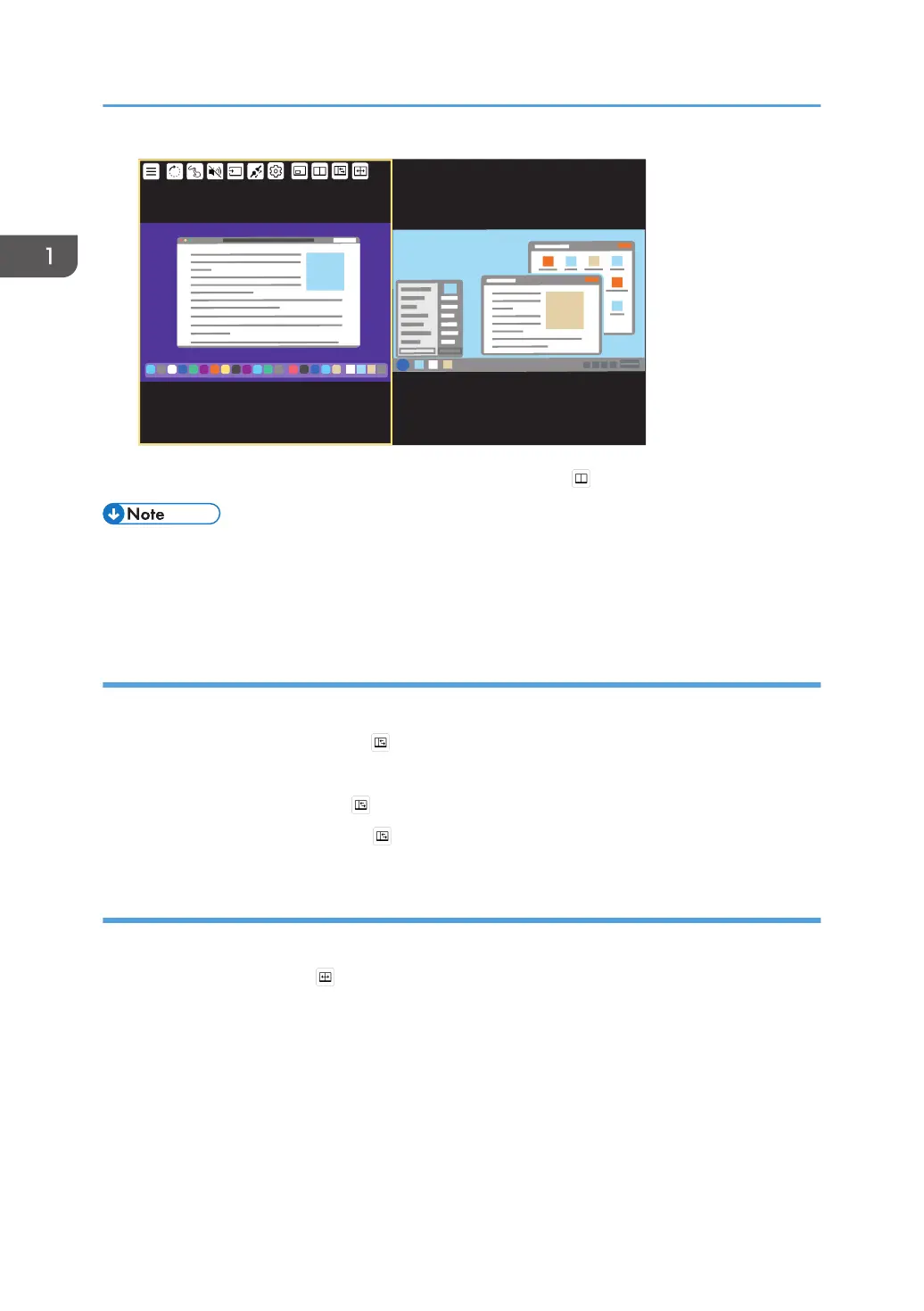
2. To finish the splitting screen display, touch [Split Screen] ( ) again.
• When both the sub-screen and the split screen are turned OFF, only the active screen is displayed.
• If the split screen is turned ON while the sub-screen is ON, the sub-screen is automatically switched
to OFF.
Switching the split position
You can switch the split position of the screen in three levels when the split screen is turned ON.
1. Touch [Change Split-Position] (
).
The split position of the screen switches.
Touch [Change Split-Position] (
) to change the split position, as necessary.
Touching [Change Split-Position] ( ) three times returns the screen to the original split position.
Switching the screen placement
You can swap the screens when the split-screen is turned ON.
1. Touch [Swap Screens] ( ).
The placement of the two screens is switched.
1. Connecting the Device via Wireless Connection
46



 To Next Page