EasyManua.ls Logo

Ricoh Aficio MP 6002 - User Manual

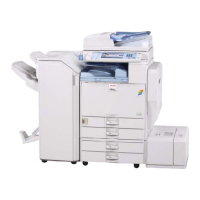
Ricoh Aficio MP 6002
232 pages
Print Icon
To Next Page IconTo Next Page
Loading...
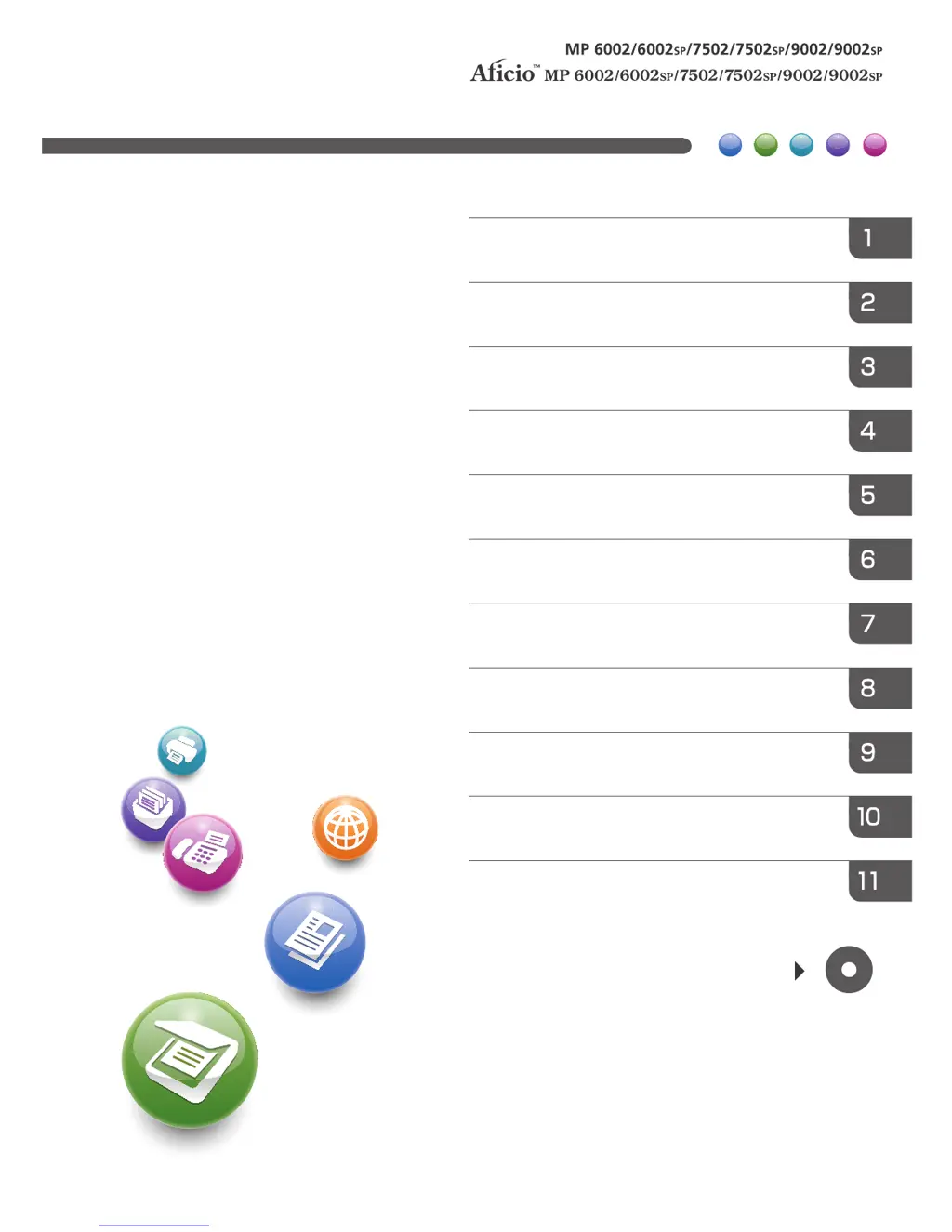
Read this manual carefully before you use this machine and keep
it handy for future reference. For safe and correct use, be sure to
read the Safety Information in "Read This First" before using the
machine.
For information not in this manual, refer to
the HTML/PDF files on the supplied
CD-ROM.
Appendix
Troubleshooting
Adding Paper and Toner
Web Image Monitor
Document Server
Scan
Print
Fax
Copy
Getting Started
What You Can Do with This Machine
User Guide

Table of Contents

Other manuals for Ricoh Aficio MP 6002

Questions and Answers

  • K
    Kelli RochaSep 23, 2025
    Why can't I use Web Image Monitor to print documents stored in Document Server on my Ricoh Aficio MP 6002?
    • S
      Sarah RomeroSep 23, 2025
      You cannot use Web Image Monitor to print documents stored in Document Server on your Ricoh All in One Printer because, when print volume limits are specified, users cannot print beyond their print volume limit. Print jobs selected by users who have reached their print volume limits will be canceled.
  • B
    barbara11Aug 25, 2025
    Why are documents not printing from my Ricoh Aficio MP 6002?
    • M
      mejiamichaelAug 25, 2025
      If documents and reports are not printing from your Ricoh All in One Printer, it could be because the paper output tray is full. Remove the prints from the tray. Another reason could be that there is no paper left. Load paper into the printer.
  • M
    Michelle CaldwellAug 25, 2025
    What to do if my Ricoh Aficio MP 6002 All in One Printer says "Paper size and type are mismatched"?
    • H
      Hunter SpencerAug 26, 2025
      This issue with your Ricoh All in One Printer can occur if the printer driver settings are incorrect or the tray does not contain paper of the size or type selected in the printer driver. Check that the printer driver settings are correct, and then load paper of the size selected in the printer driver into the input tray. You can also select the tray manually to continue printing, or cancel a print job.
  • L
    Lisa NunezAug 26, 2025
    What to do if my Ricoh Aficio MP 6002 All in One Printer says "Paper size of n is mismatched"?
    • M
      Matthew WashingtonAug 27, 2025
      The size of the paper in the tray of your Ricoh All in One Printer does not match the paper size specified in the printer driver. Select a tray containing paper that is the same size as the specified paper size.
  • D
    Deborah KirkAug 27, 2025
    What to do if an error has occurred on my Ricoh All in One Printer?
    • S
      Steven WallaceAug 27, 2025
      An error has occurred on your Ricoh All in One Printer because a function which has the status "Error Occurred" in the [Check Status] screen is defective. Press [Check] in the function where the error occurred, then check the displayed message, and take appropriate action.
  • D
    davidoconnellSep 14, 2025
    What does “Authentication has failed” mean on my Ricoh Aficio MP 6002 All in One Printer?
    • Y
      ylarsonSep 14, 2025
      This message appears on your Ricoh All in One Printer because the entered login user name or login password is not correct, or the machine cannot perform authentication.
  • T
    tmacdonaldSep 12, 2025
    Why is the user code entry screen displayed on my Ricoh Aficio MP 6002?
    • R
      Ronald CollinsSep 12, 2025
      The user code entry screen is displayed on your Ricoh All in One Printer because users are restricted by User Code Authentication.
  • Z
    zrodriguezSep 13, 2025
    Why does the Authentication screen appear on my Ricoh Aficio MP 6002?
    • M
      Maria AllenSep 13, 2025
      The Authentication screen appears on your Ricoh All in One Printer because Basic Authentication, Windows Authentication, LDAP Authentication or Integration Server Authentication is set. Enter your login user name and user password.
  • J
    jmooreSep 4, 2025
    What does "Load following paper in n" mean on my Ricoh Aficio MP 6002 All in One Printer?
    • M
      Maria KentSep 5, 2025
      This message appears on your Ricoh All in One Printer if the printer driver settings are incorrect or the tray does not contain paper of the size selected in the printer driver. Check that the printer driver settings are correct, and then load paper of the size selected in the printer driver into the input tray.
  • M
    Mrs. Sarah ThompsonSep 2, 2025
    What does “Please wait” mean on my Ricoh Aficio MP 6002?
    • M
      Margaret WhiteSep 2, 2025
      This message appears on your Ricoh All in One Printer when you press the [Energy Saver] key, when the machine is warming up, or when you change the toner cartridge. Wait for a while. If the machine does not get ready in five minutes, contact your service representative. Also, wait until the message disappears and do not turn off the main power switch while the message is showing.

Summary

What You Can Do with This Machine

You Can Make Copies Using Various Functions

Explore various copy functions like reducing, enlarging, and combining pages.

You Can Print Data Using Various Functions

Learn about printing capabilities, including network connections and stored print jobs.

You Can Send and Receive Faxes without Paper

Details on receiving and sending faxes electronically without printing.

You Can Prevent Information Leakage (Security Functions)

Learn about security features to protect documents and prevent unauthorized access.

Getting Started

Guide to Names and Functions of Components

Overview of machine components, including ADF, exposure glass, and trays.

Guide to the Names and Functions of the Machines Control Panel

Explains the purpose and location of each key and display element on the control panel.

How to Use the [Home] Screen

Describes navigation and usage of the main screen with function icons.

Turning On;Off the Power

Procedures for safely powering the machine on and off.

Copy

Basic Procedure

Step-by-step guide to making copies using the machine.

Auto Reduce; Enlarge

Automatically adjusts copy size based on original and paper.

Duplex Copying

Copies two 1-sided pages or one 2-sided page onto a 2-sided page.

Finishing

Options for post-copy processing like stapling, punching, or folding.

Fax

Basic Procedure for Transmissions (Memory Transmission)

Basic steps for sending documents using memory transmission.

Registering a Fax Destination

How to add and manage fax numbers in the address book.

Canceling a Transmission

How to cancel fax transmissions before or after scanning.

Sending at a Specific Time (Send Later)

Schedule fax transmissions for a later time.

Print

Quick Install

Steps to install printer drivers using the provided CD-ROM.

Standard Printing

Basic steps for normal printing operations.

Locked Print

How to send and print files securely with a user ID and password.

Stored Print

How to send files that are stored on the machine.

Scan

Basic Procedure When Using Scan to Folder

Steps to scan documents and send them to a folder.

Basic Procedure for Sending Scan Files by E-mail

Steps to scan and send documents via email.

Basic Procedure for Storing Scan Files

Steps to save scanned files to the machine's storage.

Specifying the File Type

How to choose the file format (TIFF, PDF, etc.) for scanned documents.

Document Server

Storing Data

Procedure for saving documents to the machine's hard disk for later printing.

Printing Stored Documents

How to print documents that have been stored on the Document Server.

Web Image Monitor

Displaying Top Page

How to access and view the main interface of Web Image Monitor.

Viewing Received Fax Documents Using Web Image Monitor

How to view fax documents stored on the machine via Web Image Monitor.

Adding Paper and Toner

Loading Paper into Tray 1

Instructions for loading paper into the primary paper tray.

Loading Paper into Trays 2 and 3

Instructions for loading paper into secondary paper trays.

Loading Paper into the Bypass Tray

Procedures for loading paper into the bypass tray.

Adding Toner

Precautions and procedures for adding toner.

Troubleshooting

Indicators

Explains the meaning of various machine indicators and their status.

When You Have Problems Operating the Machine

Common operational problems and their solutions.

When Messages Are Displayed on the Control Panel

Interpreting control panel messages for Copy, Fax, Scan, and Printer functions.

Check whether there are any network problems.

Troubleshooting network connectivity issues.

Appendix

Trademarks

Lists registered trademarks and company names mentioned in the manual.

Ricoh Aficio MP 6002 Specifications

General IconGeneral
Print Speed60 ppm
Print Resolution1200 x 1200 dpi
FunctionsPrint, Copy, Scan, Fax
Duplex PrintingYes
Copy Speed60 cpm
Copy Resolution600 x 600 dpi
FaxYes
Paper CapacityStandard: 4, 300 sheets; Maximum: 8, 300 sheets
ConnectivityUSB 2.0, Ethernet 10/100Base-TX
Scan Resolution600 dpi
Zoom Range25% - 400%
Fax Transmission Speed3 seconds per page
Memory (RAM)1.5 GB
Power Source120V/60Hz
Operating System CompatibilityWindows, Mac, Linux
Scan SpeedUp to 80 ipm (B/W), Up to 80 ipm (Color)

Related product manuals