EasyManua.ls Logo

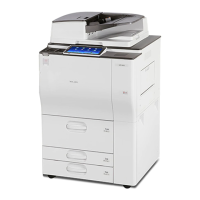
Ricoh MP 7503 - User Manual

Ricoh MP 7503
228 pages
Print Icon
To Next Page IconTo Next Page
Loading...
For safe and correct use, be sure to read the Safety Information in
Read This FIrst before using the machine.
Information for This Machine
Troubleshooting
Adding Paper and Toner
Web Image Monitor
Document Server
Scan
Print
Fax
Copy
Getting Started
What You Can Do with This Machine
User Guide

Table of Contents

Questions and Answers

  • P
    Patricia LopezSep 10, 2025
    Why I cannot use Web Image Monitor to print documents stored in Document Server on Ricoh MP 7503 All in One Printer?
    • C
      cassandrasmithSep 10, 2025
      This problem occurs when print volume limits are specified, and users attempt to print beyond their limit, causing their print jobs to be canceled. For details about specifying print volume limits, see "Managing Print Volume per User", Security Guide. To view the status of a print job, see [Print Job History]. In Web Image Monitor, click [Job] on the [Status/Information] menu. And then click [Print Job History] in "Document Server."
  • D
    David ColemanAug 23, 2025
    What to do if an error message is still displayed on Ricoh All in One Printer, even if misfed paper is removed?
    • C
      Cody KerrAug 23, 2025
      The error message may persist because paper is still jammed in the tray. Remove the jammed paper by following the procedures displayed on the control panel of your Ricoh All in One Printer.
  • E
    Eric FrazierAug 25, 2025
    What to do if an error message is still displayed, even if the indicated cover is closed on Ricoh All in One Printer?
    • A
      Anne JacksonAug 25, 2025
      The error message may be displayed because one or more of the covers that are not indicated are still open. Close all the covers of the Ricoh All in One Printer.
  • O
    opriceAug 26, 2025
    Why do misfeeds occur frequently with Ricoh MP 7503 All in One Printer?
    • K
      kaitlyn24Aug 26, 2025
      Frequent misfeeds can occur if you are using curled paper, which can also cause soiled paper edges, or slipped positions while performing staple or stack printing. Try the following: * Take the stiffness out of the paper with your hands to straighten out the curl. * Load the paper upside down so that the curled edges face downward. * Lay cut paper on a flat surface to prevent paper from curling, and do not lean it against the wall.
  • C
    Carlos FreyAug 28, 2025
    Why does Ricoh All in One Printer have frequent misfeeds?
    • L
      Lisa SchmittAug 28, 2025
      Frequent misfeeds can occur if the staple cartridge is not set correctly. Set the staple cartridge properly in your Ricoh All in One Printer.
  • T
    tanneralexanderAug 29, 2025
    What to do if an error has occurred on Ricoh MP 7503?
    • Q
      qmillerAug 29, 2025
      An error has occurred because a function which has the status "Error Occurred" in the [Check Status] screen is defective. Press [Check] in the function which the error has occurred. Then read the displayed message, and take the appropriate action. You can use other functions normally.
  • K
    kconwaySep 18, 2025
    Why the print image is not properly positioned on the paper with Ricoh MP 7503 All in One Printer?
    • B
      Brenda RyanSep 18, 2025
      The print image is not properly positioned on the paper because the machine has not detected the paper type and/or width correctly, or the print position is not aligned properly. Contact the machine administrator or your service representative.
  • R
    Regina LewisSep 12, 2025
    Why the function does not run or cannot be used on Ricoh All in One Printer?
    • T
      Travis HallSep 12, 2025
      If you cannot carry out your job on Ricoh All in One Printer, it may be that the machine is being used by another function. Wait until the current job is completed before trying again.
  • E
    elizabeth00Sep 8, 2025
    Why does an error occur when the Address Book is changed from the display panel or Web Image Monitor of Ricoh MP 7503?
    • F
      frochaSep 8, 2025
      An error has occurred when the Address Book is changed from the display panel or Web Image Monitor because the Address Book cannot be changed while you delete the multiple stored documents. Wait a while, and then retry the operation on your Ricoh All in One Printer.
  • C
    Christopher FigueroaSep 5, 2025
    Why can't I print in duplex mode on my Ricoh MP 7503 All in One Printer?
    • I
      Isaac JonesSep 5, 2025
      You cannot print in duplex mode because you have selected a paper type that cannot be used for duplex printing. In "Tray Paper Settings", select a paper type that can be used for duplex printing on your Ricoh All in One Printer.

Summary

1. What You Can Do with This Machine

Using Scanned Files on the Computer

Explains how to transfer and utilize scanned documents on a computer.

Registering Destinations

Details the process of adding and managing destinations for fax or scan.

Making Copies Using Various Functions

Describes advanced copying features and options available to users.

Sending and Receiving Faxes without Paper

Covers the functionality of sending and receiving faxes in an electronic format.

Sending and Receiving Faxes via the Internet

Details how to send and receive faxes using internet-based protocols.

Preventing Information Leakage (Security Functions)

Covers security features to protect documents and prevent unauthorized access.

Monitoring and Setting the Machine Using a Computer

Explains how to monitor and configure the machine remotely via a computer.

Preventing Unauthorized Copying

Describes features to prevent unauthorized duplication of documents.

2. Getting Started

Guide to Names and Functions of Components

Identifies and explains the various physical components of the machine.

Guide to the Names and Functions of the Machines Control Panel

Details the layout and functions of the machine's control panel interface.

How to Use the [Home] Screen

Provides instructions on navigating and utilizing the main [Home] screen.

How to Use Each Application

[Copy] Screen

Details the interface and options available on the Copy function screen.

[Fax] Screen

Explains the interface and options available on the Fax function screen.

[Scanner] Screen

Details the interface and options available on the Scanner function screen.

Turning On;Off the Power

Turning on the Main Power

Step-by-step instructions for powering on the machine.

Turning Off the Main Power

Step-by-step instructions for safely powering off the machine.

Logging In the Machine

When the Authentication Screen is Displayed

Details actions when the authentication screen appears for login.

Logging In Using the Control Panel

Provides instructions for logging into the machine via the control panel.

Logging Out Using the Control Panel

Explains the procedure for logging out of the machine from the control panel.

3. Copy

Basic Procedure

Outlines the fundamental steps required to perform a copy job.

Auto Reduce; Enlarge

Explains how the machine automatically adjusts size for copying.

Duplex Copying

Details the process of copying on both sides of the paper.

Combined Copying

Explains how to combine multiple pages onto a single sheet.

Storing Data in the Document Server

4. Fax

Basic Procedure for Transmissions (Memory Transmission)

Outlines the fundamental steps for sending faxes using memory transmission.

Registering a Fax Destination

Details how to add and manage fax destinations in the address book.

Canceling a Transmission

Provides instructions on how to cancel an ongoing fax transmission.

5. Print

Quick Install

Guides on the simplified installation process for printer drivers.

Standard Printing

Details the default settings and procedures for standard printing jobs.

Printing on Both Sides of Sheets

Explains how to print on both sides of paper for efficiency.

Combining Multiple Pages into Single Page

Guides on printing multiple pages onto a single sheet of paper.

Saving and Printing Using the Document Server

Explains how to save and print documents using the Document Server feature.

Storing Documents in Document Server

Details the procedure for storing documents within the Document Server.

Using the Print;Scan(Memory Storage Device) Function

Explains printing from and saving scans to memory storage devices.

6. Scan

Basic Procedure When Using Scan to Folder

Outlines the fundamental steps for scanning files to a network folder.

Creating a Shared Folder on a Computer Running Windows;Confirming a Computers Information

Guides on setting up shared folders and confirming computer details for scanning.

Registering an SMB Folder

Details the process of registering network folders for scanning.

Basic Procedure for Sending Scan Files by E mail

Outlines the fundamental steps for sending scanned files via email.

7. Document Server

Storing Data

Provides instructions on how to store documents on the machine's Document Server.

8. Web Image Monitor

9. Adding Paper and Toner

Loading Paper

General guidance and precautions for loading paper into the machine.

Adding Toner

Provides instructions and precautions for adding toner to the machine.

Recommended Paper

Recommended Paper Sizes and Types

Lists recommended paper sizes, types, and weights for optimal performance.

10. Troubleshooting

When a Status Icon Is Displayed

Explains the meaning of status icons and their corresponding solutions.

When the Indicator Lamp for [Check Status] Is Lit or Flashing

Details troubleshooting steps when the [Check Status] indicator is active.

When You Have Problems Operating the Machine

Addresses general issues encountered during machine operation.

Messages Displayed When You Use the Copy; Document Server Function

Lists error messages related to Copy and Document Server functions and their solutions.

Messages Displayed When You Use the Facsimile Function

Lists error messages related to Fax functions and their solutions.

When Network Setting Problems Occur

Details troubleshooting steps for network connectivity and configuration issues.

Messages Displayed When You Use the Printer Function

Lists error messages related to Printer functions and their solutions.

Messages Displayed When You Use the Scanner Function

Lists error messages related to Scanner functions and their solutions.

Ricoh MP 7503 Specifications

General IconGeneral
Print Resolution1200 x 1200 dpi
Copy Resolution600 x 600 dpi
Duplex PrintingYes
Monthly Duty Cycle300, 000 pages
FunctionsPrint, Copy, Scan, Fax
Automatic Document Feeder (ADF)Yes
ADF Capacity220 sheets
Scan Resolution600 dpi
Memory (RAM)4 GB
Hard Disk Drive320 GB
Print Speed75 ppm
Paper Capacity4, 300 sheets standard
Scan Speed120 ipm
ConnectivityEthernet, USB
Copy Speed75 ppm (Black)
Zoom Range25% - 400%
Fax Speed33.6 Kbps
InterfaceUSB 2.0, Ethernet
Operating Systems SupportedWindows, Mac, Linux
Power Consumption1.5 kW

Related product manuals