EasyManua.ls Logo

Ricoh SP 330DN - User Manual

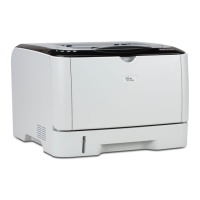
Ricoh SP 330DN
208 pages
Print Icon
To Next Page IconTo Next Page
Loading...
For safe and correct use, be sure to read Safety Information before
using the machine.
Appendix
Configuring Network Settings Using OS X
Troubleshooting
Maintaining the Machine
Configuring the Machine Using Utilities
Configuring the Machine Using the Control
Panel
Printing Documents
Paper Specifications and Adding Paper
Guide to the Machine
User’s Guide

Table of Contents

Other manuals for Ricoh SP 330DN

Questions and Answers

  • M
    Manuel CampbellAug 1, 2025
    How to fix 'Cannot open the firmware update file' error on Ricoh SP 330DN Printer?
    • B
      Bonnie PenningtonAug 1, 2025
      If you see 'Cannot open the firmware update file' on your Ricoh Printer, ensure that the firmware file (*.brn) and setting file (*.ini) are in the same folder as the update tool, and that you haven't modified the setting file. Also, the path to the update tool might be too long; try saving the update tool in a subfolder directly under the computer’s C: drive for convenience.
  • C
    csimsAug 5, 2025
    What to do if the downloaded file is damaged for Ricoh SP 330DN Printer?
    • R
      romeroamandaAug 5, 2025
      If the downloaded file for your Ricoh Printer is damaged, it may be because the firmware update was initiated while the machine was busy faxing, printing, scanning, or copying. Wait for the current job to finish, disconnect any unnecessary cables, and try again. Alternatively, the firmware file itself might be corrupt; in this case, download the firmware package from the website again.
  • K
    Karen VazquezAug 9, 2025
    Why Ricoh Printer says that the machine is not ready?
    • R
      Robert CrossAug 9, 2025
      If your Ricoh Printer says 'The machine is not ready', it could be due to several reasons. Ensure the USB cable is securely connected between the machine and the computer, and if the issue persists, try another USB cable. Also, verify that the USB printer driver is installed on your computer. The machine might be turned off or have encountered an error; try turning it off, waiting a moment, and then turning it back on. Additionally, check that the IP addresses specified for both the machine and the computer are valid and that the machine is properly connected to the network.
  • K
    katie51Aug 14, 2025
    What to do if Ricoh Printer says the machine is busy?
    • D
      Darryl MorrisAug 14, 2025
      If your Ricoh Printer shows 'The machine is busy', it might be because the control panel is in use. Cancel any operations being performed through the control panel, put the machine into standby mode, and then try the update again. Another reason could be an unsent fax in the machine's memory or a received fax waiting to be printed. Send or delete the unsent fax, or print the received fax, and then try again.
  • I
    isimonAug 17, 2025
    Why does my Ricoh SP 330DN say 'The models are not the same'?
    • M
      mromeroAug 17, 2025
      If your Ricoh Printer displays 'The models are not the same' during a firmware update, it means the firmware package you downloaded is not designed for your specific printer model. Each firmware package is designed for a specific model and cannot be used for any other. Check your printer's model and download the appropriate firmware package from the website.
  • T
    Teresa FisherAug 22, 2025
    What to do if Ricoh Printer displays 'LAN Upload: Failed'?
    • P
      psmithAug 22, 2025
      If your Ricoh Printer displays 'LAN Upload: Failed', it's possible the network cable was disconnected immediately after clicking the [Firmware Update (LAN)] button. To resolve this, turn the printer off, wait a moment, and then turn it back on. Disconnect any unnecessary cables from the printer, and then try again.
  • J
    Jeremy WallaceAug 26, 2025
    What to do if Ricoh SP 330DN Printer displays 'USB Upload: Failed'?
    • R
      Rachel HatfieldAug 26, 2025
      If your Ricoh Printer displays 'USB Upload: Failed', it's possible the USB cable was disconnected immediately after clicking the [Firmware Update (USB)] button. To resolve this, turn the printer off, wait a moment, and then turn it back on. Disconnect any unnecessary cables from the printer, and then try again.

Summary

1. Guide to the Machine

Guide to Components

Introduces the names and functions of the machine's parts.

Installing Options

Explains how to install optional hardware for the machine.

2. Paper Specifications and Adding Paper

Loading Paper

Instructions for loading paper into the machine's trays.

3. Printing Documents

4. Configuring the Machine Using the Control Panel

5. Configuring the Machine Using Utilities

6. Maintaining the Machine

Replacing the Print Cartridge

Step-by-step instructions for replacing the print cartridge.

7. Troubleshooting

Control Panel Error Messages

Explains messages on the control panel and recommended actions.

Smart Organizing Monitor Messages

Explains error and status messages appearing on Smart Organizing Monitor.

Removing Paper Jams

Detailed procedures for removing paper jams from various locations.

8. Configuring Network Settings Using OS X

Connecting to a Wired Network

Procedures for connecting the machine to a network via USB or Ethernet.

Connecting to a Wireless Network

Methods for connecting the machine to a wireless network.

Ricoh SP 330DN Specifications

General IconGeneral
Print technologyLaser
Maximum resolution1200 x 1200 DPI
Time to first page (black, normal)7.5 s
Print speed (black, normal quality, A4/US Letter)32 ppm
Printing colorsBlack, White
Maximum duty cycle- pages per month
Number of print cartridges1
Page description languagesPCL 5e, PCL 6, PostScript 3
Multi-Purpose trayYes
Total input capacity550 sheets
Total output capacity125 sheets
Paper tray media types-
Paper tray media weight52 - 162 g/m²
ISO A-series sizes (A0...A9)A4, A5, A6
ISO B-series sizes (B0...B9)B5, B6
Maximum ISO A-series paper sizeA4
USB connectorUSB Type-B
USB 2.0 ports quantityUSB 2.0 ports have a data transmission speed of 480 Mbps, and are backwards compatible with USB 1.1 ports. You can connect all kinds of peripheral devices to them.
Wi-Fi standards802.11a, 802.11b, 802.11g, Wi-Fi 4 (802.11n), Wi-Fi 5 (802.11ac)
Cabling technology10/100Base-T(X)
Ethernet LAN data rates10, 100 Mbit/s
Sound pressure level (printing)- dB
Market positioningHome & office
AC input voltage220 - 240 V
AC input frequency50 - 60 Hz
Power consumption (standby)0.72 W
Energy Star Typical Electricity Consumption (TEC)0.41 kWh/week
Mac operating systems supportedMac OS X 10.10 Yosemite, Mac OS X 10.11 El Capitan, Mac OS X 10.12 Sierra, Mac OS X 10.13 High Sierra, Mac OS X 10.14 Mojave, Mac OS X 10.15 Catalina, Mac OS X 10.15.3 Catalina, Mac OS X 11.0 Big Sur
Server operating systems supportedWindows Server 2008, Windows Server 2012, Windows Server 2012 R2, Windows Server 2016
Windows operating systems supportedWindows 10, Windows 7, Windows 8.1
Weight and Dimensions IconWeight and Dimensions
Depth392 mm
Width370 mm
Height262 mm

Related product manuals