09/2020 Page 8 5IN2907
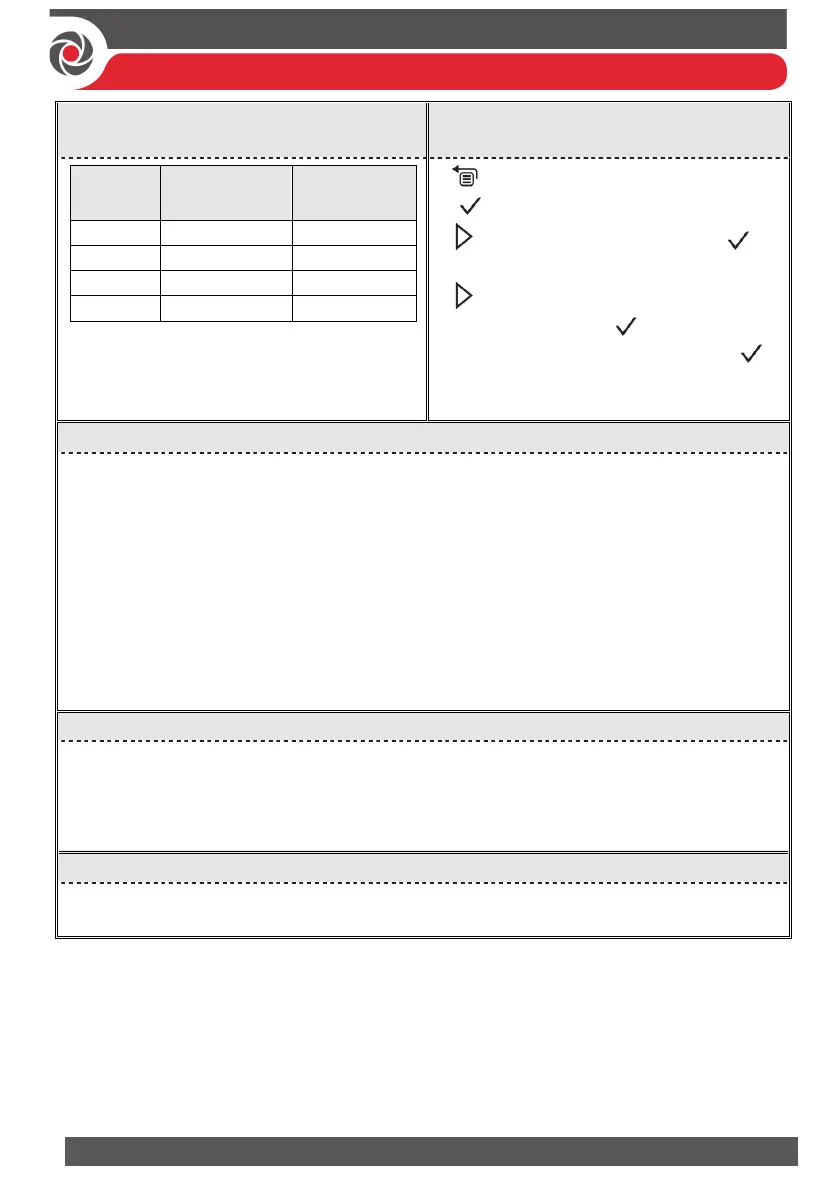
LED Indicators – 2-Way Remote
Control
Defining User Codes – Elegant
Keypad
Operation
Send
command*
Receive
Status
Full Set Green Red
Partial Set Green Orange
Unset Green Green
Alarm Green Flashing LED
* If the LED changes to orange, it indicates
a low battery condition.
1. Grand master code (default = 1234)
,
2. to scroll to Codes/Tags press
twice.
3. to scroll to the user (index number)
for defining press twice.
4. Enter (or re-enter) a 4—6 digit code, ;
the system beeps and ACCEPTED
displays
Registering to the RISCO Cloud
1 After the RISCO Cloud has been enabled by your system installer, go to
www.riscocloud.com
2 Fill in your first and last name.
3 Enter your e-mail address as the Login Name (required for 1st-time activation).
4 Define password (minimum of 6 characters and at least one digit), and then confirm.
5 Enter the 15 digits Panel ID as it appears as printed on the postcard packaged with the
main panel. You can also view it on the keypad (see the GT Plus User Manual).
6 Complete registration form, and then press Register.
7 Open the e-mail received at the email account you had defined as the Login Name in
step 3, and then click the link to activate your registration to the Cloud.
Logging in to the RISCO Cloud / Accessing the Web User Application
1 Go to www.riscocloud.com
2 Enter your user name and password (as defined during the registration process).
3 Enter the system PIN code (user code).
4 Click Enter.
iRISCO Smartphone App
Download the iRISCO Smartphone app from the Apple App store or the Android Play
Store.
For additional information see the GT Plus User Manual, available on our website:
www.riscogroup.com
© RISCO Group 2020. All rights reserved.


 To Previous Page