EasyManua.ls Logo

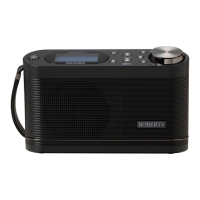
Roberts Stream 104 - User Manual

Roberts Stream 104
92 pages
Print Icon
To Next Page IconTo Next Page
Loading...
ROBER TS
DAB / FM and WiFi Internet Radio
with Music Player
Please read this manual before use
and remote control from iPhone and Android using UNDOK

Table of Contents

Question and Answer IconNeed help?

Do you have a question about the Roberts Stream 104 and is the answer not in the manual?

Summary

Introduction

Stream 104 Internet Radio Features

Lists key features of the Roberts Stream 104 internet radio.

Before You Can Use This Product

About This Instruction Manual

Controls and Connections

Top View

Identifies and describes the controls located on the top of the radio unit.

Radio Component Views

Rear View

Details the connections and features on the rear panel of the radio.

Left Hand Side

Describes the ports and controls on the left side of the radio unit.

Battery Operation

Navigation Controls

Configuration

Plugging In and Language Selection

Guides the initial setup process, including connecting power and choosing a language.

Clock and Time Settings

Network Setup

Connecting to Your Computer Network

Details the steps to connect the radio to a computer network via WiFi.

Manual Network Configuration

Network Remote Control Options

Network PIN Setup

Describes setting a PIN for remote control access using applications like UNDOK.

Keep Network Connected

Explains the setting to maintain WiFi connection in standby mode for remote access.

Internet Radio Basics

Selecting Internet Radio Stations by Location

Selecting Internet Radio Stations by Genre

Searching Internet Radio Stations by Name

Selecting New or Popular Internet Radio Stations

Selecting Podcasts

Presetting Stations

Storing a Preset

Instructions on how to save favorite stations for quick recall.

Recalling a Preset

How to access and play previously stored favorite stations.

Last Listened Stations

Internet Radio Display Modes

Customising Your Radio

Registering an Account

Creates an online account for managing favorite stations.

Managing Favourite Stations

Configuring Favourite Stations

Manages favorite radio stations via the web interface.

Configuring Added Stations

Adds internet radio stations not in the default database.

Playing Favourite Stations

Playing Added Stations

Music Player

Use with Windows, Apple Mac, Linux

Explains music player use with different OS and UPnP servers.

Accessing Audio Files via UPnP

Set Up UPnP with Windows Media Player

Configures Windows Media Player for UPnP streaming.

Locating and Playing Media Files Using UPnP

Media Selection

Listening to a Complete Album

Instructions for playing an entire album of music.

Media Playback Control

Controlling Playback

Basic playback controls like pause, play, skip, rewind, and fast-forward.

Music Player Playback Control

Repeat Tracks

Enables or disables track repetition.

Play Tracks in Random Order

Enables or disables shuffle playback.

Music Player Display Modes

Playlists

Adding a Single Track to Playlist

Adds individual tracks to a custom playlist.

Adding Album or Folder to Playlist

Adds whole albums or folders to a custom playlist.

Viewing Your Playlist

Erasing a Track from Playlist

Clearing the Playlist

Playing Your Playlists

Prune Servers

Wake On LAN

Keep Network Connected

Windows Play To; Cast to Device Function

Streams media from Windows PCs to the radio.

DAB Radio

Using DAB Mode for the First Time

Initial setup and scanning for DAB stations.

Selecting DAB Radio Stations

Selecting a DAB Radio Station

Tunes into available DAB radio stations.

Secondary Services

Accesses secondary DAB radio services.

Manual DAB Tuning

FM Radio

Operating FM Radio

Basic steps for tuning and listening to FM radio stations.

Manual FM Tuning

Presetting Stations in DAB and FM Modes

Storing a Preset

Saves favorite DAB or FM stations for quick recall.

Recalling a Preset

Accesses and plays previously stored DAB or FM stations.

Clock and Alarms

Automatically Updating the Clock

How the radio clock synchronizes and updates automatically.

Manually Setting the Clock

Setting the Alarm Clock

Snooze Timer

Disabling Alarms

Sleep Timer

Display and Audio

Equaliser Function

Adjusts sound profile using preset equalizer modes.

Brightness Control

Headphone Socket

Information

Factory Reset

Resets the radio to its original factory settings.

Software Update

Network Profiles

Troubleshooting

Audio Codecs

Cautions

Specifications

Guarantee

Summary

Introduction

Stream 104 Internet Radio Features

Lists key features of the Roberts Stream 104 internet radio.

Before You Can Use This Product

About This Instruction Manual

Controls and Connections

Top View

Identifies and describes the controls located on the top of the radio unit.

Radio Component Views

Rear View

Details the connections and features on the rear panel of the radio.

Left Hand Side

Describes the ports and controls on the left side of the radio unit.

Battery Operation

Navigation Controls

Configuration

Plugging In and Language Selection

Guides the initial setup process, including connecting power and choosing a language.

Clock and Time Settings

Network Setup

Connecting to Your Computer Network

Details the steps to connect the radio to a computer network via WiFi.

Manual Network Configuration

Network Remote Control Options

Network PIN Setup

Describes setting a PIN for remote control access using applications like UNDOK.

Keep Network Connected

Explains the setting to maintain WiFi connection in standby mode for remote access.

Internet Radio Basics

Selecting Internet Radio Stations by Location

Selecting Internet Radio Stations by Genre

Searching Internet Radio Stations by Name

Selecting New or Popular Internet Radio Stations

Selecting Podcasts

Presetting Stations

Storing a Preset

Instructions on how to save favorite stations for quick recall.

Recalling a Preset

How to access and play previously stored favorite stations.

Last Listened Stations

Internet Radio Display Modes

Customising Your Radio

Registering an Account

Creates an online account for managing favorite stations.

Managing Favourite Stations

Configuring Favourite Stations

Manages favorite radio stations via the web interface.

Configuring Added Stations

Adds internet radio stations not in the default database.

Playing Favourite Stations

Playing Added Stations

Music Player

Use with Windows, Apple Mac, Linux

Explains music player use with different OS and UPnP servers.

Accessing Audio Files via UPnP

Set Up UPnP with Windows Media Player

Configures Windows Media Player for UPnP streaming.

Locating and Playing Media Files Using UPnP

Media Selection

Listening to a Complete Album

Instructions for playing an entire album of music.

Media Playback Control

Controlling Playback

Basic playback controls like pause, play, skip, rewind, and fast-forward.

Music Player Playback Control

Repeat Tracks

Enables or disables track repetition.

Play Tracks in Random Order

Enables or disables shuffle playback.

Music Player Display Modes

Playlists

Adding a Single Track to Playlist

Adds individual tracks to a custom playlist.

Adding Album or Folder to Playlist

Adds whole albums or folders to a custom playlist.

Viewing Your Playlist

Erasing a Track from Playlist

Clearing the Playlist

Playing Your Playlists

Prune Servers

Wake On LAN

Keep Network Connected

Windows Play To; Cast to Device Function

Streams media from Windows PCs to the radio.

DAB Radio

Using DAB Mode for the First Time

Initial setup and scanning for DAB stations.

Selecting DAB Radio Stations

Selecting a DAB Radio Station

Tunes into available DAB radio stations.

Secondary Services

Accesses secondary DAB radio services.

Manual DAB Tuning

FM Radio

Operating FM Radio

Basic steps for tuning and listening to FM radio stations.

Manual FM Tuning

Presetting Stations in DAB and FM Modes

Storing a Preset

Saves favorite DAB or FM stations for quick recall.

Recalling a Preset

Accesses and plays previously stored DAB or FM stations.

Clock and Alarms

Automatically Updating the Clock

How the radio clock synchronizes and updates automatically.

Manually Setting the Clock

Setting the Alarm Clock

Snooze Timer

Disabling Alarms

Sleep Timer

Display and Audio

Equaliser Function

Adjusts sound profile using preset equalizer modes.

Brightness Control

Headphone Socket

Information

Factory Reset

Resets the radio to its original factory settings.

Software Update

Network Profiles

Troubleshooting

Audio Codecs

Cautions

Specifications

Guarantee

Roberts Stream 104 Specifications

General IconGeneral
BrandRoberts
ModelStream 104
CategoryMP3 Player
LanguageEnglish

Related product manuals