64
Installing & Setting Up the Driver (Macintosh)
6.
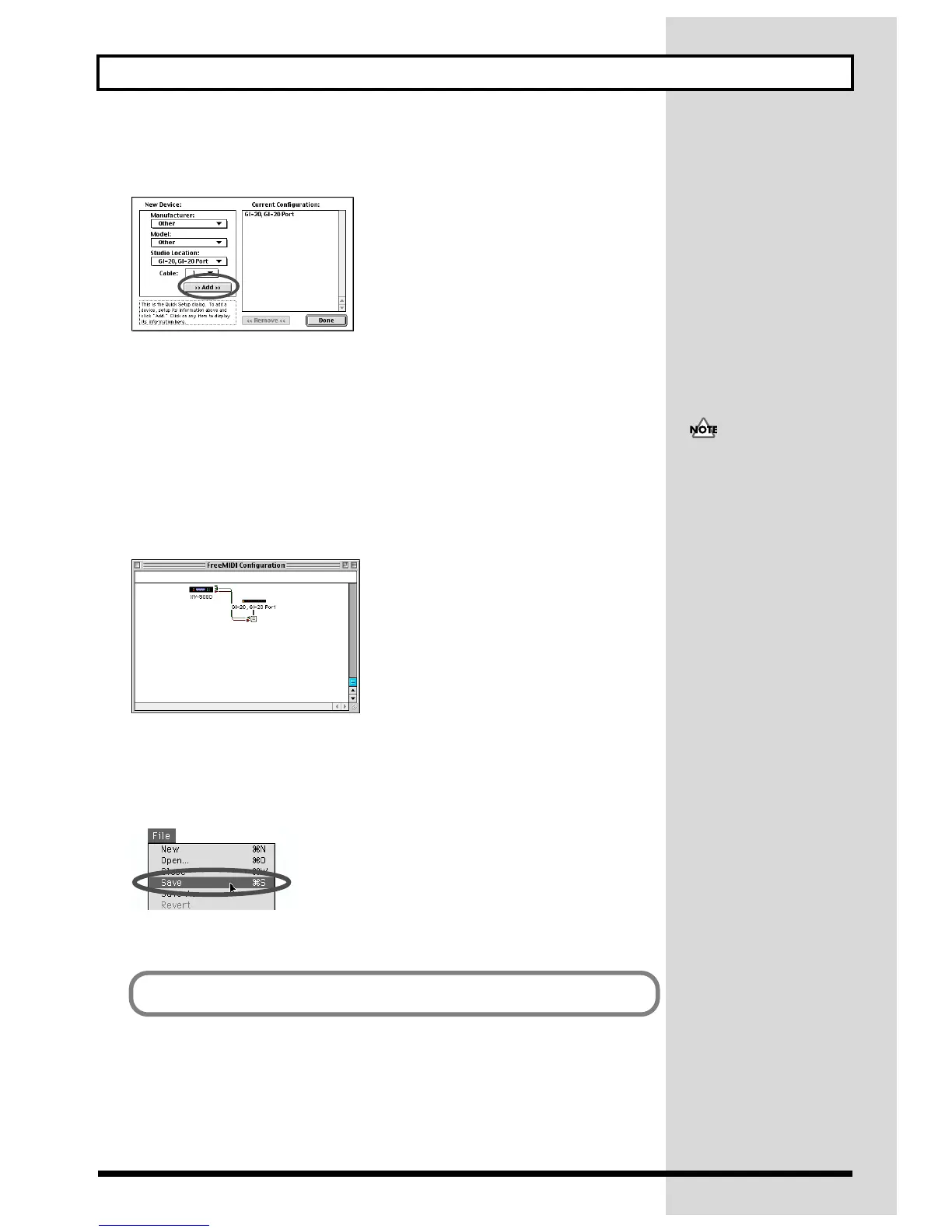
In the dialog box that appears, select the MIDI equipment that is connected to
each port of the GI-20, and click [>>Add>>].
fig.d46
Manufacturer:
Select the manufacturer of your MIDI equipment. If the appropriate manufacturer does not appear
in the list, select “Other.”
Model:
Select the model of your MIDI equipment. If the appropriate model does not appear in the list, select
“Other.”
Studio Location:
Select “GI-20.”
7.
When settings are complete, click [Done].
A setting window like the following will appear.
fig.d47
8.
If you selected “Other” for Model, double-click the appropriate icon in the
setting window to make settings for your MIDI equipment.
(For details refer to the documentation included with your software.)
9.
From the File menu, select [Save], and save your settings.
fig.d48
This is one example of a setting
window. The window that
appears will depend on your
setup.
This completes driver settings.


 To Next Page