22
Mar. 2010 SPD-30
Data Backup and Restore
Operations
Formatting a USB Memory Device
Item Required
• USB memory device (M-UF2G)
* Use a USB memory device other than the one for system-update use.
1. Insert the USB memory device into the USB MEMORY connector on the
rear panel.
2. Press [MENU].
The MENU screen appears.
3. Turn [Knob 1] to select USB, then press [Button 3].
The USB screen appears.
4. Press [Button 1] or [Button 2] to select the FORMAT tab, then press
[Button 3].
A confirmation prompt screen appears.
5. Press [Button 3].
A confirmation prompt screen appears again.
6. Press [Button 3].
Formatting starts. When a “completed” screen appears, formatting has
finished.
Data Backup
All user settings can be backed up onto a USB memory device by using the
procedure shown below. Note, however, that the serial number stored in
internal memory is not backed up.
1. Insert a formatted USB memory device into the USB MEMORY connector
on the rear panel.
2. Press [MENU].
The MENU screen appears.
3. Turn [Knob 1] to select USB, then press [Button 3].
The USB screen appears.
4. Press [Button 1] or [Button 2] to choose the SAVE tab.
5. Turn [Knob 1] to select BACKUP ALL, then press [Button 3].
6. Turn [Knob 1] to select the number of the destination for saving, use
[Button 2] to assign a name to the data, then press [Button 3].
7. Press [Button 3].
Data Restore Operation
The following procedure restores backed-up user settings from a USB memory
device to the unit.
1. Insert the USB memory device containing the backed-up user settings
into the USB MEMORY connector on the rear panel.
2. Press [MENU].
The MENU screen appears.
3. Turn [Knob 1] to select USB, then press [Button 3].
The USB screen appears.
4. Press [Button 1] or [Button 2] to choose the LOAD tab.
5. Turn [Knob 1] to select BACKUP ALL, then press [Button 3].
6. Turn [Knob 1] to select the number of the destination for loading, then
press [Button 3].
7. Press [Button 3].
Performing a Factory Reset
Executing a factory reset causes kit and phrase data in the unit to be lost. Back
up the data in advance.
1. Press [MENU].
The MENU screen appears.
2. Turn [Knob 1] to select SYSTEM, then press [Button 3].
The System screen appears.
3. Press [Button 2] to choose the F.RESET tab.
4. Turn [Knob 1] to select Factory Reset, then press [Button 3].
A confirmation message is displayed.
5. Press [Button 3].
A factory reset is executed.
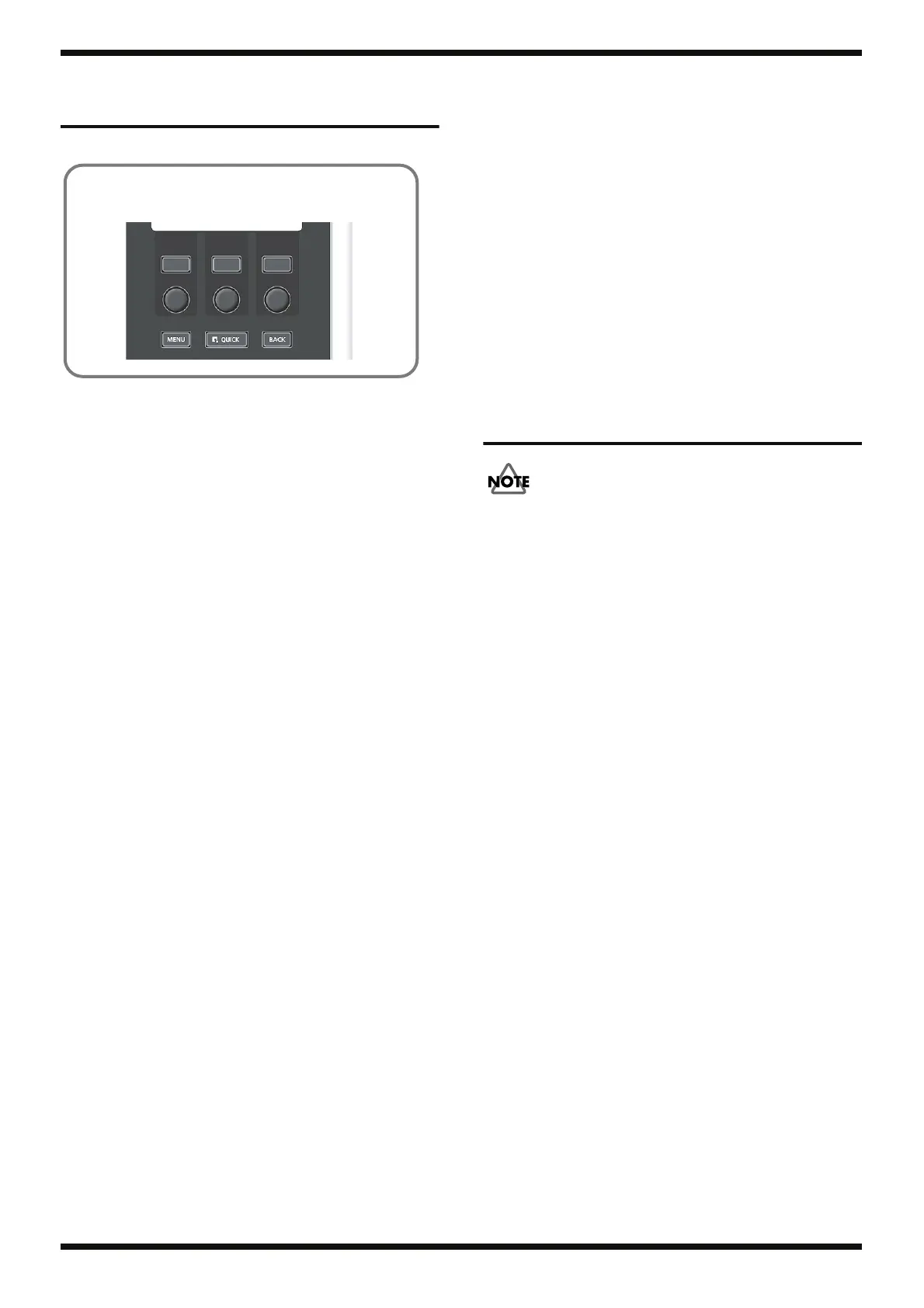
For [Knob 1] through [Knob 3] and [Button 1] through [Button 3]
used in the various operations, refer to the figure below.
fig.buttons-e.eps
Knob 1 Knob 2 Knob 3
Button 1 Button 2 Button 3



 To Next Page
 Loading...