77
Basic Operation
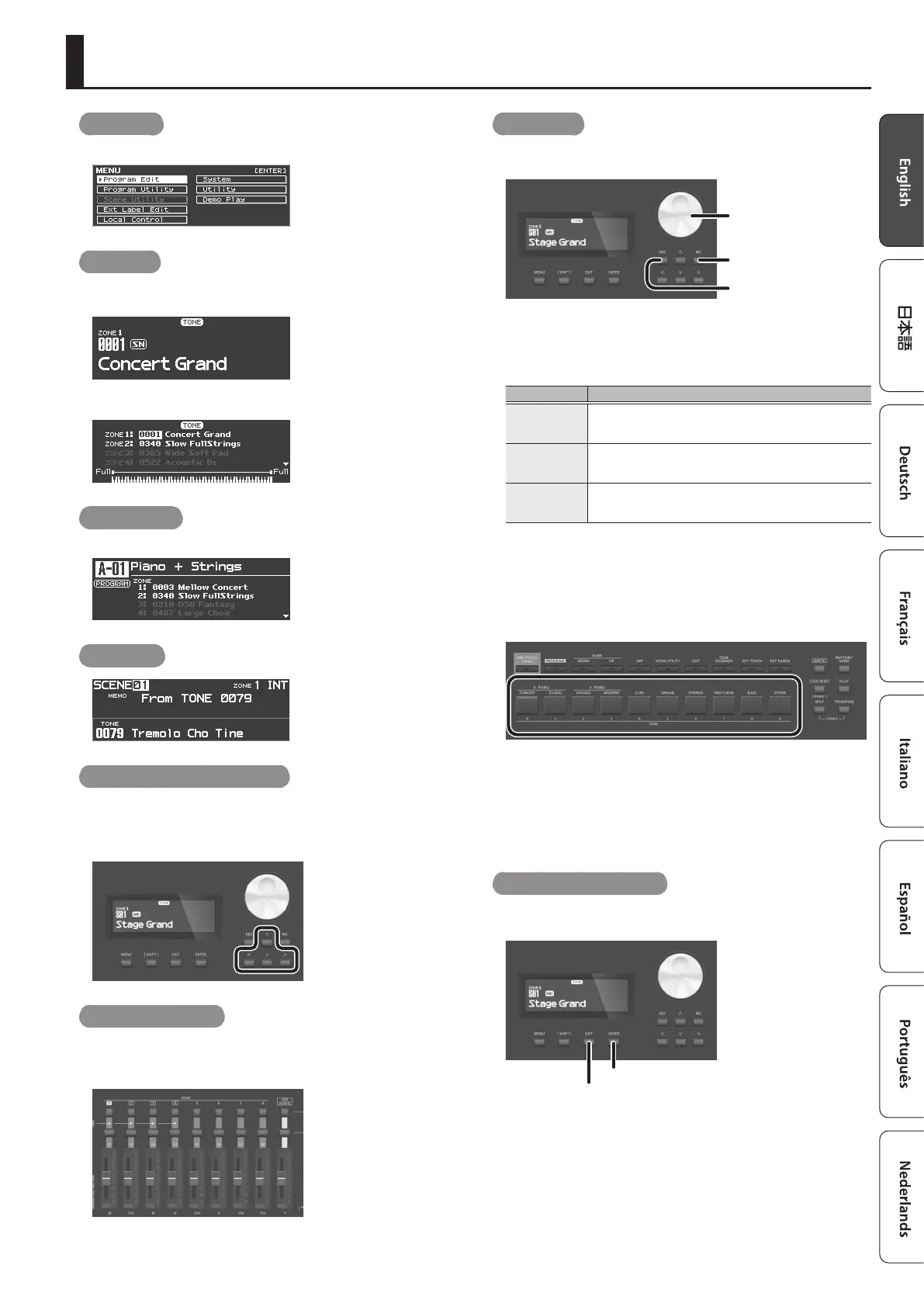
MENU screenMENU screen
Here you can make system settings for the RD-2000EX or manage les.
TONE screenTONE screen
This is the screen that appears when you start up the RD-2000EX or
when you press a TONE button.
This is the screen when zones are layered.
PROGRAM screenPROGRAM screen
This is the screen that appears when you press a PROGRAM button.
SCENE screenSCENE screen
Navigating among items to be set (cursor)Navigating among items to be set (cursor)
When more than one parameter is present in a screen, the name and
value of the parameter to be changed is shown with a box around
it. This box is referred to as the “cursor”. The cursor is moved with the
Cursor [
H
] [
I
] [
K
] [
J
] buttons.
Knob and slider operationsKnob and slider operations
When you use a knob or slider to modify a setting, the modied
parameter and its value appears in a popup screen.
This screen will automatically close after a time.
For some parameters, a popup screen does not appear.
Editing a valueEditing a value
When changing settings values, you can use the [DEC] and [INC]
buttons, value dial, or the TONE buttons (numeric keys).
Value dial
[DEC] button
[INC] button
[DEC] button, [INC] button
Pressing the [INC] button increases the value, and the [DEC] button
decreases it.
Purpose Operation
To continuously
change the
value
Hold down the [DEC] button or [INC] button.
To rapidly
change the
value
Hold down the [INC] button and press the [DEC] button.
Hold down the [DEC] button and press the [INC] button.
To set the item
to its default
value
Press the [DEC] button and [INC] button simultaneously.
Value dial
Turn the dial clockwise to increase the value, or counterclockwise to
decrease the value.
TONE buttons ( numeric keys)
For some of the items, you can use the TONE buttons ([0]–[9]) as
numeric keys to directly specify a numeric value.
To use these as numeric keys in the TONE / PROGRAM / SCENE / ZONE
EDIT screen, operate the buttons while holding down the [SHIFT]
button. When you use the numeric keys to enter a value, the value
in the screen blinks. The blinking means that the value is not yet
conrmed, so press the [ENTER] button to conrm the value.
Conrming or canceling the valueConrming or canceling the value
To conrm the specied value, press the [ENTER] button.
If you decide to cancel, press the [EXIT] button.
[ENTER] button
[EXIT] button


 To Next Page