Video Input/Output Settings
22
Adjusting the Input Video on Video Channel 4
Of the input video streams on video channel 4, the RGB/COMPONENT and the HDMI inputs can have their input formats and image quality adjusted
manually.
NOTE
Composite video (video input via the VIDEO input connector) on video channel 4 cannot be adjusted.
1. Press the [MENU] button to display the menu screen.
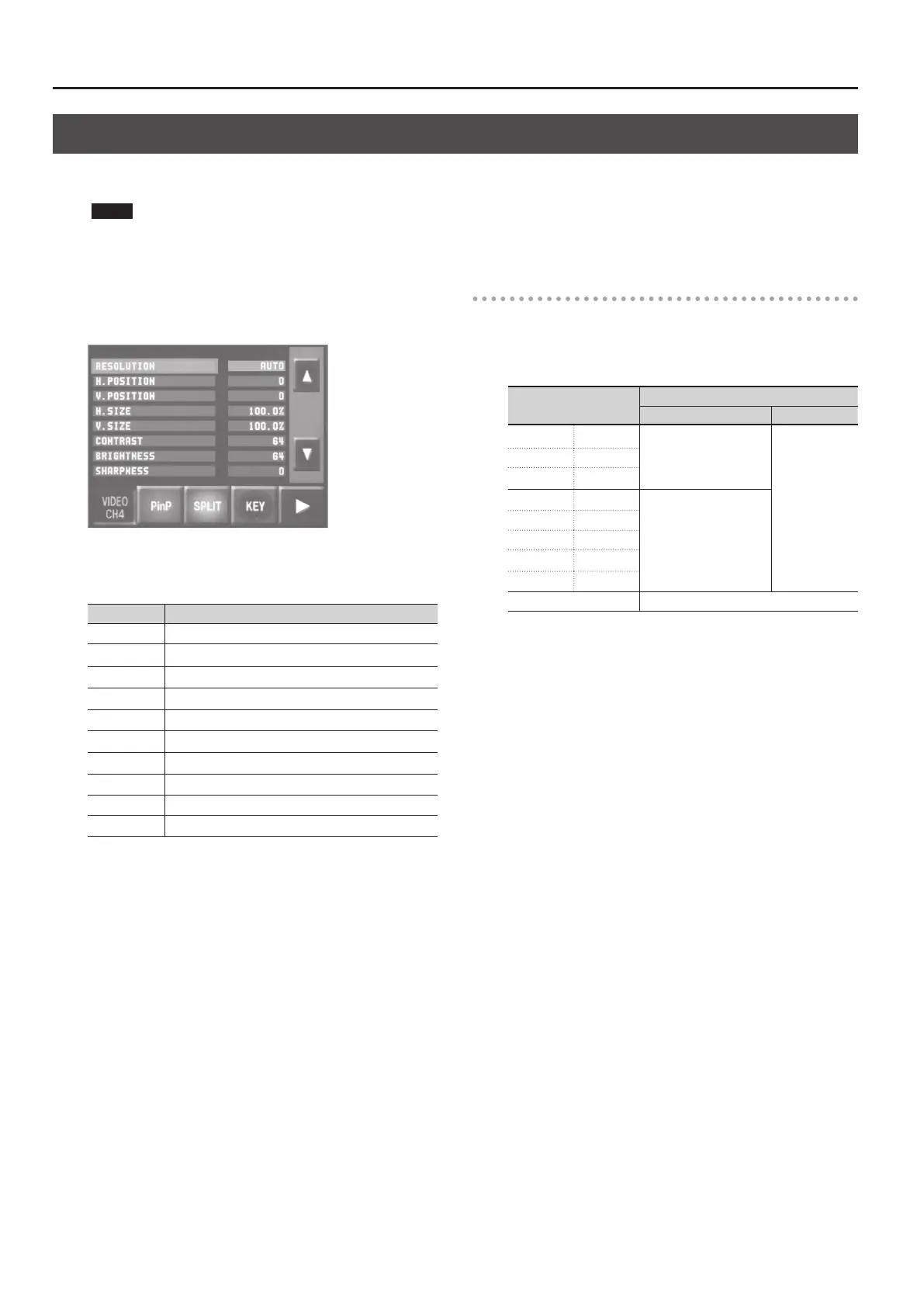
2. Touch <VIDEO CH4>.
The VIDEO CH4 menu is displayed.
3. Adjust the input video on channel 4.
You can make the settings for the items described below.
Setting item Explanation
RESOLUTION This sets the input format. (Refer to the chart at right.)
H. POSITION This adjusts the display position in the horizontal direction.
V. POSITION This adjusts the display position in the vertical direction.
H. SIZE This adjusts the size in the horizontal direction.
V. SIZE This adjusts the size in the vertical direction.
CONTRAST This adjusts the contrast.
BRIGHTNESS This adjusts the brightness.
SHARPNESS This adjusts the sharpness of outlines.
FLICK FILTER This reduces icker.
COLOR This adjusts the color.
4. Press the [MENU] button twice to quit the menu screen.
Setting the Input Format
By factory default, the input format for video channel 4 is set at
“AUTO” (setting for automatic detection).
If you want to specify an input format of your choosing, change the
setting of “RESOLUTION” to match the incoming video signal.
Value
Video signal that is input (channel 4)
RGB/COMPONENT connector HDMI connectors
480/576i 480/576p
Component
HDMI
720p 1080i
1080p
640×480 800×600
RGB
1024×768 1280×768
1280×1024 1366×768
1400×1050 1600×1200
1920×1200
AUTO The input format is automatically detected.


 To Next Page