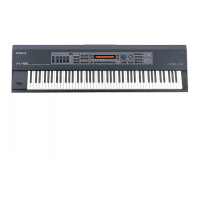
12
BA
H
C D FE
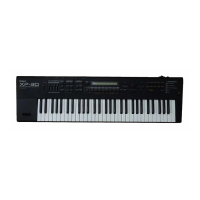
Front and Rear Panel
■ Front Panel
A
Volume Slider
This slider adjusts the overall volume that is output from the
rear panel OUTPUT jacks and PHONES jack. →p. 26
B PALETTE Section
Use the four sliders to modify sounds in real time.
[FILTER/ENV]
Press this button ON when modifying filter and/or envelope
settings in real time using the four sliders (CUTOFF/RESO./
ATTACK/DECAY). →p. 36, 51, 54
[LEVEL]
Press this button ON when adjusting volume balance in real
time using the four sliders (1/2/3/4). →p. 36, 51, 54
[CONTROLLER]
Can be switched on when you wish to assign various
parameters to the four sliders, and modify the sound as you
play (C1/C2/C3/C4). →p. 34
C KEY EFFECTS Section
The buttons in this section allow you to assign various
functions to the keys of the XP-30’s keyboard.
[PORTAMENTO]
Switches Portamento on/off. →p. 35, 50
[SOLO]
Specifies playing a single note at a time. →p. 35, 50
[TRANSPOSE]
Specifies transposing the keyboard in semitone steps. →p. 60
[ARPEGGIO]
Switches Arpeggiator on/off. →p. 36, 56
[+OCT], [-OCT]
These buttons adjust the pitch of the keyboard in octave steps.
→
p. 59
Pressing either of these buttons while holding down [TRANSPOSE]
allows you to set the desired amount of transposition.
→
p. 60
D MODE Section
The buttons in this section select modes. The button indicator
of the selected mode will light. →p. 42
[PERFORM]/[GM]
Pressed to get into Performance mode. Hold down [SHIFT]
while you press [PERFORM] to select GM mode. →p. 51, 124
[PATCH]/[PART]
Pressed to get into Patch mode. By holding down [PERFORM]
and pressing [PATCH], you can modify the settings of the patch
that is assigned to each part of the performance.
→
p. 47, 54, 66
[SYSTEM]
This selects System mode. →p. 108
[RHYTHM]
This selects Rhythm Set mode. →p. 55
[UTIL/CARD]
This selects Utility/Card mode. →p. 115
[EFFECTS ON/OFF]
This button turns the internal effects (Multi-Effects, Chorus,
Reverb) on/off. →p. 62
E
Display
Shows various information for the currently selected
function or operation.
[PHRASE PREVIEW]
Press this when you wish to use phrases to audition a patch.
→p. 33, 49


 To Next Page