4 Operation
User reference guide
10
RHBX04+08DA
ROTEX HPSU low temperature Bi‑bloc
4P495261-1 – 2017.12
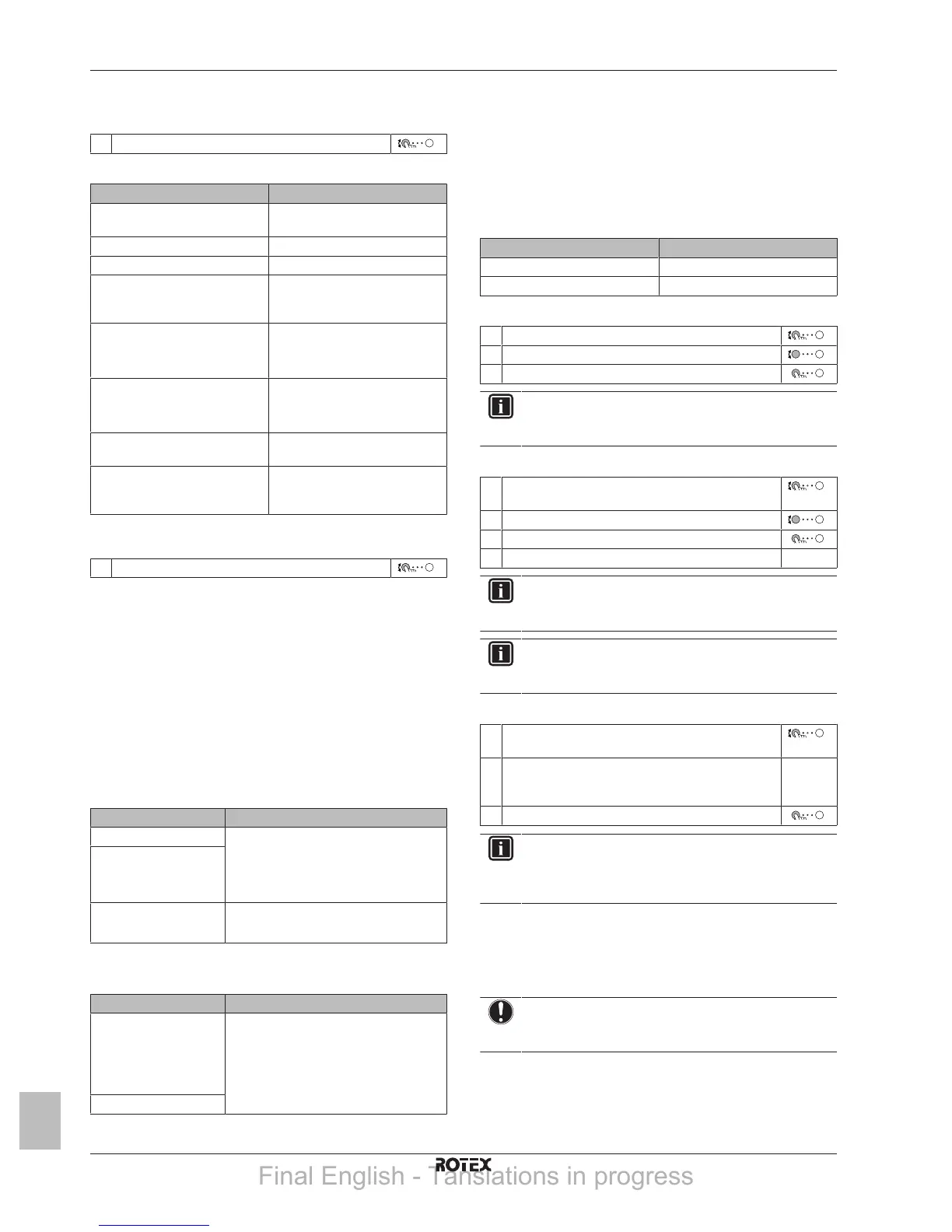
4.6.4 Reading out information
To read out information
1 Go to [8]: Information.
Possible read-out information
In menu… You can read out…
[8.1] Energy data Produced energy, consumed
electricity, and consumed gas
[8.2] Malfunction history Malfunction history
[8.3] Dealer information Contact/helpdesk number
[8.4] Sensors Room, tank or domestic hot
water, outside, and leaving water
temperature (if applicable)
[8.5] Actuators Status/mode of each actuator
Example: Domestic hot water
pump ON/OFF
[8.6] Operation modes Current operation mode
Example: Defrost/oil return
mode
[8.7] About Version information about the
system
[8.8] Connection status Information about the connection
status of the unit, the room
thermostat and the LAN adapter.
4.6.5 To configure time and date
1 Go to [7.2] User settings > Time/date.
4.7 Preset values and schedules
4.7.1 Using preset values
About preset values
For some settings in the system, you can define preset values. You
only need to set these values one time, then reuse the values in
other screens such as the scheduling screen. If you later want to
change the value, you only have to do it in one place.
To define tank temperature preset values
The domestic hot water schedule makes use of different preset
values:
Preset value Where used
Comfort setpoint In schedule if domestic hot water tank
mode is
▪ Schedule only
▪ Schedule + reheat
Eco setpoint
Reheat setpoint If domestic hot water tank mode is
▪ Schedule + reheat
To define energy prices
Only possible if Bivalent is enabled by the installer.
Preset value Where used
Electricity price >
▪ High
▪ Medium
▪ Low
Used in the weekly schedule screen
when setting the energy prices.
Gas price
4.7.2 Setting the energy prices
In the system, you can set the following energy prices:
▪ a fixed gas price
▪ 3 electricity price levels
▪ a weekly schedule timer for electricity prices.
Refer to the installation manual for more information.
Example: How to set the energy prices on the user interface?
Price Value in breadcrumb
Fuel: 5.3euro cents/kWh [7.6]=5.3
Electricity: 12euro cents/kWh [7.5.1]=12
To set the gas price
1 Go to [7.6]: User settings > Gas price.
2 Select the correct gas price.
3 Confirm the changes.
INFORMATION
Price value ranging from 0.00~990 valuta/kWh (with 2
significant values).
To set the electricity price
1 Go to [7.5.1]/[7.5.2]/[7.5.3]: User settings > Electricity
price > High/Medium/Low.
2 Select the correct electricity price.
3 Confirm the changes.
4 Repeat this for all three electricity prices. —
INFORMATION
Price value ranging from 0.00~990 valuta/kWh (with 2
significant values).
INFORMATION
If no schedule is set, the Electricity price for High is taken
into account.
To set the electricity price schedule timer
1 Go to [7.5.4]: User settings > Electricity price >
Schedule.
2 Program the selection using the scheduling screen.
You can set the High, Medium and Low electricity
prices according to your electricity supplier.
—
3 Confirm the changes.
INFORMATION
The values correspond with the electricity price values for
High, Medium and Low previously set. If no schedule is
set, the electricity price for High is taken into account.
About energy prices in case of an incentive per kWh renewable
energy
An incentive can be taken into account when setting the energy
prices. Although the running cost can increase, the total operation
cost, taking into account the reimbursement will be optimized.
NOTICE
Make sure to modify the setting of the energy prices at the
end of the incentive period.
To set the gas price in case of an incentive per kWh renewable
energy
Calculate the value for the gas price with the following formula:
▪ Actual gas price+(Incentive/kWh×0.9)
Final English - Tanslations in progress



 To Next Page