7. Touch Screen Navigation / Settings
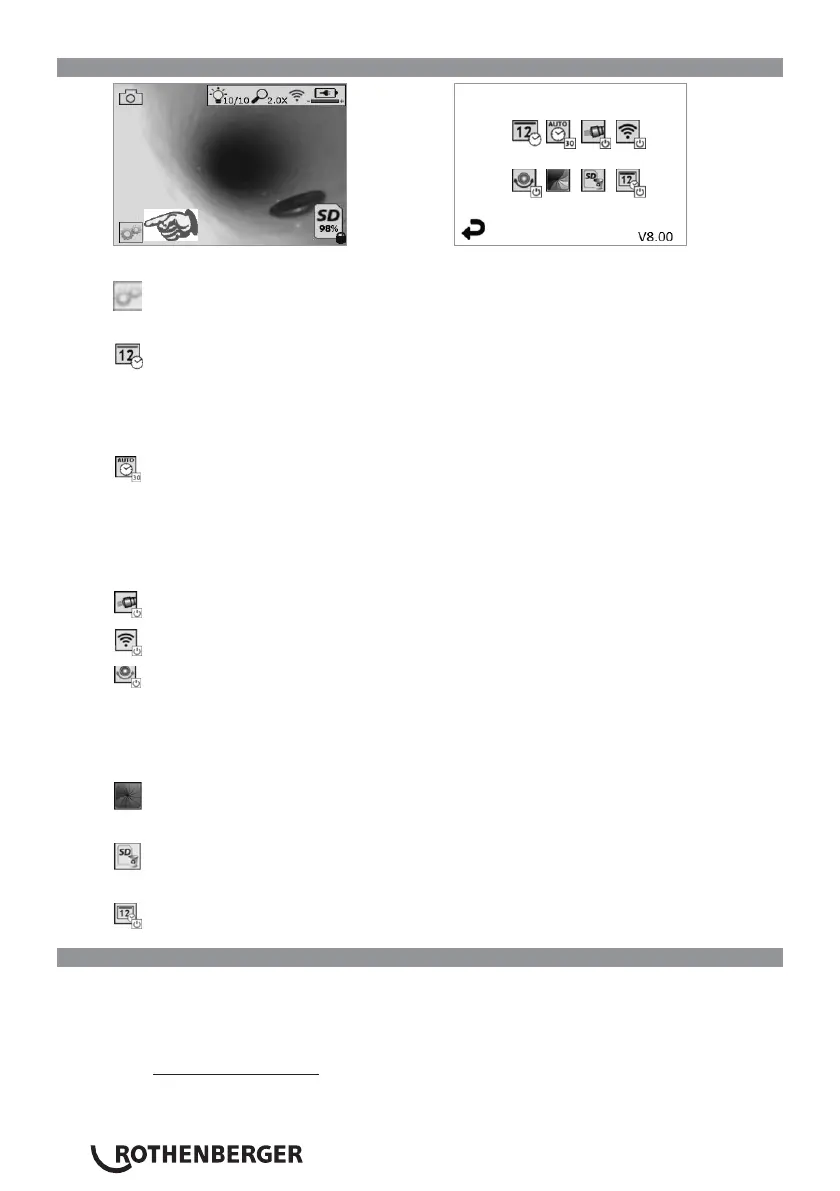
Figure No. 13 - Tools Menu Screen Figure No. 14 - Tools Menu Screen
Touch screen (Touch Tools icon / lower left corner - Figure No. 13) to enter the interac-
tive menu (Figure No. 14).
Touch the date & time icon (top left) to set date and time
-
Tap each individual entry to select
-
Tap up / down arrows repeatedly to desired entry
-
Tap “Back” arrow to main menu
Touch “Auto Time-Out” icon (top center) to select feature:
-
10 minute time-out
-
20 minute time-out
-
30 minute time-out
-
No time-out / unit must be manually turned off
Touch head lights icon (top right) to turn lights on / tap again to turn lights off
Touch to turn the Wi-Fi Connection on/off
Touch patented “Up-is-Up” self-leveling feature icon (bottom left) to turn feature on /
tap again to turn feature off.
NOTE: You may witness black regions around the perimeter as the live image rotates
within the LCD. This is a normal result of the format of the imager, zooming in on the
live image will reduce this.
Touch the black & white / color icon (bottom center) to switch between black & white
and color modes.
Touch SD card (bottom right) - confirm yes/no to clear “ALL” SD card memory storage
(100%).
Touch to turn feature for the time/date stamp on/off
8. Wireless Transfer of Images / Video
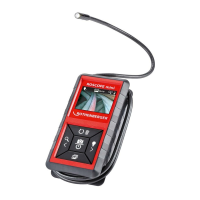
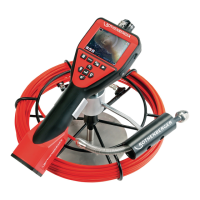
The ROSCOPE i2000 has the ability to wirelessly transfer saved images and video from the hand-
held device to a secondary Wi-Fi enabled smart phone, such that you can share data.
NOTE - Radio interference and the range between ROSCOPE i2000 and external devices can
impact the transfer of data.
Go to www.rothenberger.com for complete details and a FREE firmware download or search App-
store.


 To Next Page