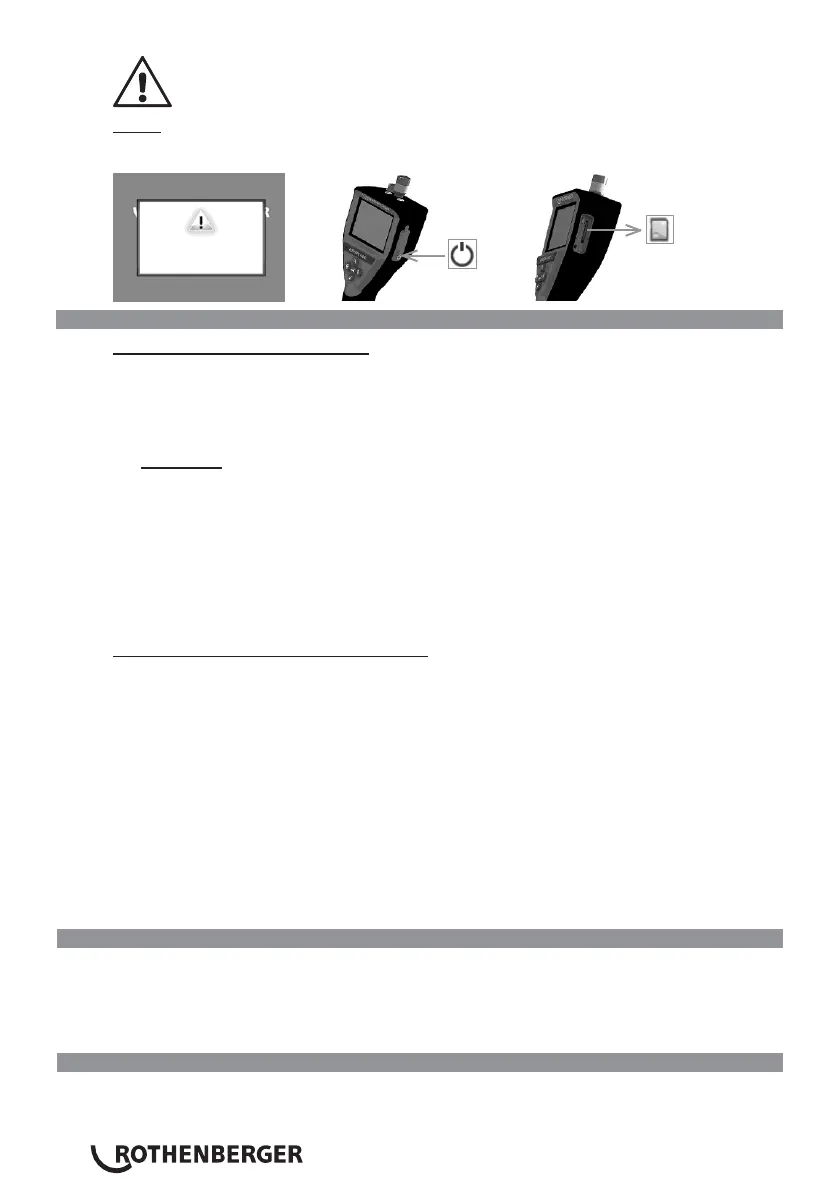
Step 4
Do not press the power button when the “hour glass“ is
on the screen! The firmware is updating (45 seconds).
Firmware updated successfully, OK to turn power off and remove SD card.
11. Operation of the ROSCOPE i2000 App
Use of the app with an iOS device:
➔ Switch on the ROSCOPE i2000, select the Extras/Menu button and activate the WLAN.
➔ Activate the WLAN (RO2K……) on the iOS device over Settings.
Settings:
Autom. connection ON
IP address:
Static
IP-address 192.168.10.241 (iOS device)
Subnet mask 255.255.0.0
Router 192.168.10.240 (ROSCOPE i2000)
➔ Press the Home button on the iOS device twice and remove the programme(s) running in the
background. Press the Standby On/Off button twice to close all connections.
➔ Restart ROSCOPE i2000 and open the app on the iOS device.
The connection is created and Live Picture is now available.
Use of the app with the Android device:
➔ Set up a “Hotspot“ (mobile WLAN) on the Android device over Settings:
-
Further settings
-
Tethering and mobile hotspots
-
Activate/select a mobile WLAN hotspot
-
Click Configure in order to navigate to the hotspot settings.
-
Establish the name of the hotspot and the password for the mobile network.
➔ Switch on the ROSCOPE i2000, select the Extras/Menu button and activate the WLAN (IP
address of the ROSCOPE i2000 visible under the hotspot name).
Then connect with the mobile WLAN hotspot (the Android device):
➔ Open the app on the Android device, select Live Picture and enter the IP address of the
ROSCOPE i2000 and then confirm.
The connection is created and Live Picture is now available.
12. Cleaning Instruction
1.
Alcohol wipes or mild detergent and water to remove dirt and grease from the product.
2.
Recommend soft optical cloth for cleaning the LCD window.
3.
Recommend cotton cloth for cleaning imager head.
4.
Allow appropriate drying time before operating handheld device.
13 Storage
1.
It is good practice to clean the unit prior to long term storage.
2.
It is best to store the unit in a cool dry location.


 To Next Page