User Interfaces
20
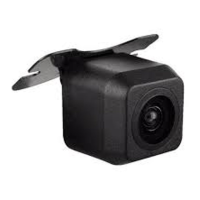
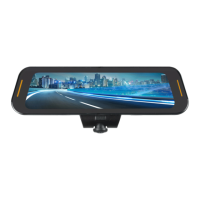
Tap the touch screen once to bring up the settings
bar. Double-click the image
in the
lower right corner to display the backup camera in full screen mode. Slide the screen
up or down to adjust the viewing angle of the rear camera.
Double-tap the touch
screen to
exit full-screen mode
and return back to the main screen.
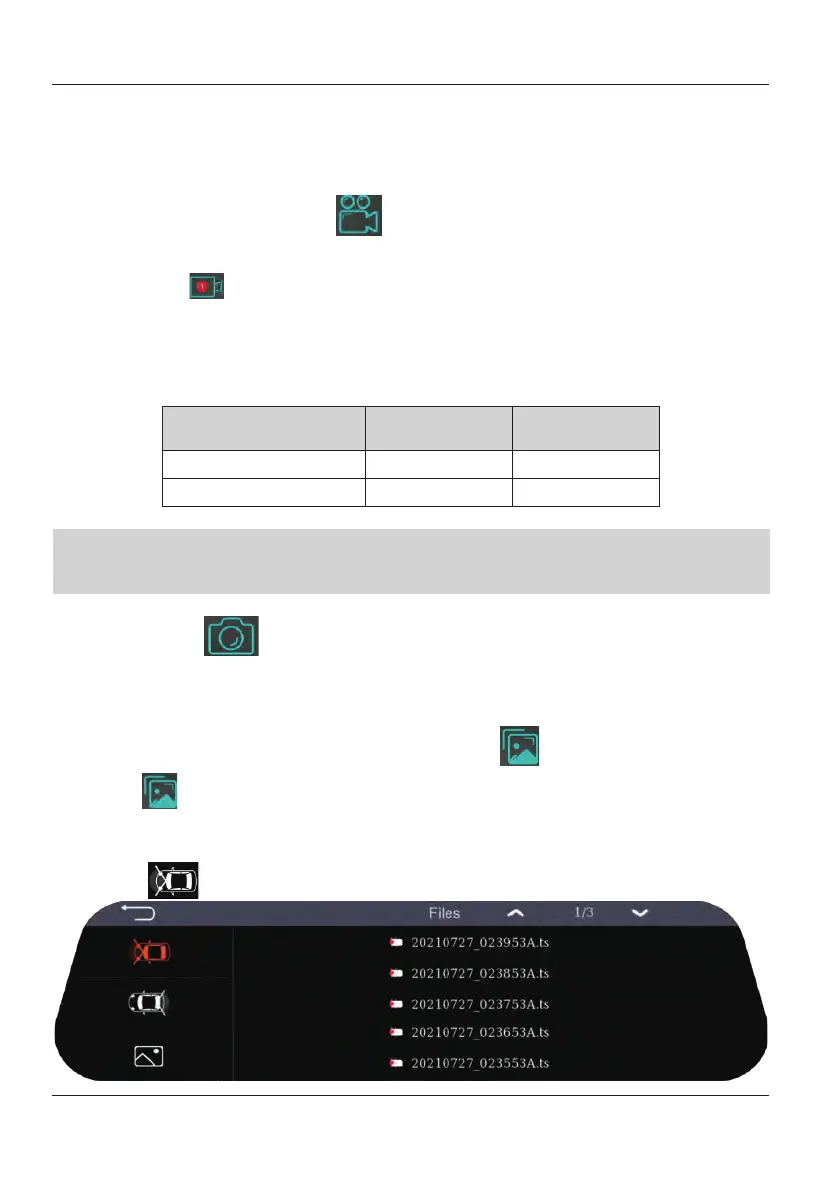
Video Recording Icon
The TOMBO 360 records at startup
(default). When the system is recording, the icon
will appear like . To enter the settings menu, you must stop recording. To
stop/start recording simply press on the icon. The TOMBO 360 recording interval is
1min and 30sec for SOS files. The TOMBO
360 file is recorded in (H.264) format.
The following table can be used as a reference for data storage usage.
MicroSD Card
Memory
Standard File SOS File
16GB
52
min
24
min
32GB
105
min
49
min
Note:
TOMBO 360 Maximum microSD
card
size is 256GB & Minimum storage
required is 16GB. For new microSD card, it takes time for formatting and pre-
allocating, bigger memory space takes longer.
Photo Icon
Select
the
photo
icon to take a snapshot. Images
will be saved in
".jpeg" format
inside the picture folder.
Replay Video and View Photo Icon
Touch the
icon to enter the files for the front and backup camera recordings and
view the snapshots. Recordings and images only viewable when system is not
recording. To delete press and hold on desired file.
Select
the
icon to view the recorded videos of
the front camera.


 To Next Page