W www.saferoads.com.au
T 1800 060 672
E sales@saferoads.com.au
June 2020
Page 6
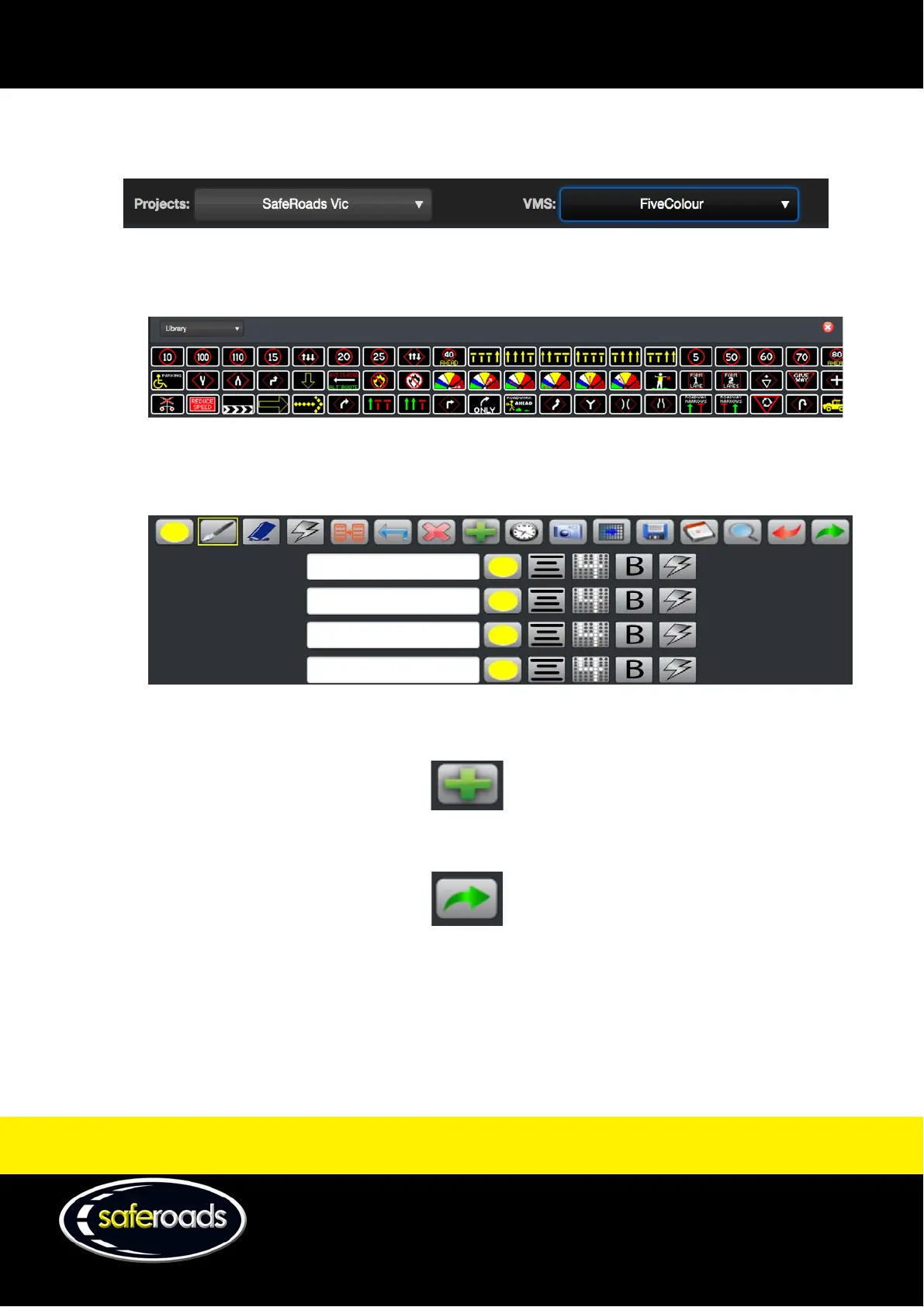
2. Select the Project
3. Select the VMS
4. Choose image
• Click on image from Library/Favourites
or
• Create a custom image using the drawing tools
5. Click on the Add button to move the image to frames
Figure 6
6. Click on the Send to VMS button. Ensure the VMS Display is switched on, so the message can be displayed.
Figure 7
7. Select the VMS to play the message on. Multiple VMS can be added by clicking on the Select VMS
text box



 To Next Page