Setting the Clock
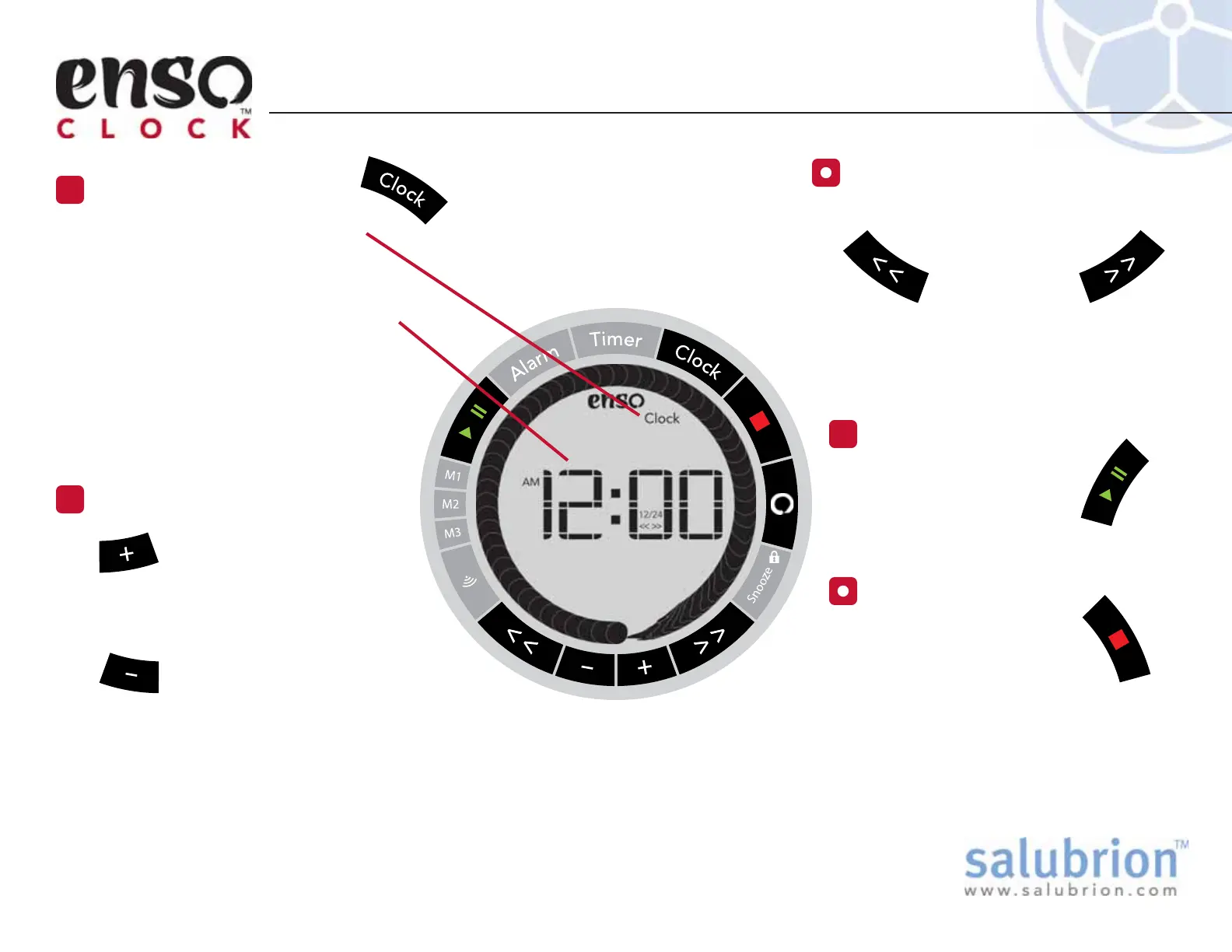
Press the Clock Button
1
The Clock screen icon is visible
when the clock is in Clock Set
mode.
The current time is displayed in
the large digits in the center of the
display.
In newer versions of the clock, the
large digits in the center of the
screen will flash when in clock
mode.
Adjust the Time
2
Use the + button to
increment the current
time. Holding down the +
button will accelerate the rate at
which time is incremented.
Use the – button to
decrement the current
time. Holding down the
– button will accelerate the rate at
which time is decremented.
Note: There is no separate mode for the setting of hours or minutes,
specifically. You use the + and – buttons to adjust the current time as a
whole. For example, once the minute count reaches 59, pressing the +
button will cause the hour to increment and return the minute count to 00.
Select 12- or 24-hour Format
If a 24-hour time display is desired,
use the << or >> button to
toggle between 12-
and 24-hour
time formats.
Changing this setting will affect all
areas of time display within the clock
such as Clock time and Alarm time.
Save Changes
3
Press the Clock button or
green Play/Pause button
to save your changes.
Discard Changes
Press the red Stop
button to discard any
changes that have been
made to the Clock.
After a few minutes of inactivity, the clock
will automatically exit the Clock setting
mode and return to the clock display.
EX-EC-100-1.1


 To Next Page