13
Whilst the Chorus setting is indicated on the display, the sound can be changed. Use the [+/-]
buttons to select the desired CHORUS types. The display will indicate the available Chorus type:
CHORUS OFF,Chorus1,Chorus2,Chorus3,Chorus4, Feedback, Flanger, Short Delay,
Feed Back Delay.
It is possible to Change the Chorus effect for each section.
- Press [FUNCTION] button to select R1 RevVo? on the display and use the [+/-] buttons to
select R1 Chr Vo? or Lf Chr Vo? or R2 ChrVo? R2 page.
- Press the [ENTER] button to select the Right 1 section.
- Use the [+/-] buttons or use the numeric key-pad buttons to change the Chorus value
( the range is from 00 to 63).
- Press the [+/-] buttons at the same time to set the default value.
After a few seconds the display will go back to the normal display mode and the new Reverb
Value for Right 1 section is now saved.
TOUCH SENSITIVITY
Just like an acoustic piano, your instrument has a keyboard with velocity control. This means the
level of the audio signal will be in proportion with the velocity of the key pressed. If you play soft
you will have a quiet sound, while if you play very hard you will have a much louder sound.
This function can be set to different levels to adjust the touch with you own playing style.
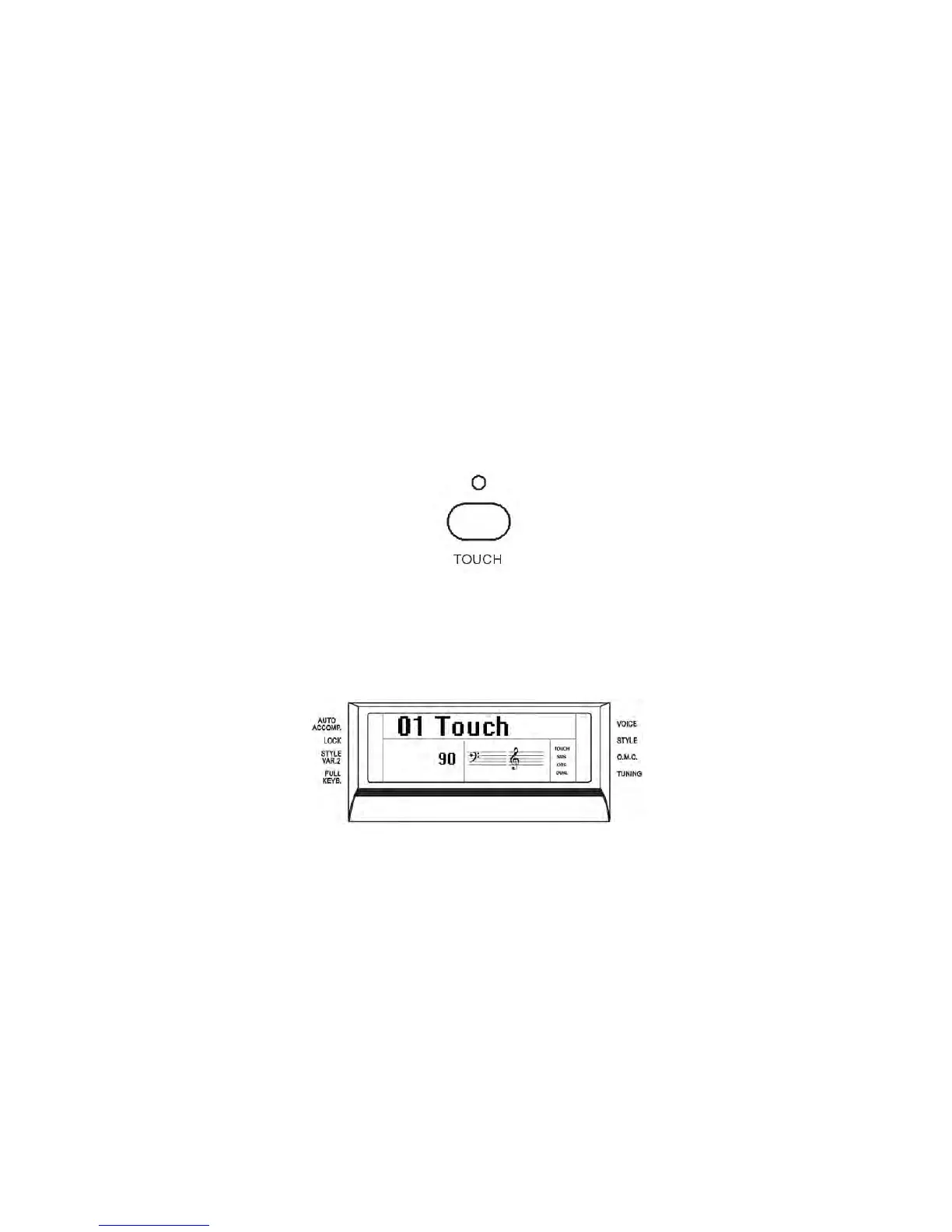
After the [TOUCH] button is pressed the display will show
Using the + and – button select the available Touch Sensitivity value:
00 No Touch Sensitivity - Sensitivity Off
01 Hard Touch Sensitivity - This setting requires the keys to be played quite hard
to product maximum volume.
02 Normal Touch Sensitivity - This setting produces standard keyboard response.
This is the factory default mode.
03 Light Touch Sensitivity - This setting allows maximum volume with lighter
key pressure.



 To Next Page