30
USE AUTO TRACK ASSIGNMENT
- Insert the USB Disk into the USB socket.
- The Auto Track function is activated by default.
- Press the [RECORD] button to start recording. The display will show the down beat dot
flashing as long as the first key on the keyboard or the [START/STOP] button is pressed and
will start recording. During recording you can select sounds, volumes, effects, change styles
and all will be recorded in your performance.
- When the recording is finished, the song file will be saved with the name
- Press [RECORD] button to save the song.
- Select now MULTI by pressing the [USB FILES] button and the [RECORD] buttons at the
same time. ( hold down the[USB FILES] button and press [RECORD] button)
The Metronome immediately start for two bars and the first recorded Track starts playing.
Use the same operation as Step 4 and 5 to record more tracks. The name of the new file will
be saved in sequence.
- To stop recording by pressing [RECORD] button again.
- It is necessary to press the [RECORD] button at the end of each track.
DELETE SONG
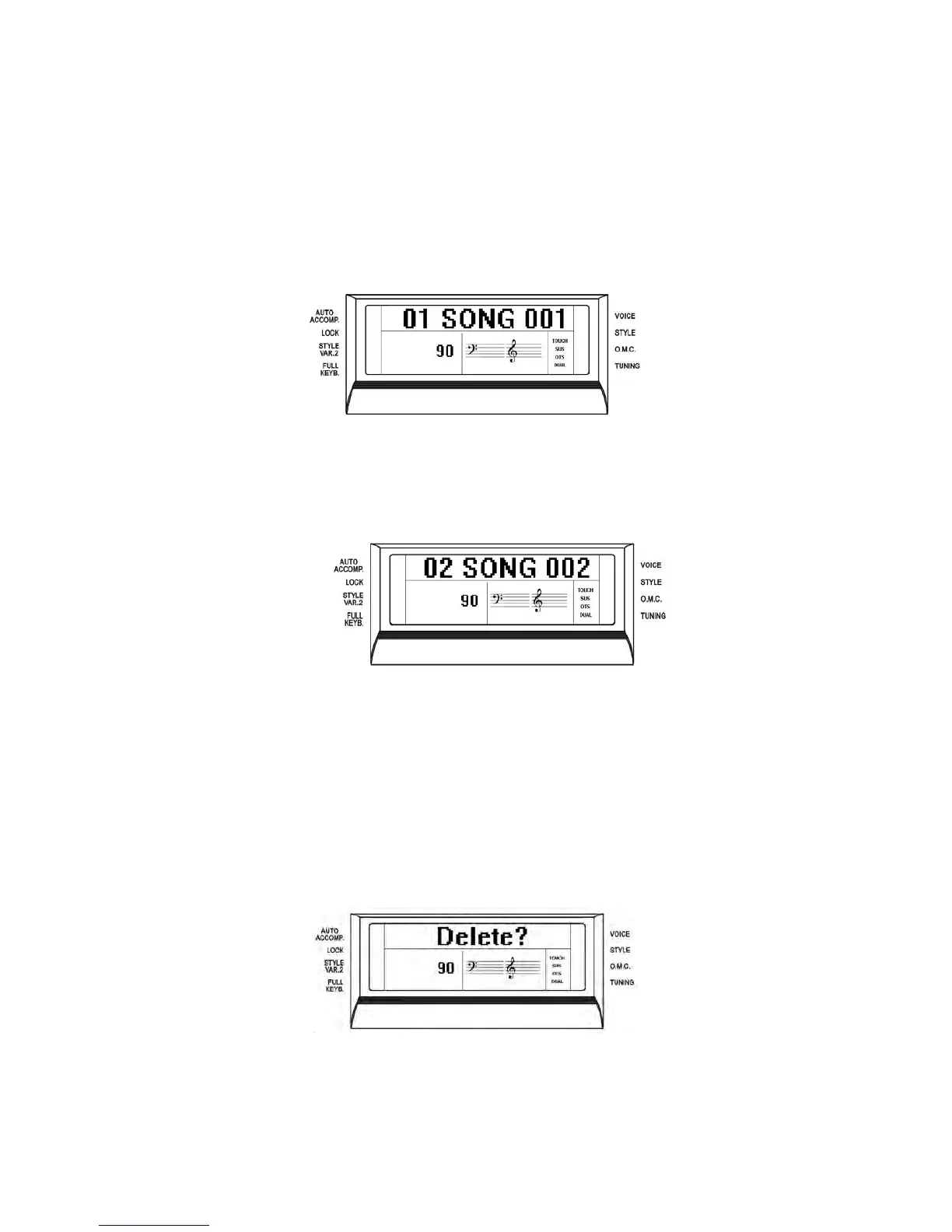
Insert the USB Disk into the USB socket. Use [+/-] button to select the song file you want to
delete, then hold down the [RECORD] button and press [PLAY/LOAD] button. The LCD
shows:
Press [+] button to delete the file.
Press [-] button to exit the function without deleting the file.



 To Next Page