EasyManua.ls Logo

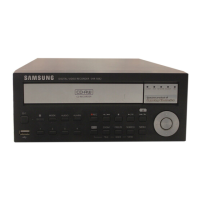
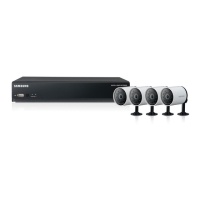
Samsung 4 channel DVR - User Manual

Samsung 4 channel DVR
116 pages
Print Icon
To Next Page IconTo Next Page
Loading...
4 CHANNEL DVR
User Manual
SDE-3001/3003

Table of Contents

Questions and Answers

  • D
    Dana JordanAug 12, 2025
    What to do if my Samsung 4 channel DVR displays 'NO HDD' icon?
    • C
      Cassandra WebbAug 12, 2025
      If you see the “NO HDD” icon and an error message, check the HDD connection. If the problem continues, contact the nearest service center to have the HDD checked.
  • K
    Kelly FitzgeraldAug 15, 2025
    What to do if the alarm won't turn off on my Samsung DVR?
    • D
      dwongAug 15, 2025
      If the alarm persists on your Samsung DVR, press the [MENU] button and try the following: 1) To release the event monitoring mode: Go to Monitoring Mode and set the duration of the event monitoring to Off. 2) To release the alarm sound: Go to Event Record Mode - Alarm (Motion Detection/Video Loss) and deactivate the alarm sound. 3) To release the event: Go to Event Record Mode - Alarm (Motion Detection/ Video Loss) and set the mode to Off.
  • L
    Lori GarrettAug 19, 2025
    Why won't my Samsung DVR record when I press the REC button?
    • M
      masseynicoleAug 19, 2025
      If the REC indicator doesn't flash when you press the [REC] button on your Samsung DVR, check if there is free space on the HDD for recording. Also, verify that the record mode is set to ON in the record mode settings.
  • K
    Kylie HuntAug 23, 2025
    What to do if some channels display a black screen on my Samsung 4 channel DVR?
    • A
      anna80Aug 23, 2025
      If some channels on your Samsung DVR display a black screen, check if the camera connected to the system properly displays the image and if the camera is properly supplied with power. If you are using a video distributor, try inputting the video source of the camera directly into the DVR.
  • H
    hhenryAug 27, 2025
    How to fix a Samsung 4 channel that won't turn on?
    • J
      Jennifer SandovalAug 27, 2025
      If your Samsung DVR doesn't turn on, first check if the power supply system is properly connected and check the system for the input voltage from the power source. If the problem persists, check the power supplier and replace it with a new one if necessary.
  • T
    troy48Aug 30, 2025
    Why doesn't the Channel button work on my Samsung 4 channel DVR?
    • A
      alexandradennisAug 31, 2025
      The Channel button on your Samsung DVR will not work if the current screen is in the event monitoring mode. In the event monitoring screen, press the [ALARM] button to exit the screen and select a channel.
  • N
    Nicholas SerranoSep 3, 2025
    What to do if the cursor won't move to the Start button on my Samsung DVR during calendar search?
    • A
      Adam BrooksSep 4, 2025
      If the cursor won't move to the Start button during a calendar search on your Samsung DVR, check if the channel and the date that you want to play are marked with the V symbol. Both channel and date should be checked before you can start playing with the Start button.
  • D
    Darren CochranSep 7, 2025
    Why is the time bar not displayed in Search mode on my Samsung 4 channel?
    • R
      Richard ConnerSep 7, 2025
      The timeline can switch between normal and extension mode. In extension mode, the time bar may not be displayed in the current timeline. Switch to normal mode or use the left or right button to navigate through the time bar.

Summary

IMPORTANT SAFETY INSTRUCTIONS

BEFORE START

FEATURES

Package Contents

PART NAMES AND FUNCTIONS (FRONT)

PART NAMES AND FUNCTIONS (REAR)

REMOTE CONTROL

INSTALLATION

CHECKING THE INSTALLATION ENVIRONMENT

CONNECTING THE VIDEO, AUDIO, AND MONITOR

CONNECTING THE USB

CONNECTING THE CAMERA

Installing the camera

Camera Bracket

Adjusting the Camera Bracket

CONNECTING THE ALARM INPUT;OUTPUT

CONNECTING THE NETWORK

GETTING STARTED

Starting the system

Guides on connecting power and initial system boot-up and initialization.

Shutting Down the System

Explains the correct procedure for safely shutting down the DVR system.

Login

Locking All Buttons

LIVE SCREEN CONFIGURATION

Icons on the Live Screen

Explains the meaning and function of various icons displayed on the DVR's live viewing screen.

Error Information

Live Screen Menu

Single Mode Menu

View the Launcher Menu

LIVE MODE

Switching the screen mode

Explains how to switch between different live viewing modes like 4-split, PIP, and Auto Sequence.

Channel Setting

Switching to Single Mode

SPOT OUT

Selecting a Spot Out mode

Describes how to select output screen modes for the Spot Out port, useful for external monitors.

ZOOM

AUDIO ON;OFF

FREEZE

EVENT MONITORING

SYSTEM SETUP

Date;Time;Language

Covers setting the system's date, time, time zone, and interface language.

Setting the Date;Time;Language

Step-by-step guide to configure date, time, and language settings on the DVR.

Setting Holiday

Permission Management

Setting the Administrator

Instructions for setting or changing the administrator's ID and password for full system access.

Setting the Group

To change the user password

Setting the User

Setting Permissions

System Management

Checking the System Information

Shows how to view system version, broadcast format, and MAC address, and how to update software.

Settings

Log Information

System Log

Explains how to view system logs, including startup, shutdown, and settings changes.

Event Log

Backup Log

SETTING THE DEVICE

Camera

Guides on configuring camera settings like video, audio, channel name, and dwell time.

Storage Device

Confirming Devices

Details how to check connected storage devices (HDD, USB), their status, and management options.

Formatting

HDD Alarm

Remote Devices

Monitor

Setting the Monitor

Details how to configure monitor display settings, including event display and item selection.

Setting the Spot Out

Setting the Screen Mode

SETTING THE RECORDING

Recording Schedule

Explains how to set up a schedule for automatic recording on specific dates and times.

Event Record Duration

REC Quality; Resolution

Setting Standard Recording Properties

Covers setting resolution, frame rate, and quality for standard recording modes.

Setting Event Recording Properties

Record Option

SETTING THE EVENT

Sensor Detection

Details sensor operation, connected cameras, and alarm output settings.

Motion Detection

Setting the Motion Detection Area

Guides on setting detection regions, sensitivity, and alarm outputs for motion detection.

Video Loss Detection

Alarm Schedule

BACKUP

Setting the Backup

Provides instructions for backing up DVR data to a connected device, including range, channel, and format.

NETWORK CONFIGURATION

Connection Mode

Covers setting the network connection route and protocol, including IP and bandwidth.

Setting the Protocol

Connecting and Setting the Network

When no router is used

Details network setup for Static IP, Dynamic IP (DHCP), and ADSL modes without a router.

When a router is used

Setting Router’s Port Forwarding

DDNS

Live Transfer

Mailing Service

SMTP Setting

Guides on configuring SMTP server settings for email notifications.

Event Setting

Covers setting event intervals and types for email alerts.

Group Setting

Recipient Setting

SEARCH

Time Search

Provides instructions for searching recorded video data by date and time.

Event Search

Backup Search

Motion Search

PLAYBACK

Play

Explains how to play back stored video data from the HDD or backup devices.

Using the Playback Button

INTRODUCING WEB VIEWER

What is Web Viewer?

Introduces the Web Viewer software and its capabilities for remote access.

SYSTEM REQUIREMENTS

Lists the minimum hardware and operating system requirements for running the Web Viewer.

CONNECTING WEB VIEWER

USING LIVE VIEWER

OSD INFORMATION DISPLAY

SPLIT-SCREEN

CHANGING THE LIVE SCREEN MODE

SAVING THE LIVE SCREEN ON THE PC

USING SEARCH VIEWER

SPLIT-SCREEN

SAVING THE LIVE SCREEN ON THE PC

SEARCHING THE RECORDED VIDEO IN THE CALENDAR

SEARCHING THE RECORDED VIDEO IN THE TIMELINE

CONTROLLING PLAYBACK

VIEWER SETUP

System

Covers configuring various system settings for the DVR remotely via the Web Viewer.

Permission Management

Admin

Instructions for changing the administrator ID or password via the Web Viewer.

Group

User

System Management

System Information

Shows how to view current system information like software version and MAC address.

Device

Camera

Guides on configuring settings for cameras connected to the DVR.

Storage Device

Details how to check and change settings for storage devices like HDDs and USB drives.

HDD Alarm

Explains how to set alarm output channels and durations for HDD errors.

Remote Device

Monitor

Setting the Monitor

Details how to configure monitor display settings, including event display and item selection.

Spot Out

SETTING THE RECORDING

Recording Schedule

Explains how to set up a schedule for automatic recording on specific dates and times.

REC Quality & Resolution

Record Option

Event

Sensor Detection

Details sensor operation, connected cameras, and alarm output settings.

Motion Detection

Setting the Motion Detection Area

Guides on setting detection regions, sensitivity, and alarm outputs for motion detection.

Video Loss Detection

Alarm Schedule

Network

Connection

Details network connection route settings, IP address, and bandwidth.

Protocol

Covers configuring protocol-related settings like TCP/UDP and ports.

DDNS

Live Transfer

Mailing Service

SMTP Setting

Guides on configuring SMTP server settings for email notifications.

Event Setting

Covers setting event intervals and types for email alerts.

Group Setting

Covers creating recipient groups and setting their permissions for receiving email alerts.

Recipient Setting

Details adding or removing email recipients and assigning them to groups.

ABOUT

MOBILE VIEWER

SEC BACKUP VIEWER

Using the Playback Button

PRODUCT SPECIFICATION (CAMERA)

PRODUCT SPECIFICATION

DEFAULT SETTING

TROUBLESHOOTING

OPEN SOURCE LICENSE REPORT ON THE PRODUCT

Correct Disposal of This Product (Waste Electrical & Electronic Equipment)

Correct disposal of batteries in this product

SALES NETWORK

Samsung 4 channel DVR Specifications

General IconGeneral
Channels4
CompressionH.264
Operating SystemEmbedded Linux
Power Supply12V DC
Video InputBNC
Video OutputHDMI, VGA
Recording Resolution1080p
Hard Drive CapacityUp to 6TB
Remote ViewingYes

Related product manuals