EasyManua.ls Logo

Samsung SRD-470 - User Manual

Samsung SRD-470
124 pages
Print Icon
To Next Page IconTo Next Page
Loading...
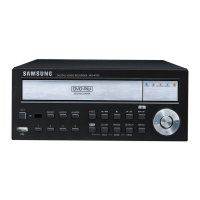
4 CHANNEL DVR
User Manual
SRD-470/470D

Table of Contents

Other manuals for Samsung SRD-470

Questions and Answers

  • H
    hdukeAug 18, 2025
    What to do if the alarm won't turn off on my Samsung DVR?
    • B
      Brenda ContrerasAug 19, 2025
      If the alarm on your Samsung DVR persists, even after pressing the [ALARM] button, try these steps: 1. Press the [MENU] button. 2. Go to Monitoring Mode and set the duration of event monitoring to Off to release the event monitoring mode. 3. Go to Event Record Mode - Alarm (Motion Detection/Video Loss) and deactivate the alarm sound. 4. In Event Record Mode - Alarm (Motion Detection/ Video Loss), set the mode to Off to release the event.
  • S
    Shari FieldsAug 20, 2025
    Why doesn't my Samsung DVR recognize all the installed HDDs?
    • H
      Heidi TravisAug 21, 2025
      If your Samsung DVR doesn't recognize all installed HDDs, it might need more time to recognize them. Wait a moment and try again. If the problem continues, it could be due to a mechanical error with the HDD. Try using a different HDD to see if that resolves the issue.
  • M
    mooresarahAug 23, 2025
    How to switch to Live mode on Samsung SRD-470 during playback?
    • J
      John ParkAug 23, 2025
      If your Samsung DVR player doesn't switch to Live mode during playback, press the Stop [@] button on the DVR or remote control. Alternatively, click the [ ] icon on the launcher to return to Live mode.
  • W
    walkerjohnAug 26, 2025
    Why won't my backup data play on my PC or DVR from Samsung SRD-470?
    • J
      Joel MillerAug 26, 2025
      If backup data from your Samsung DVR isn't playing on your PC or another DVR, consider these points: * When backing up data, select the correct player option: either PC or DVR. * If using a PC, ensure the backup file format is either AVI or SEC. * If using a DVR, format the backup files using the DVR.
  • E
    emilytorresAug 27, 2025
    Why doesn't the Channel button work on the Live screen of my Samsung DVR?
    • C
      Chad JohnstonAug 28, 2025
      If the Channel button isn't working on the Live screen of your Samsung DVR, it's likely because you're in event monitoring mode. To exit this mode, press the [ALARM] button. After exiting, you should be able to select a channel.
  • J
    Jamie GutierrezAug 30, 2025
    What to do if my Samsung SRD-470 isn't recording when I press the REC button?
    • C
      Crystal MirandaAug 30, 2025
      If you press the [REC] button on the front panel of your Samsung DVR and the REC indicator doesn't flash, and the player doesn't start recording, check the following: * Ensure there is free space on the HDD for recording. * Verify that the record mode is set to ON in the record mode settings.
  • J
    johnsondonaldSep 1, 2025
    Why can't I move the cursor to the Start button in the calendar search on my Samsung SRD-470?
    • J
      Joseph WellsSep 1, 2025
      If you're having trouble moving the cursor to the Start button during a calendar search on your Samsung DVR, make sure that both the channel and the date you want to play are marked with the V symbol. You need to check both before you can use the Start button.
  • S
    Sharon PowellSep 3, 2025
    Why do some channels on my Samsung SRD-470 DVR show only a black screen?
    • J
      jacksonwendySep 3, 2025
      If your Samsung DVR displays only a black screen on some channels, even though they are receiving video sources, try the following: 1. Check if the camera connected to the system properly displays the image. 2. Verify that the camera is properly supplied with power. 3. If the issue occurs on a channel with a weak video signal from a video distributor connected to multiple systems, input the camera's video source directly into the DVR.
  • M
    Michael HeathSep 6, 2025
    What to do if my Samsung SRD-470 DVR won't turn on?
    • L
      Larry GilmoreSep 6, 2025
      If your Samsung DVR is not turning on and the front panel indicator is not working, check the following: 1. Ensure the power supply system is properly connected. 2. Check the system for the correct input voltage from the power source. 3. If the problem persists, inspect the power supplier and replace it if necessary.
  • T
    Timothy JenkinsSep 8, 2025
    Why does the PTZ button not work on my Samsung DVR?
    • S
      Samuel RomanSep 8, 2025
      If the [PTZ] button on the Live screen of your Samsung DVR isn't responding, go to Menu ? Camera and check if the current protocols and other settings in the PTZ device are properly configured according to the PTZ camera.

Summary

Important Safety Instructions

Installation

Checking the installation environment

Guidelines for optimal environmental setup and rack mounting.

HDD Addition

Instructions and cautions for installing additional hard drives.

Connecting with Other Device

Live

LIVE MODE

Displaying multiple live video images in different screen modes.

Using the DVR

SYSTEM SETUP

Configuring system properties like date, time, and language.

Setting the Device

Configuring camera, storage, remote, POS, and monitor settings.

SETTING THE RECORDING

Setting up scheduled, event, and continuous recording options.

SETTING THE EVENT

Setting up sensor, motion, and video loss detection parameters.

NETWORK CONFIGURATION

Configuring network settings for remote monitoring and mail forwarding.

Search & Play

PLAYBACK

Playing back recorded data stored on the HDD or backup.

Web Viewer

Permission Management

Managing user permissions and access rights.

Troubleshooting

Samsung SRD-470 Specifications

General IconGeneral
ModelSRD-470
CategoryDVR
Recording Rate120 fps
Storage CapacityUp to 2TB
Hard Drive CapacityUp to 2TB
Compression FormatH.264
Network InterfaceEthernet
Power Supply12V DC
Remote ViewingYes
Motion DetectionYes
Operating Temperature0°C to 40°C
Recording Resolution720x480
Hard Drive Support1 SATA HDD
Video Inputs4 x BNC
Audio Inputs/Outputs1 x RCA In, 1 x RCA Out

Related product manuals