EasyManua.ls Logo

Samsung SRD-442 - User Manual

Samsung SRD-442
124 pages
Print Icon
To Next Page IconTo Next Page
Loading...
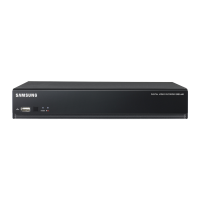
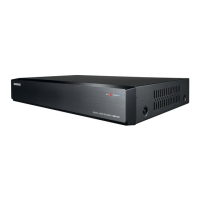
4 CHANNEL DVR
User Manual
SRD-442

Table of Contents

Other manuals for Samsung SRD-442

Questions and Answers

  • M
    Melinda WilsonAug 19, 2025
    What to do if my Samsung DVR doesn't recognize all connected external HDDs?
    • C
      Cathy RamirezAug 19, 2025
      If your Samsung DVR doesn't recognize all installed disks when you've connected multiple external HDDs, it may simply need more time to recognize them. Try again in a moment. If the problem persists, try using a different HDD.
  • S
    smithjoseAug 21, 2025
    Why doesn't my Samsung SRD-442 recognize the new HDD I installed?
    • K
      ktorresAug 21, 2025
      If you have installed an additional HDD on the DVR but it does not recognize the HDD, see the compatibility list to check if the additional HDD is supported by the DVR.
  • M
    mwhiteAug 23, 2025
    Why doesn't my Samsung DVR recognize the external SATA HDD I connected?
    • D
      dianacraigAug 23, 2025
      If you have connected an external storage device (external SATA HDD) to the DVR but the DVR seems not to recognize it, see the compatibility list of external storage devices to check if the connected device is supported by the DVR.
  • K
    Kimberly RamosAug 26, 2025
    What to do if the 'NO HDD' icon appears on my Samsung DVR?
    • W
      Walter JimenezAug 26, 2025
      If the 'NO HDD' icon and an error message appear, first check the HDD connection. If the problem continues under normal conditions, contact a service center to have the HDD checked.
  • D
    David MooreAug 28, 2025
    Why doesn't the Channel button work on my Samsung SRD-442?
    • K
      Kristen NelsonAug 28, 2025
      If the channel button on your Samsung DVR's live screen isn't working, it might be because you're in event monitoring mode. To exit, press the [ALARM] button on the remote control. Then, you should be able to select a channel.
  • D
    David DixonAug 30, 2025
    How to improve recording quality on Samsung SRD-442 DVR?
    • L
      Lawrence MendezAug 30, 2025
      If the image quality of your recorded data isn't satisfactory on your Samsung DVR, you can increase the resolution and quality level in Menu – Record – Quality / Resolution. Specify a bigger size when specifying the recording size and specify a bigger level for the recording quality. Keep in mind that increasing these settings will increase the data size.
  • H
    Heather WardSep 2, 2025
    How to switch to Live playback mode on Samsung DVR?
    • J
      James CoxSep 2, 2025
      If your Samsung DVR player isn't switching to Live playback mode, press the Stop [@] button on the DVR or the remote control, or click the [ ] icon on the launcher to switch to Live mode.
  • S
    Steven VelasquezSep 4, 2025
    Why won't backup data play on my Samsung SRD-442 or PC?
    • T
      Terri WestSep 4, 2025
      If you are backing up data, you have choices about the player either: PC or DVR. If you are using the PC to play the data, the format of the backup file should be either AVI or SEC. If you are using the DVR for this purpose, formatting backup files should be done by the DVR.
  • C
    Charles ShortSep 6, 2025
    What to do if some channels are black on my Samsung SRD-442 DVR?
    • R
      Richard BrooksSep 6, 2025
      If some channels on your Samsung DVR display only a black screen, check if the camera connected to the system properly displays the image. Also, check if the camera is properly supplied with power. You can also input the video source of the camera directly into the DVR.
  • E
    Elizabeth RobinsonSep 8, 2025
    What to do if ESC key doesn't exit fullscreen on Samsung DVR WebViewer?
    • I
      Isabella MaySep 9, 2025
      If you press the ESC key in full screen mode of the WebViewer, the system does not switch to a normal split mode, press the ALT+TAB keys to select ‘ACTIVE MOVIE’ and press the ESC key again.

Summary

4 CHANNEL DVR User Manual

IMPORTANT SAFETY INSTRUCTIONS

Essential safety guidelines and precautions for operating the DVR.

Features

Detailed list of the DVR's capabilities and functionalities.

Part Names and Functions (Front)

Identification and function of front panel components.

Part Names and Functions (Rear)

Identification and function of rear panel connectors and ports.

INSTALLATION

HDD Addition

Instructions for adding or replacing the internal Hard Disk Drive.

CONNECTING WITH OTHER DEVICE

CONNECTING THE NETWORK

Guidance on establishing network connectivity for remote access.

live

Login

Procedure for logging into the DVR system to access features.

LIVE SCREEN CONFIGURATION

Understanding the icons and status indicators on the live screen.

LIVE MODE

Explanation of different display modes for live video feeds.

using the DVR

SYSTEM SETUP

Configuring system properties, date, time, and language.

Permission Management

Setting user permissions and administrator access.

Recording Schedule

Setting up scheduled recording times for the DVR.

NETWORK CONFIGURATION

Configuration of network settings for remote access and monitoring.

Search & Play

SEARCH

Accessing and performing searches for recorded video data.

PLAYBACK

Playing back recorded data stored on the DVR or backup.

WEB VIEWER

CONNECTING WEB VIEWER

Steps to connect and access the DVR via a web browser.

USING LIVE VIEWER

Interface and operation of the live viewer in Web Viewer.

VIEWER SETUP

Configuring settings for the Web Viewer remotely.

TROUBLESHOOTING

Samsung SRD-442 Specifications

General IconGeneral
BrandSamsung
ModelSRD-442
CategoryDVR
LanguageEnglish

Related product manuals