EasyManua.ls Logo

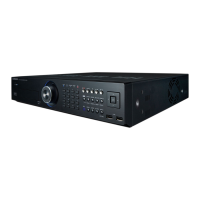
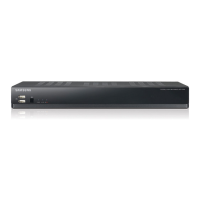
Samsung RD-840/1640 - User Manual

Samsung RD-840/1640
124 pages
Print Icon
To Next Page IconTo Next Page
Loading...
8 CHANNEL/
16 CHANNEL
DVR
User Manual
SRD-840/1640

Table of Contents

Questions and Answers

  • D
    Diana SheltonAug 17, 2025
    How to fix a Samsung RD-840/1640 that won't turn on?
    • M
      Monica RobertsAug 17, 2025
      If your Samsung DVR system isn't turning on and the front panel indicator is off, check the following: * Ensure the power supply system is properly connected. * Verify the input voltage from the power source. If the problem continues, the power supplier may be faulty and require replacement.
  • M
    Michael SmithAug 20, 2025
    What to do if the REC button on my Samsung RD-840/1640 DVR remote isn't working?
    • S
      smithaudreyAug 20, 2025
      If the REC indicator doesn't flash and the player doesn't start recording when you press the [REC] button on the remote control of your Samsung DVR, check the following: * Verify that there is free space available on the HDD for recording. * Ensure that the record mode is set to ON in the record mode settings.
  • K
    Karen FosterAug 25, 2025
    How to improve the recording quality on my Samsung RD-840/1640 DVR?
    • V
      vandrewsAug 25, 2025
      To enhance the image quality of your Samsung DVR recordings, increase the resolution and quality level in Menu – Record – Quality / Resolution. Consider these options: 1) Resolution: Choose a larger recording size (4CIF > 2CIF > CIF). CIF format recordings may appear deteriorated if enlarged from a small size. 2) Record Quality: Specify a higher level for the recording quality. Keep in mind that increasing the resolution and recording quality will increase the data size, filling the HDD faster and potentially leading to more frequent overwriting of existing data.
  • T
    Timothy CunninghamAug 27, 2025
    Why do some channels on my Samsung DVR show a black screen?
    • D
      Diane DelgadoAug 27, 2025
      If some channels on your Samsung DVR display a black screen despite receiving video sources, try these troubleshooting steps: * Check if the camera connected to the system properly displays the image. The issue might be with a camera not correctly connected to the video source. * Ensure the camera is properly supplied with power. * If the problem occurs on a channel with a weak video signal from a video distributor connected to multiple systems, input the camera's video source directly into the DVR to identify and resolve the problem.
  • S
    Sylvia MartinAug 30, 2025
    How to turn off the alarm on a Samsung RD-840/1640?
    • L
      Lisa GreenAug 30, 2025
      If pressing the [ALARM] button on your Samsung DVR doesn't stop the alarm, press the [MENU] button and try the following: 1) To release the event monitoring mode: Go to Monitoring Mode and set the duration of the event monitoring to Off. 2) To release the alarm sound: Go to Event Record Mode - Alarm (Motion Detection/Video Loss) and deactivate the alarm sound. 3) To release the event: Go to Event Record Mode - Alarm (Motion Detection/Video Loss) and set the mode to Off.
  • L
    Laurie DunnSep 2, 2025
    Why doesn't the Channel button work on the Live screen of my Samsung RD-840/1640 DVR?
    • N
      Nancy AustinSep 2, 2025
      The Channel button on your Samsung DVR's Live screen won't function if the current screen is in event monitoring mode. To exit this mode, press the [ALARM] button. After exiting, you'll be able to select a channel.
  • M
    Matthew BurnettSep 6, 2025
    Why can't I select the Start button in the calendar search on my Samsung RD-840/1640 DVR?
    • M
      Manuel Phelps DDSSep 6, 2025
      If the cursor won't move to the Start button when you initiate a calendar search on your Samsung DVR, ensure that the channel and date you wish to play are marked with the V symbol. Both the channel and date must be checked before you can use the Start button.
  • L
    Lisa BlackSep 9, 2025
    Why is the PTZ button not working on my Samsung RD-840/1640 DVR?
    • K
      kellysandraSep 9, 2025
      If there is no response when you press the [PTZ] button on the Live screen of your Samsung DVR, navigate to Menu ¬ Camera. Verify that the current protocols and other settings in the PTZ device are correctly configured according to the PTZ camera.
  • J
    Jessica SantosNov 13, 2025
    Why is my Samsung RD-840/1640 DVR not recording?
    • G
      garrettdarrenNov 13, 2025
      If your Samsung DVR isn't recording, first check if you see a live image on the screen. If there is no image, it indicates that recording will not work. If there is an image, the recording settings may not be properly configured. To resolve this: 1) For Manual Recording: Press the [REC] button on the remote control to start recording. 2) For Scheduled Recording: Configure the desired time in Menu – Record - Recording Schedule. Recording will start at the specified time. You can also configure the type of recording: - Continuous: Recording proceeds at the specified time regardless of conditions. - Event: Recording occurs only when an event such as alarm, motion detection, or video loss is triggered. - Continuous / Event: Continuous recording occurs if no event is found. If an eve...

Summary

Introduction and Overview

IMPORTANT SAFETY INSTRUCTIONS

Read and follow all safety instructions before using the unit.

Hardware and Setup

INSTALLATION

Notes to take before installing the product.

CONNECTING THE NETWORK

Diagrams for connecting the DVR to a network via Ethernet or router.

Live Mode Operations

Login

How to access the DVR or restricted menus by logging in.

DVR Configuration

Search and Playback

Appendix

PRODUCT SPECIFICATION

Detailed technical specifications for SRD-1640 and SRD-840 models.

TROUBLESHOOTING

Common issues and their countermeasures for the DVR system.

Samsung RD-840/1640 Specifications

General IconGeneral
BrandSamsung
ModelRD-840/1640
CategoryDVR
LanguageEnglish

Related product manuals