Advanced Features
Setup
m
m
Using the Setup Menu
Im Slide Show speed: Select to control the slide show speed. You can
select Fast, Normal or Slow.
Im Background Music: Select to determine whether to play an MP3 file
during a slide show. You can select Music On or Music Off,
ml Background Music Setting: While a slide show is in progress, use
the Background Music Setting to select a music file to listen to.
Select an MP3 file as the background music.
Repeat Music: Select to determine whether to repeat playing the
music when all MP3 files in the current folder have been played.
Screen Saver: Select to set the waiting time before the screen saver appears. The screensaver will appear when no
button is pressed for 10 min, 20 min, 40 min, 1 hour or Off.
ml Safe Remove: You can remove the device safely from the TV.
Playing the selected photos / music files
1. Press the Yellow button.
2. Repeat the above operation to select desired photos / music files.
Selected photos or files are marked with the symbol _/. To cancel a selection, press the Yellow button again.
3. Press the FCq(Play)/ ENTERI_ button to play the selected photos or files.
What is Anynet+?
Anynet+ is a function that enables you to control all connected Samsung devices that support Anynet+ with your Samsung
TV's remote. The Anynet+ system can be used only with Samsung devices that have the Anynet+ feature, To be sure your
Samsung device has this feature, check if there is an Anynet+ logo on it,
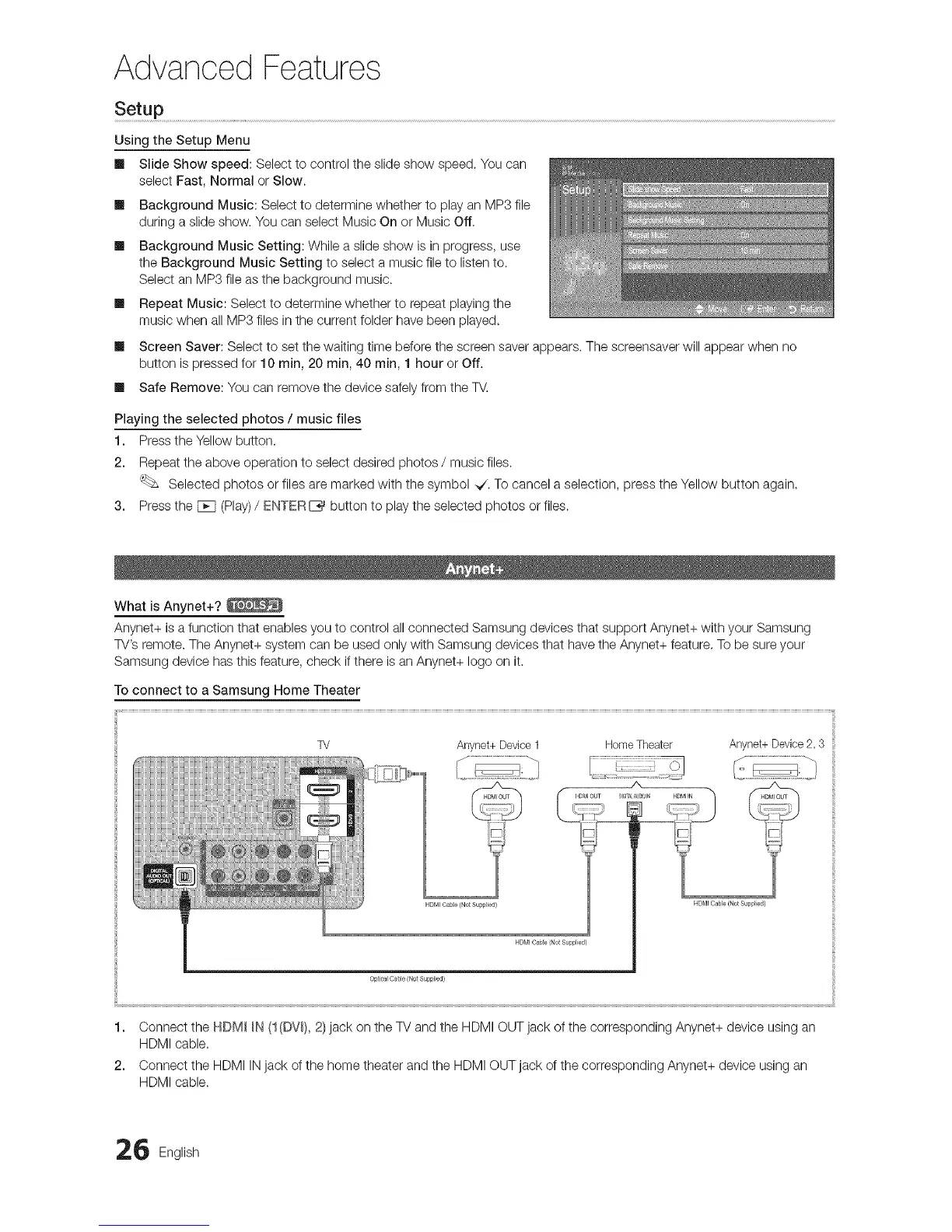
To connect to a Samsung Home Theater
TV Anynet+Device1 HomeTheater Anynet+Device2,3
A
H©MI Cabe (No_ Supplied)
H Ofv}l Cabe {Not Supplied)
HDMI Cable/Not Supplied)
Optical Cable (Not Supplied)
1. Connect the HDM_ _N (1(DV_),2)jack on the TV and the HDMI OUT jack of the corresponding Anynet+ device using an
HDMI cable.
2. Connect the HDMI INjack of the home theater and the HDMI OUT jack of the corresponding Anynet+ device using an
HDMI cable.
6 English





 To Next Page