English - 36
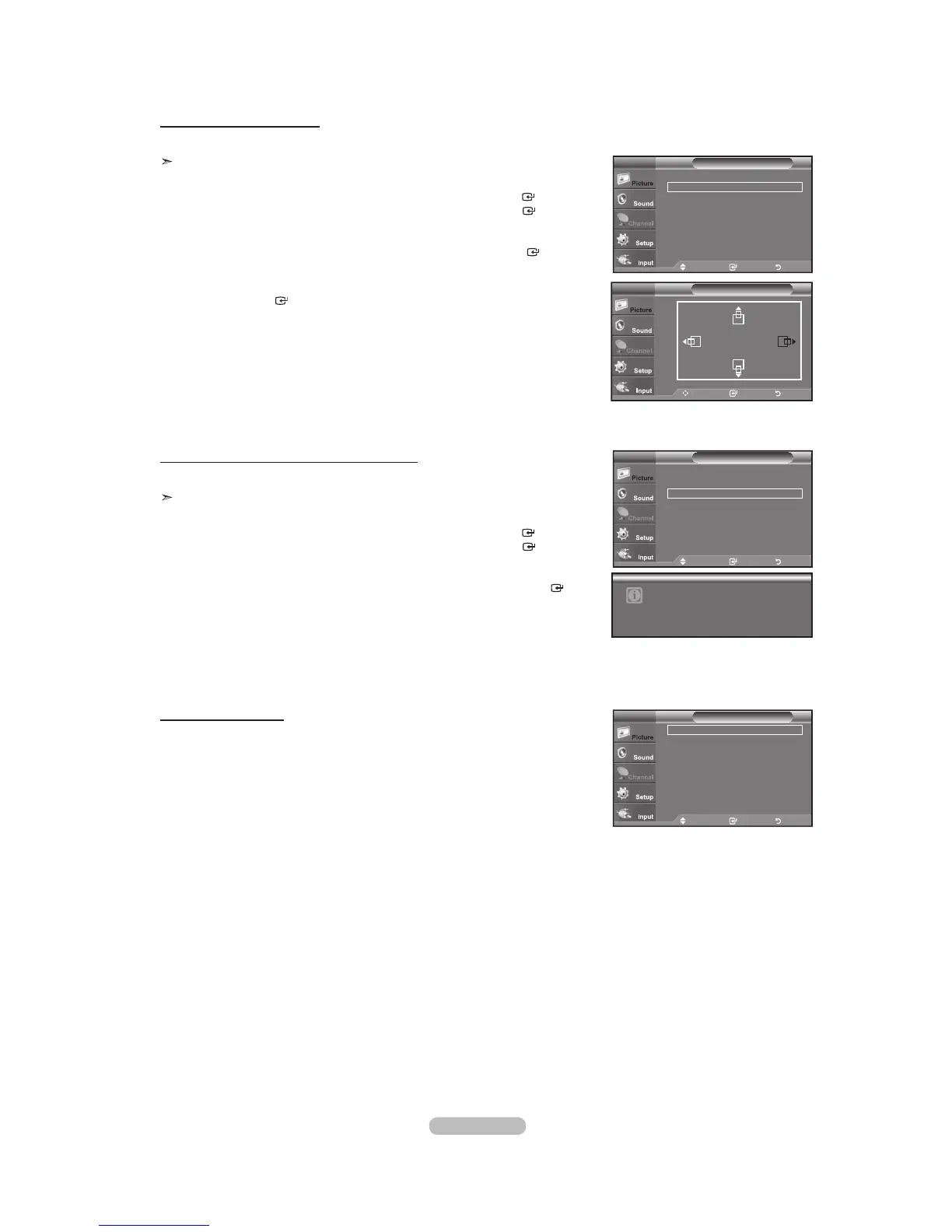
Changing the Screen Position
Adjust the PC’s screen positioning if it does not fit the TV screen.
Preset: Press the SOURCE button to select PC mode.
1. Press the MENU button to display the menu.
Press the or button to select "Picture", then press the ENTER
button.
Press the or button to select "Screen", then press the ENTER
button.
2. Press the or button to select "Position", then press the ENTER
button.
3. Press the or button to adjust the V-Position.
Press the or button to adjust the H-Position.
Press the ENTER
button.
Press the EXIT button to exit.
Initializing the Screen Position, Coarse and Fine
You can replace all image settings with the factory default values.
Preset: Press the SOURCE button to select PC mode.
1. Press the MENU button to display the menu.
Press the or button to select "Picture", then press the ENTER
button.
Press the or button to select "Screen", then press the ENTER
button.
2. Press the or button to select "Image Reset", then press the ENTER
button.
Press the EXIT
button to exit.
Move Enter Return
Image Lock
Position
Image Reset
Resolution : 1360x768 @60Hz
ScreenPC
Move Enter Return
Image Lock
Position
Image Reset
Resolution : 1360x768 @60Hz
ScreenPC
Image Reset is completed.
TV
Move Enter Return
Position
Viewing the Resolution
You can confirm the resolution configured for the PC.
Move Enter Return
Image Lock
Position
Image Reset
Resolution : 1360x768 @60Hz
ScreenPC


 To Next Page