EasyManua.ls Logo

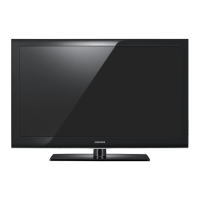
Samsung 750 series - User Manual

Samsung 750 series
164 pages
Print Icon
To Next Page IconTo Next Page
Loading...
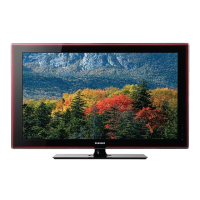
LCD TV
user manual
imagine the possibilities
Thank you for purchasing a Samsung product.
To receive a more complete service, please
register your product at
www.samsung.com/global/register
Model Serial No.

Table of Contents

Questions and Answers

  • A
    April HernandezJul 26, 2025
    Why is Anynet+ not working on my Samsung 750?
    • J
      john31Jul 26, 2025
      If Anynet+ is not working on your Samsung LCD TV, here are a few things to check: * Ensure the device is an Anynet+ compatible device, as the system only supports these. * Connect only one receiver (home theater system). * Verify the Anynet+ device's power cord and Video/Audio/HDMI 1.3 cable connections are secure. * Confirm that Anynet+ (HDMI-CEC) is enabled in the Anynet+ setup menu. * Make sure the TV remote is in TV mode and is not an Anynet+ exclusive remote. * Note that Anynet+ may not function during certain operations like channel searching, WISELINK Pro, or Plug & Play. * After connecting or disconnecting the HDMI 1.3 cable, rescan for devices or power cycle the TV. * Confirm the Anynet+ Function of the Anynet+ device is set to on.
  • M
    Mr. Mitchell DavisAug 3, 2025
    How to start Anynet+ on Samsung 750 LCD TV?
    • M
      Mark FloresAug 3, 2025
      To start Anynet+ on your Samsung LCD TV: * Ensure the Anynet+ device is properly connected to the TV. * Verify that Anynet+ (HDMI-CEC) is set to 'On' in the Anynet+ Setup menu. * Press the TV button on the TV remote control to switch to TV mode, then press the TOOLS button to display the Anynet+ menu and select your desired option.
  • D
    Debra HicksAug 9, 2025
    How do I exit Anynet+ on my Samsung LCD TV?
    • K
      Kristine MckinneyAug 9, 2025
      To exit Anynet+ on your Samsung LCD TV, you have several options: * Select 'View TV' in the Anynet+ menu. * Press the SOURCE button on the TV remote and select a device other than an Anynet+ device. * Press CH, CH LIST, PRE-CH, or FAV.CH to change the TV mode. (Note that the channel button only works when a tuner-embedded Anynet+ device is not connected.)
  • H
    hjenningsAug 17, 2025
    What to do if the message 'Connecting to Anynet+ device...' appears on the Samsung 750 screen?
    • M
      Mary MartinezAug 17, 2025
      If the message 'Connecting to Anynet+ device...' appears on your Samsung LCD TV screen, you cannot use the remote control during the configuration or switching process. Please wait until the Anynet+ setting or switching to view mode is complete before using the remote control.

Summary

General Information

Remote Control

Describes functions of each button on the remote control.

Connections

Connecting a DVD Player or Cable Box;Satellite receiver (Set-Top Box) via HDMI

Explains how to connect external devices using an HDMI cable for digital audio/video.

Connecting a PC

Explains how to connect a PC to the TV using D-Sub or HDMI/DVI cables.

Operation

Changing the Picture Standard

Guides on selecting picture modes (Dynamic, Standard, Movie) for optimal viewing.

Sound Control

Covers changing sound standards, customizing sound, and using special audio features.

Viewing Picture-in-Picture

Explains how to activate and use the PIP feature to watch two sources simultaneously.

Function Description

Using the V-Chip

Explains how to set up the V-Chip feature to restrict inappropriate content.

Upgrading the Software

Provides instructions on how to upgrade the TV's firmware using a USB drive.

WISELINK Pro

Using the WISELINK Pro Function

Introduces the WISELINK Pro function for viewing media files from USB devices.

Using the Photo List

Guides on viewing and sorting photos saved on a USB memory device.

Using the Music List

Guides on viewing and sorting music files saved on a USB memory device.

Using the Movie List

Guides on viewing and sorting movie files saved on a USB memory device.

WISELINK Pro-DLNA

Using the DLNA Function

Explains how DLNA enables playing content saved on a DLNA server over the network.

Contents Library

Network Settings and InfoLink

Using InfoLink

About Anynet+

Troubleshooting for Anynet+

Provides solutions for common Anynet+ issues like not working or device not detected.

Appendix

Troubleshooting

Offers solutions for common TV problems like poor picture, sound issues, and remote control malfunctions.

Samsung 750 series Specifications

General IconGeneral
USB Ports2
Smart TVYes
BacklightLED
Component Video Input1
Composite Video Input1
Built-in Wi-FiYes
3D CapableNo
Sound Output20W
Refresh Rate60 Hz
HDMI Ports3
Screen Size40 inches

Related product manuals