EasyManua.ls Logo

Samsung 750 - User Manual

Samsung 750
282 pages
Print Icon
To Next Page IconTo Next Page
Loading...
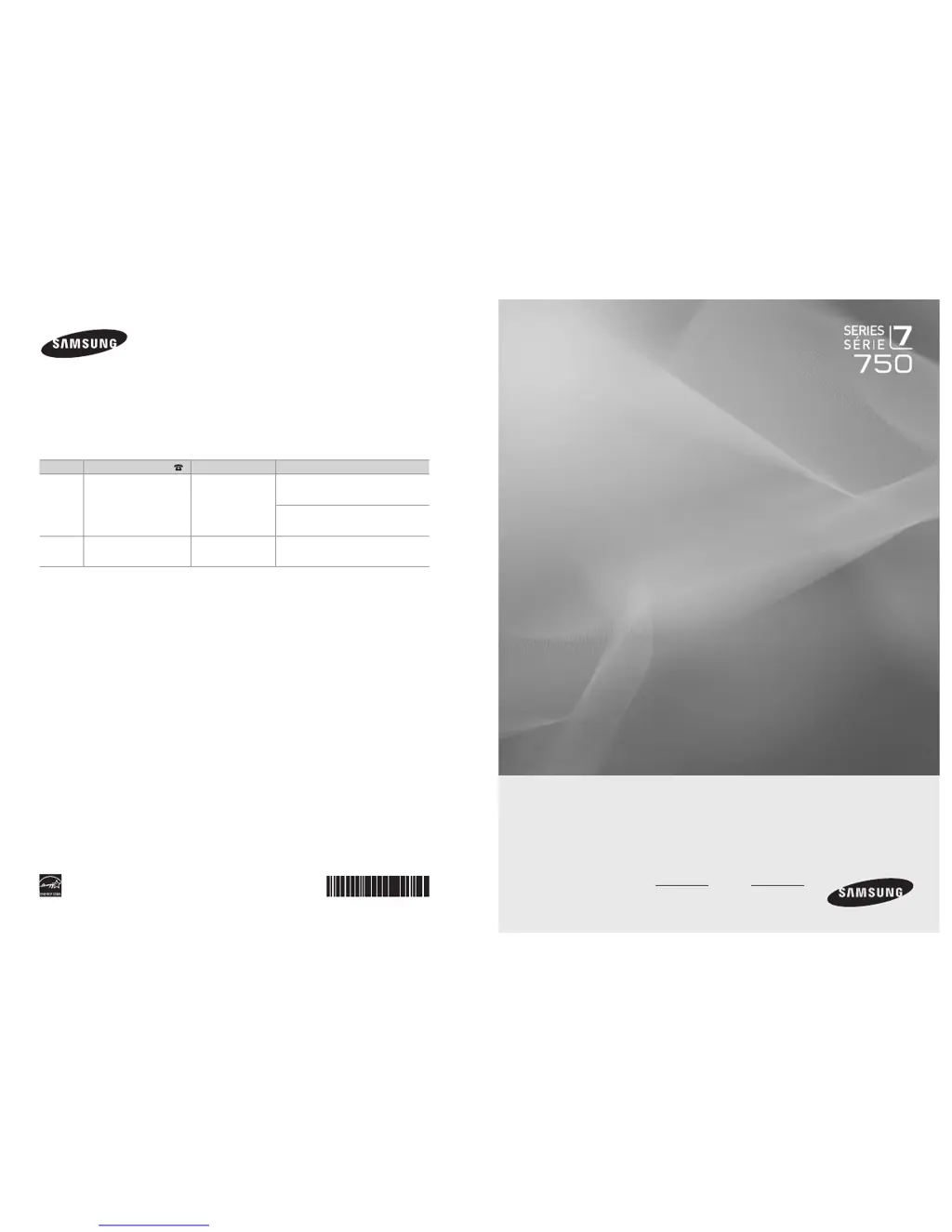
Contact SAMSUNG WORLDWIDE
If you have any questions or comments relating to Samsung products, please contact the SAMSUNG
customer care center.
Comment contacter Samsung dans le monde
Si vous avez des suggestions ou des questions concernant les produits Samsung, veuillez contacter le Service
Consommateurs Samsung.
Country
Customer Care Center
Web Site Address
CANADA 1-800-SAMSUNG(726-7864) www.samsung.com/ca
Samsung Electronics Canada Inc., Customer
Service 55 Standish Court Mississauga,
Ontario L5R 4B2 Canada
Samsung Electronique Canada Inc.,
Service à la Clientèle 55 Standish Court
Mississauga, Ontario L5R 4B2 Canada
U.S.A 1-800-SAMSUNG(726-7864) www.samsung.com/us
Samsung Electronics America, Inc.
105 Challenger Road
Ridgefield Park, NJ 07660-0511
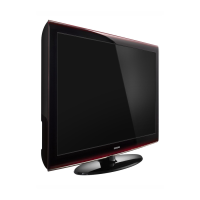
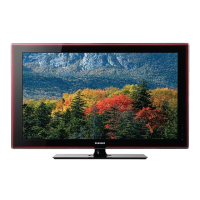
LCD TV
user manual
imagine the possibilities
Thank you for purchasing this Samsung product.
To receive more complete service, please register
your product at
www.samsung.com/global/register
Model Serial No.
BN68-01470D-03
2008-08-05 6:50:38

Table of Contents

Questions and Answers

  • D
    Douglas RomeroJul 30, 2025
    Why is Anynet+ not working on my Samsung Projection TV?
    • G
      Gabrielle GriffithJul 30, 2025
      If Anynet+ is not working on your Samsung Projection TV, first ensure the connected device is an Anynet+ compatible device, as the system only supports these. Verify that only one receiver (home theater) is connected. Check that the Anynet+ device's power cord is properly connected, along with its Video/Audio/HDMI 1.3 cable connections. Confirm that Anynet+ (HDMI-CEC) is set to 'On' in the Anynet+ setup menu and that the TV remote control is in TV mode. Also, ensure you are using the Anynet+ exclusive remote control. Note that Anynet+ may not function during certain operations like searching channels or using WISELINK. If you connect or remove the HDMI 1.3 cable, search for devices again or turn your TV off and on. Finally, check if the Anynet+ function of the Anynet+ device is enabled.
  • S
    stephen50Aug 5, 2025
    What to do if the connected device is not displayed on my Samsung Projection TV?
    • A
      Ashlee JohnsonAug 6, 2025
      If the connected device is not displayed on your Samsung Projection TV, verify that the device supports Anynet+ functions and that the HDMI 1.3 cable is properly connected. Check that Anynet+ (HDMI-CEC) is set to 'On' in the Anynet+ setup menu. Try searching for Anynet+ devices again. Ensure you are using an HDMI 1.3 cable, as some HDMI cables may not fully support Anynet+ functions.
  • M
    Mrs. Erika VazquezAug 11, 2025
    How to start Anynet+ on a Samsung Projection TV?
    • J
      Jeffrey Sharp MDAug 11, 2025
      To start Anynet+ on your Samsung Projection TV, first check that the Anynet+ device is properly connected to the TV and that Anynet+ (HDMI-CEC) is set to 'On' in the Anynet+ Setup menu. Then, press the TV button on the TV remote control to switch to TV mode. Next, press the TOOLS button to display the Anynet+ menu, and then select the menu option you want.
  • W
    William MontgomeryAug 17, 2025
    How to exit Anynet+ on a Samsung Projection TV?
    • O
      omichaelAug 17, 2025
      To exit Anynet+ on your Samsung Projection TV, select 'View TV' in the Anynet+ menu. Alternatively, press the SOURCE button on the TV remote control and select a device other than an Anynet+ device. You can also press CH, CH LIST, PRE-CH, and FAV.CH to change the TV mode, but note that the channel button only works when an Anynet+ device with a built-in tuner is not connected.
  • N
    nicholaslarsonAug 23, 2025
    What to do if 'Connecting to Anynet+ device...' appears on the screen of my Samsung Projection TV?
    • B
      Brittany StoutAug 23, 2025
      When the message 'Connecting to Anynet+ device...' appears on the screen of your Samsung Projection TV, you cannot use the remote control while Anynet+ is configuring or switching to a view mode. Use the remote control after the Anynet+ setting or switching to view mode is complete.

Samsung 750 Specifications

General IconGeneral
BrandSamsung
Model750
CategoryLCD TV
LanguageEnglish

Related product manuals