63
Music
1. In Idle mode, press the Left Navigation key ➔
Music
➔
Music Player
or press ➔ My Stuff ➔
Music
➔
Music Player
. You can also use the Multitasking key and select Music Player.
2. Select a folder and press the Select soft key or the key.
3. Highlight a song to play and press the key.
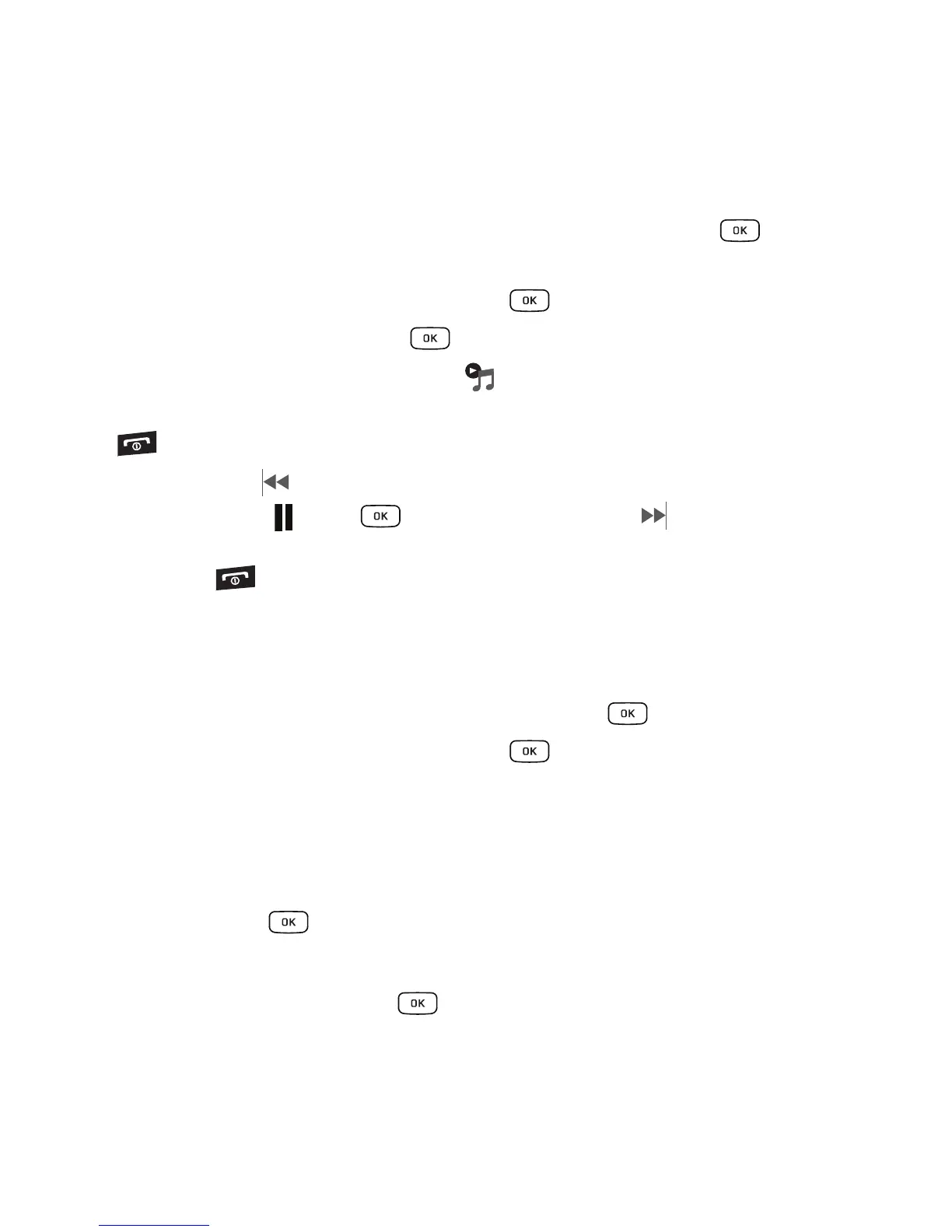
4. Once the music starts to play the music icon ( ) displays on the top of the screen.
5. To hide the Music Player, press the Options soft key and select the Hide Player option or press the
key once.
6. Press the Rewind (Left Navigation key) to navigate to the previous song. To temporarily stop the
music, press Pause (Center key). Press the Fast Forward (Right Navigation key) to
advance to the next song. While playing the music in Idle mode, you can exit the Music player by
pressing the key.
After the Music Player enables, you can listen to music in the background while performing other phone
functions.
Images
1. In Idle mode, press the Left Navigation key ➔
Images
or press ➔
My Stuff
➔
Images
.
2. Select a folder and press the Select soft key or the key.
The following options are available:
Get New Images
Using the
Get New Images
option allows you to access your service provider’s website to download new images
using the web browser.
1. In Idle mode, press ➔
My Stuff
➔
Images
➔
Get New Images
.
It launches the web browser.
2. Select an image entry and press the key.





 To Next Page