73
2.
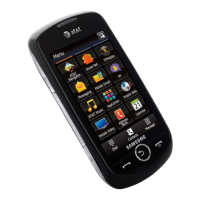
Press the Menu soft key, which activates the icons across the top of the display, use the navigation keys
to select the icon, then select the
Camcorder
option from the list.
3. Adjust the image by aiming the camcorder at the subject.
4. Press the key to begin capturing video.
5. Press the Stop soft key to stop the recording and save the video file to your
Video
folder.
6. Save the video and press the key to play it back.
7. Press the key to return to the camcorder preview.
Tip:
You can use the keypad to quickly change the camcorder options using the shortcut keys.
Camcorder Options
Camcorder options are represented by icons across the top of the screen. Select the Menu soft key to access
the various choices for each icon.
Following is a list of the Camcorder icons:
Camcorder mode: allows you to switch from taking a photo to shooting a video clip using the camera’s
camcorder mode.
Shooting mode: allows you to set the shooting mode. Options are:
Normal: records video clip in Normal mode.
Multimedia Message: records a video clip (with a specific size limit) to transmit in a Multimedia Message.
Video clip size: indicates the recording size of the resulting video clip. Options are176x144 and 320x240
(Normal shooting mode only).
White Balance:allows you to set the white balance for the camcorder. Select Auto, Daylight, Incandescent,
Fluorescent, or Cloudy.
320
240



 To Next Page