EasyManua.ls Logo

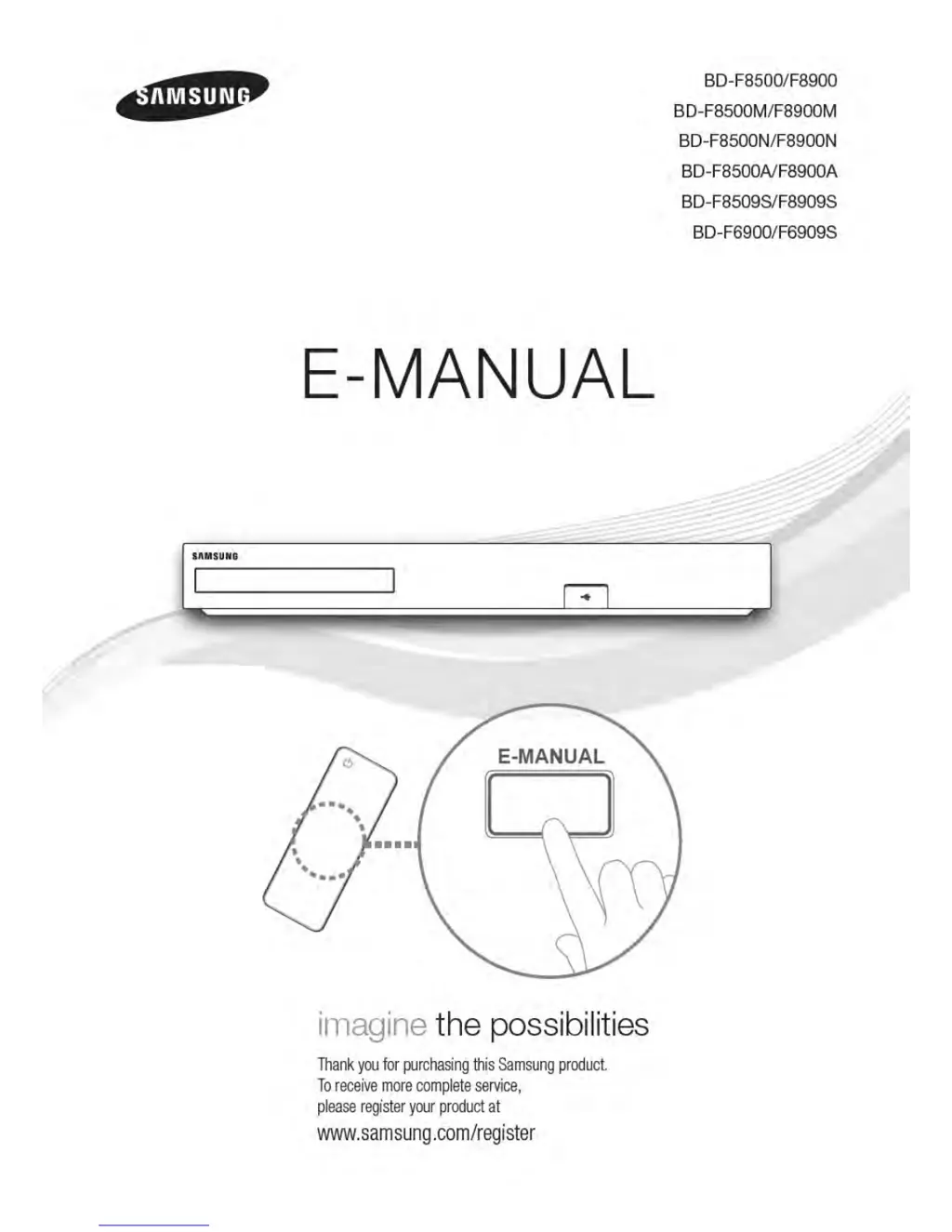
Samsung BD-F8900 - User Manual

Samsung BD-F8900
113 pages
Print Icon
To Next Page IconTo Next Page
Loading...

Table of Contents

Questions and Answers

  • T
    Timothy McknightSep 10, 2025
    Why does an error occur when using BD-Live service on Samsung Blu-ray Player?
    • J
      James TaylorSep 12, 2025
      If you encounter an error when using the BD-Live service on your Samsung Blu-ray Player, check that the memory device has at least 1 GB of free space to accommodate the BD-Live service. You can check the available size in Delete BD Data.
  • M
    Michelle JohnsonAug 22, 2025
    How to fix Samsung Blu-ray Player remote control not working?
    • A
      Andrew BanksAug 23, 2025
      If no operation can be performed with the remote control of your Samsung Blu-ray Player, check the batteries and replace them if needed. Ensure you are within 6.1 meters of the player. For resetting the remote control, remove the batteries, hold down one or more buttons for several minutes, then reinstall the batteries.
  • M
    martinezmarioAug 25, 2025
    Why is there no HDMI output from my Samsung Blu-ray Player?
    • A
      Allen GregoryAug 26, 2025
      If your Samsung Blu-ray Player has no HDMI output, check the connection between the TV and the player's HDMI jack. Verify that your TV supports 576p, 720p, 1080i, or 1080p HDMI input resolution.
  • Z
    Zachary McgrathAug 27, 2025
    Why is AllShare connection unstable between Samsung Blu-ray Player and PC?
    • B
      Bobby FigueroaAug 27, 2025
      If the AllShare connection between your Samsung Blu-ray Player and PC is unstable, check if you have a firewall enabled. If so, disable the firewall function.
  • J
    Joseph DavisAug 28, 2025
    What to do if the screen is blocked on my Samsung Blu-ray Player?
    • N
      Nicole ShawAug 28, 2025
      If the screen is blocked because the HDMI output is set to a resolution your TV doesn't support (like 1080p), press the button on the top panel for more than 5 seconds when there's no disc inside and you are on the home screen. This will revert all settings to the factory defaults. Note that this will delete all stored user BD data.
  • L
    Lori CarrollAug 29, 2025
    What to do if my Samsung Blu-ray Player disc does not play?
    • L
      Laurie BarnesAug 29, 2025
      If your Samsung Blu-ray Player is not playing discs, make sure the disc is placed with the label side facing up. Also, check the region number of the Blu-ray or DVD disc to ensure it is compatible.
  • G
    gabrielgomezSep 18, 2025
    Why the screen ratio cannot be changed on Samsung Blu-ray Player?
    • R
      randall02Sep 18, 2025
      The Screen Ratio is fixed on your Blu-ray/DVD disc. This is not a problem with the product.
  • J
    Justin MaxwellSep 12, 2025
    What does the prohibition message mean on Samsung Blu-ray Player?
    • W
      Wendy MilesSep 12, 2025
      The prohibition message appears on the screen of your Samsung Blu-ray Player when an invalid button is pressed, the Blu-ray Disc/DVD’s software doesn’t support the feature (e.g., angles), or you’ve requested a title or chapter number or search time that is out of range.
  • S
    Shane BrooksSep 8, 2025
    How to connect to BD-Live server on Samsung Blu-ray Player?
    • E
      Elizabeth GoodSep 8, 2025
      If you're having trouble connecting to the BD-Live server with your Samsung Blu-ray Player, first check the network connection using the Network Status menu. Ensure a USB memory device with at least 1 GB of free space is connected. Verify that the BD-Live Internet Connection menu is set to Allow(All). If problems persist, contact the content provider or update the product firmware.
  • K
    Katherine DavisSep 5, 2025
    Why can't I see files in AllShare on my Samsung Blu-ray Player?
    • S
      Sean BrownSep 5, 2025
      If you can see folders shared through AllShare on your Samsung Blu-ray Player but cannot see the files, note that AllShare only displays files corresponding to the Videos, Photos, and Music categories. Files that do not correspond to these categories may not be displayed.

Summary

Connections

Connecting to a TV

Describes how to connect the player to a TV.

Connecting to an Audio System

Details connecting to an AV receiver via HDMI or Optical input.

Connecting to a Network Router

Explains wired and wireless network connections.

Settings

Display

Configuration options for display settings like 3D, screen size, aspect ratio.

Audio

Settings related to audio output and processing.

Wi-Fi Direct

Connecting devices wirelessly using Wi-Fi Direct.

AllShare Settings

Configuring network sharing options for AllShare.

Keyboard Settings

Configuring wireless USB keyboard connected to the product.

Mouse Settings

Configuring wireless USB mouse connected to the product.

Format Device

Formatting a selected storage device, erasing all data.

Anynet+ (HDMI-CEC)

Linking operations with other Samsung products via HDMI.

Broadcasting

Schedule Manager

Managing channel viewing and recording schedules.

Programme Rating Lock

Blocking programs based on their rating.

Subtitle

Adjusting subtitle display options.

Audio Language

Selecting preferred audio languages for playback.

Network

Network Status

Checking the current network and internet connection status.

Wired Network

Instructions for setting up a wired network connection.

Wireless Network

Instructions for setting up a wireless network connection.

Support

Software Update

Updating the player's software for performance improvements.

Reset

Restoring all settings to their default values.

Contact Samsung

Obtaining contact information for product assistance.

Media Play

Playing Files on a USB Device

Methods for playing media files from a USB device.

Using the AllShare Network Function

Playing media from PC or compatible devices over a network.

Controlling Video Playback

Using remote control buttons for video playback functions.

Controlling Music Playback

Using remote control buttons for music playback functions.

Playing Photo Contents

Instructions for playing photo content from various sources.

Recording

Functions and procedures for recording TV programs.

Timeshift function

Using the Timeshift feature to pause and rewind live TV.

Logging In to Your Samsung Account

Steps to log in to a Samsung account for services.

Before Using Movies & TV Shows or Apps

Initial setup procedures for Smart Hub, Movies, TV Shows, or Apps.

Using Apps

Downloading and running applications from Samsung Apps.

Screen Mirroring

Mirroring the screen of a smartphone or tablet onto the TV.

Using the Web Browser

Accessing the internet using the built-in web browser.

Linking Your Internet Service Accounts to the Player

Connecting player to internet services like Pandora.

Appendix

Supported Formats

Lists supported video, audio, and subtitle file formats.

Video File Support

Detailed list of supported video file extensions and codecs.

Video decoder

Specifications for supported video decoding capabilities.

Music File Support

Details of supported music file types, codecs, and ranges.

Troubleshooting

No operation can be performed with the remote control.

Solutions for when the remote control is unresponsive.

Disc does not play.

Steps to take when a disc cannot be played.

No audio.

Solutions for when there is no audio output.

The screen is blocked

Reasons for a blocked screen and how to resolve it.

Forgot PIN

Procedures for resetting a forgotten PIN.

Samsung BD-F8900 Specifications

General IconGeneral
3DYes
Depth282 mm
Width430 mm
Height55 mm
Weight2600 g
DisplayVFD
Aspect ratio16:9
HDD capacity1000 GB
Product colorBlack
Audio decodersDolby Digital, Dolby Digital Plus, Dolby Surround, Dolby TrueHD, DTS-HD Master Audio
Package weight3600 g
Playback modesNormal, Zoom
Cables includedAC
AC input voltage220 - 240 V
Disc types supportedBD-R, BD-RE, CD-R, CD-RW, DVD+R, DVD+RW, DVD-R, DVD-RW
Playback disc formatsBlu-Ray video, CD audio
Supported video modes1080p
Card reader integratedNo
USB 2.0 ports quantity2
Audio formats supportedAAC, LPCM, MP3, WAV
Image formats supportedJPG, MPO
Video formats supportedAVCHD, DIVX, MKV, MPEG2, MPEG4, WMV
Digital audio optical out1
Power consumption (standby)1 W
Power consumption (typical)33 W
Consumer Electronics Control (CEC)Anynet+
Deep color support-
Audio output channels7.1 channels

Related product manuals